There are two ways to get your QuickBooks Online data into Pool Office Manager. Most companies should use the first — it's automatic and stays in sync. The manual path below is there when you need it.
Option 1 (recommended): connect QuickBooks Online
The QuickBooks Online integration (+$25/month on your subscription) syncs customers, items, and invoices both directions automatically — no exporting, no spreadsheets. To activate it, email help@poolofficemanager.com with your company name, or just ask on your setup call (614-710-0074, ext. 3) and we'll connect it with you live. Once connected, your customers and items flow in on their own.
Setup steps and account-mapping details are in Connect QuickBooks Online: Setup Guide.
Option 2: export from QuickBooks Online and send us the files
If you'd rather import manually — or you're exporting for another reason — pull the two reports below and email the files to files@poolofficemanager.com with your company name in the file name. We clean and import them for you, free, usually within 1 business day. (The $25/month fee applies only to the live integration, and this manual path works with it too.)
Customers
Open QuickBooks Online and open Reports
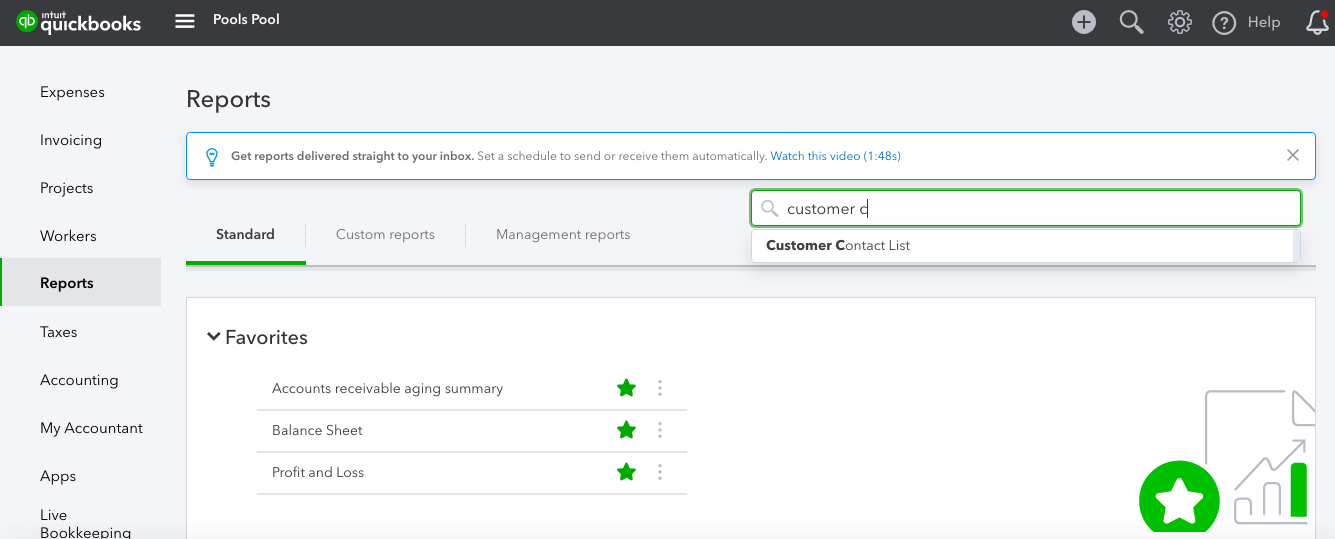
Search for Customer Contact List and select that report
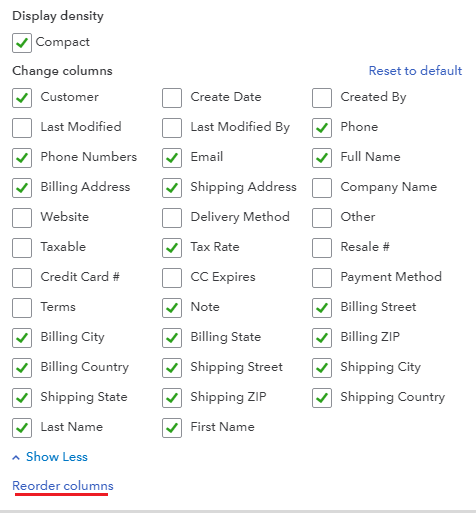
On the right side of the page, select the gear icon to choose columns

Select all names, addresses, and contact information — when in doubt, include it. Fields to include if available: Customer, Last Name/Company Name, First Name, Phone Number, Alt. Phone Number, Email, CC Email, Shipping Street, Shipping City, Shipping State, Shipping ZIP, Note, Billing Last Name/Company, Billing First Name, Billing Email, Billing CC Email, Billing Street, Billing City, Billing State, Billing ZIP
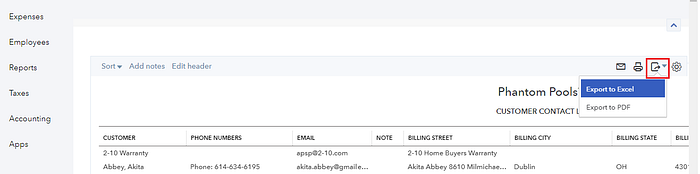
Select the export icon and choose Export to Excel — the file downloads and it's ready to send
Items (products and services)
Open QuickBooks Online and open Reports
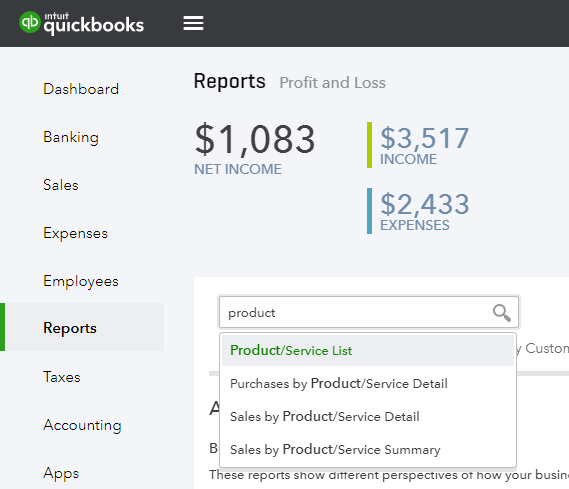
Search for Product/Service List and select that report
Select the gear icon and include the columns you use — name, description, price, and type at minimum

Select the export icon and choose Export to Excel
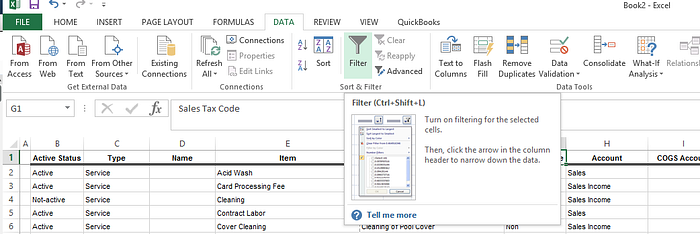
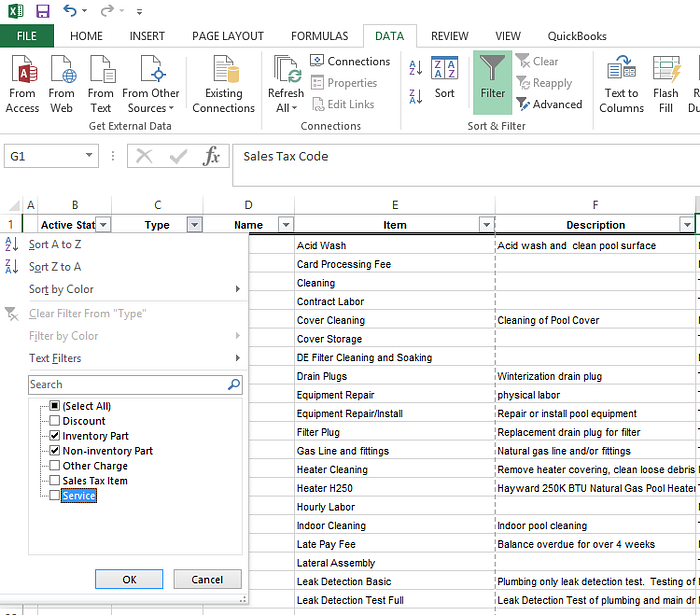
In the downloaded file, delete any rows for items you don't want in Pool Office Manager — you can always add or adjust items later; this import just accelerates the start
What happens next
Send both files to files@poolofficemanager.com (company name in the file name). We clean and import them — usually within 1 business day — and let you know when your customers and items are in. Questions along the way: help@poolofficemanager.com or 614-710-0074.
New to POM? The Getting Started article Bring in your existing data covers every import path — QuickBooks, competitor exports, and spreadsheets.