You do not have to retype your business into POM. Every path below is free, including migrations from other pool software. Pick yours:
| Where your data lives today | Your path | What you do |
|---|---|---|
| QuickBooks Online | Path A: connect it | 5 minutes, fully self-serve |
| QuickBooks Desktop | Path B: export two files, email them | 10 minutes in QuickBooks, we do the rest |
| Another pool software (Skimmer, Pool Brain, Jobber, …) | Path C: export what you can, email it | We migrate it for you |
| A spreadsheet, or paper | Path C | Email the spreadsheet as-is; paper means starting fresh with Add your first customer |
Files always go to files@poolofficemanager.com with your company name in the file name. Questions go to help@poolofficemanager.com or 614-710-0074. Imports usually land within 1 business day, and we will confirm by email when your customers are in.
Path A: Connect QuickBooks Online
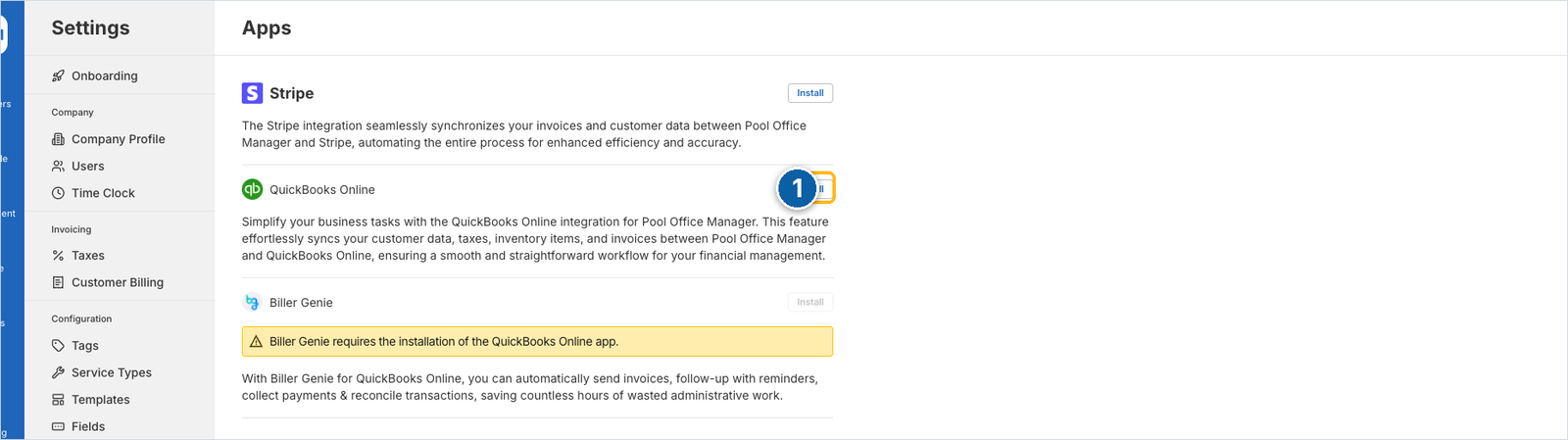
- In POM, click Settings in the left menu, then Apps under Integrations.
- Next to QuickBooks Online, click Install.
- Sign in to Intuit and pick your company.
POM syncs customers, items and invoices in both directions. The sync begins immediately; your customers appear under Customers as it runs. Two follow-ups worth doing the same day:
- Open a few customers and add their body of water details (gallons, equipment); QuickBooks does not store pool information, and gallons drive the dosing math your techs use.
- Spot-check your Taxes under Settings so invoices calculate the way your books expect.
Path B: QuickBooks Desktop
QuickBooks Desktop cannot connect live, so you export two reports and we import them.
Customer list
- In QuickBooks, open your customer contact list report.
- Click Customize Report and include: Customer, Last Name/Company Name, First Name, Phone Number, Alt. Phone Number, Email, CC Email, Shipping Street/City/State/ZIP, Note, Billing Last Name/Company, Billing First Name, Billing Email, Billing CC Email, Billing Street/City/State/ZIP, Tax Item, Sales Tax Code, Sales Tax Item, Is Customer Commercial Account?
- Export with Excel → Create New Work Sheet → Export.
Inventory list
- Lists → Item List, then at the bottom Excel → Export All Items → Create New Worksheet → Export.
- Optional: filter the sheet (Data → Filter) down to just Inventory and Non-Inventory items; skip services and discounts. You can always add items later; this import is to accelerate the start, not to be perfect.
Email both files to files@poolofficemanager.com with your company name in the file names.
Path C: Another software, or a spreadsheet
Export whatever your current system gives you: customers, addresses, emails, phone numbers, service notes, price lists. Do not clean it up first; we do that. If it is already a spreadsheet, send it as it is.
Email it to files@poolofficemanager.com with your company name in the file name, and tell us in one line what software it came from. Switching from a competitor is a migration we do routinely, at no cost.
While you wait for an import
Add one customer by hand (Add your first customer, 4 minutes) so the account is live and you can learn the schedule with a real record. Your imported customers will appear alongside it.
Next steps
- Build your first schedule
- Add your team: Settings → Users, then the mobile app on each tech’s phone