Appointment List
View of appointment/route list on the mobile app: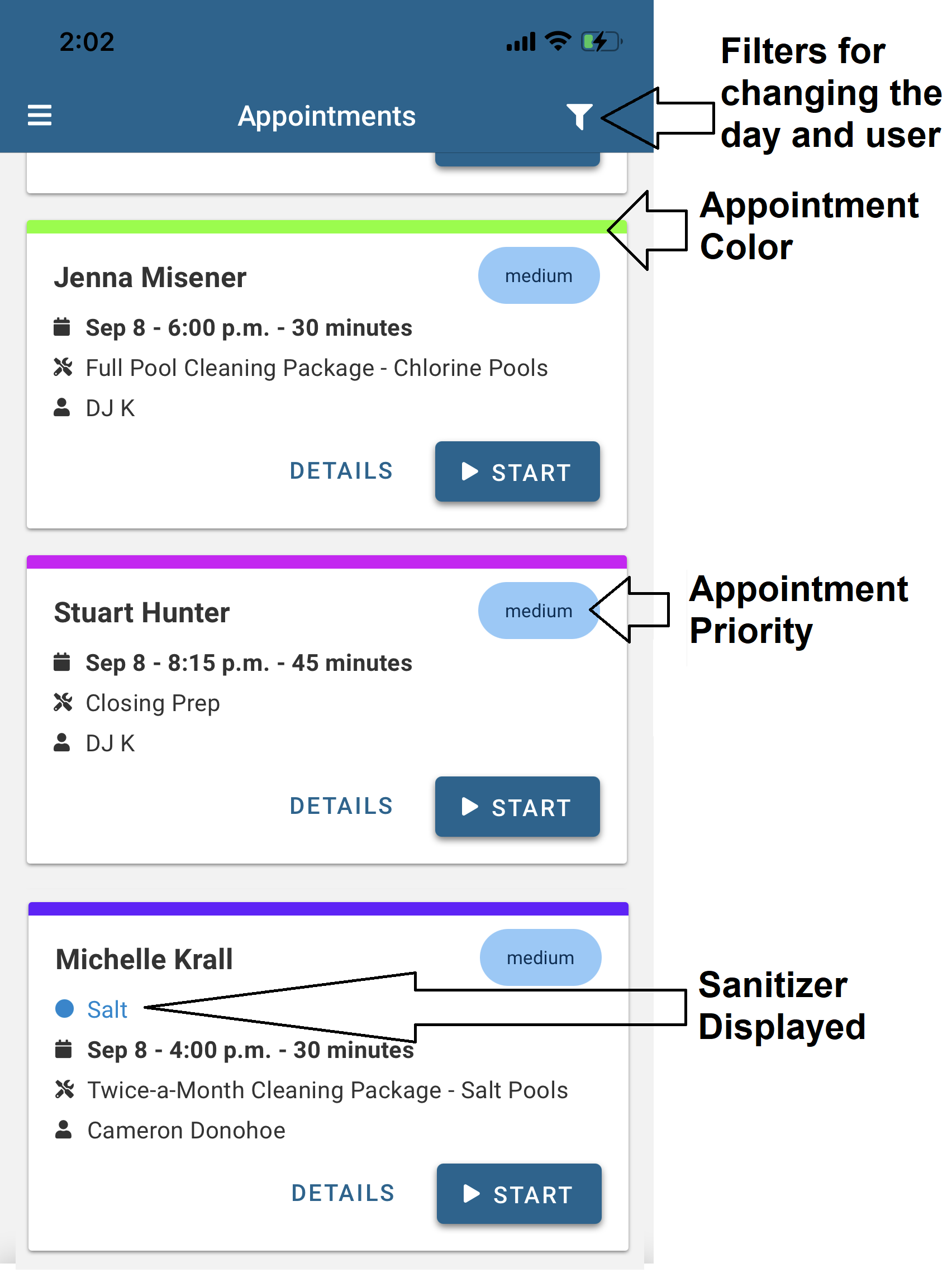
View of appointment/route list on the web:

Start/complete a job by pressing the "Start" button.
Complete a Service Visit
When a technician completes a service visit, the software requires only 4 fields to be filled out (you can customize a report to require more through Report Templates)
- Start/End Time - Users can manually select these

-
Status - There are 3 status options that technicians should work with the company to define: complete, need to return, and follow up with the customer.

-
Service type - The type of service completed (ex. Pool Cleaning).

Customer Notes - optional to send notes to customers
Private Notes - Notes only the office or technician can see.
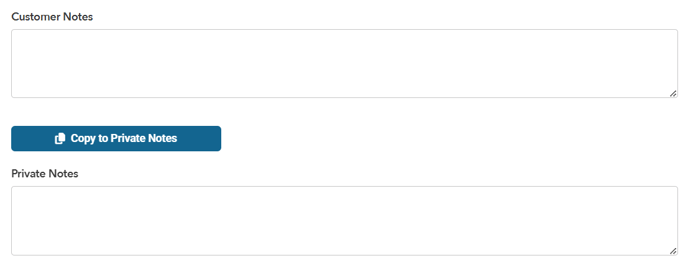
After filling out these fields, you can include maintenance details, attach relevant images, and then click "submit" to finalize and save the service visit.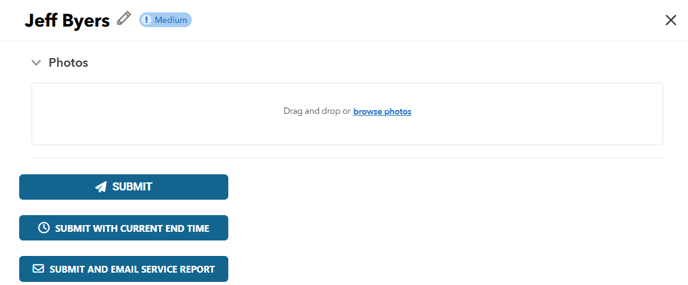
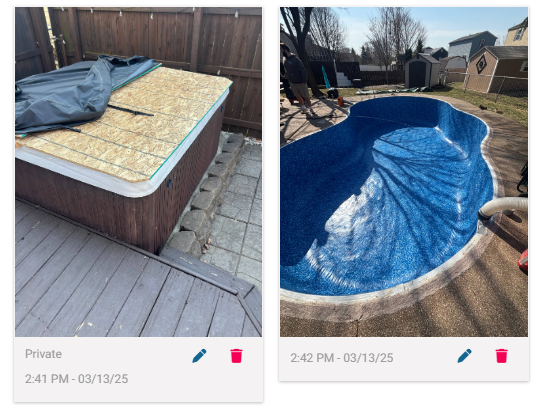
Private - Does not get sent to the customer
Pinned - Pins the photo to the profile in POM
Mobile app: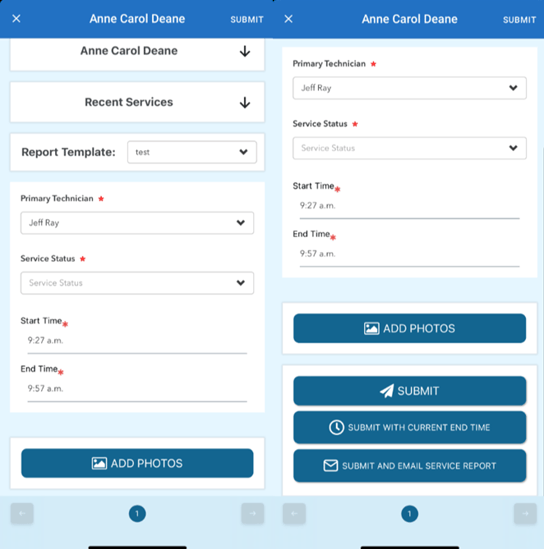
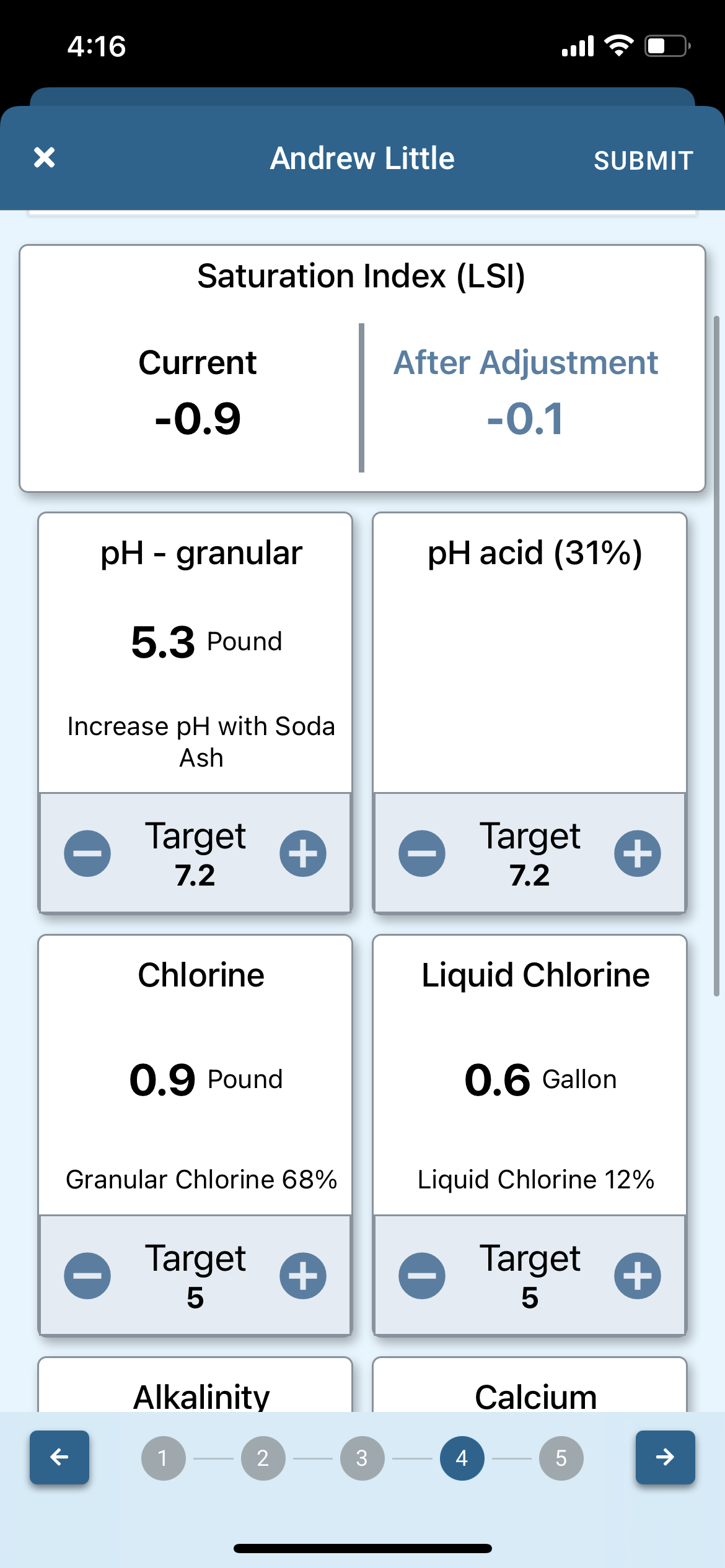
Chemical Adjustments Table
Suggested Chemical calculations can be customized, Learn how to Customize Chemistry Suggestions
Please use caution and only use the suggestions as a guideline when calculating water chemistry adjustments.
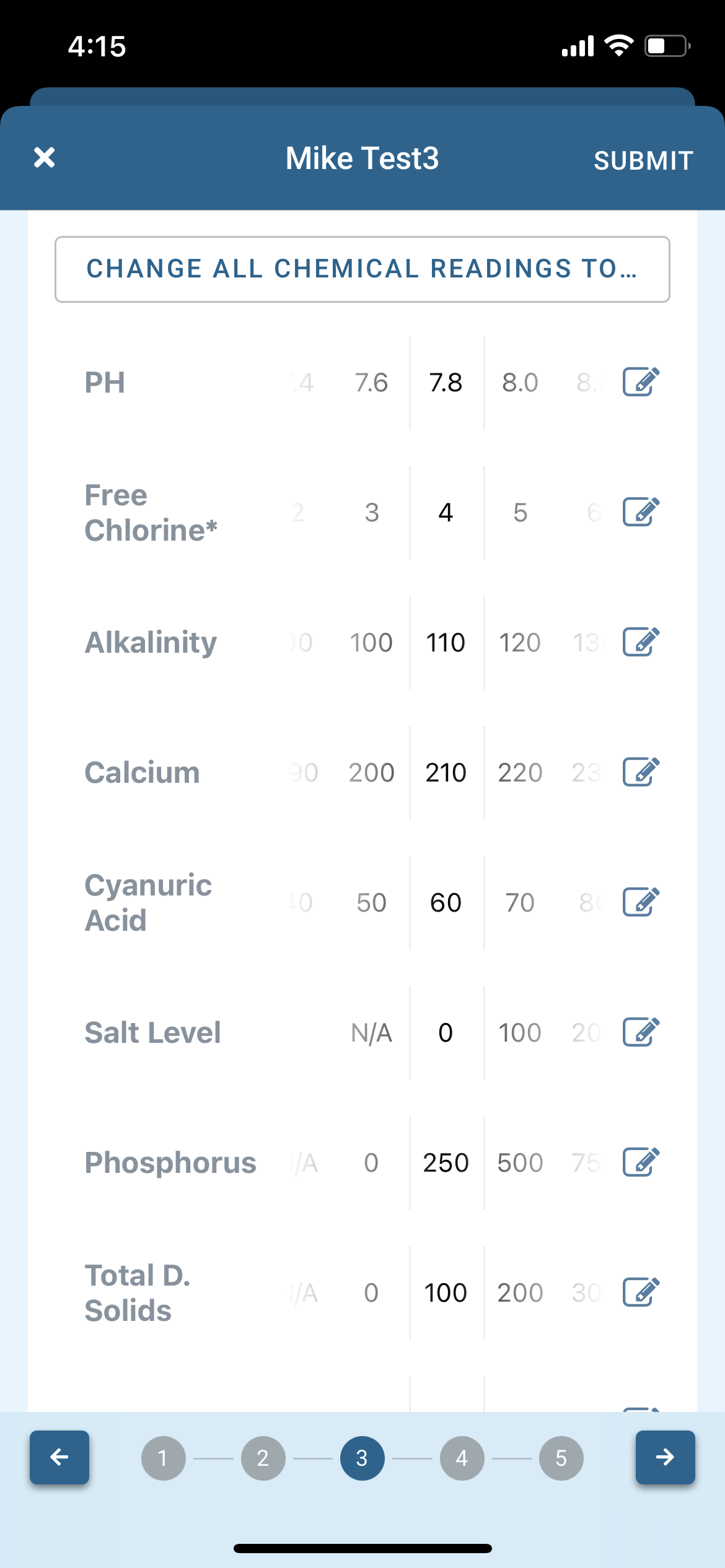
In Pool Office Manager, you will manually enter the readings from the pool's chemical chemistry. The software will calculate its suggestions based on the volume of the pool saved for that customer.