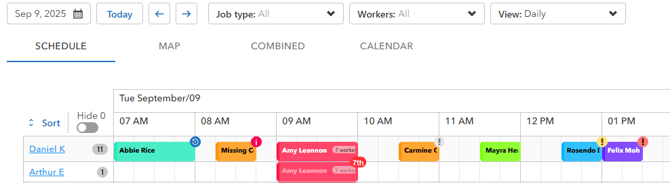
The Schedule/Dispatch board provides real-time visibility into your team's workload with multiple viewing options.
Accessing the Schedule Board- Click Schedule in the left sidebar
- The dispatch board opens with your default view
1. Schedule View
A list-based view showing:
- All appointments for selected date(s)
- Organized by technician
- Status indicators
- Time slots
2. Map View
A Google Maps view showing:
- Technician current locations (if GPS enabled)
- Scheduled stops for the day
- Route visualization
- Customer pins
3. Combined View
Split screen showing:
- Schedule list on one side
- Map on the other
- Synchronized highlighting
4. Calendar View
Traditional calendar layout:
- Monthly, weekly, or daily view
- Color-coded by technician
- Drag-and-drop scheduling
Appointments without assigned technicians appear in the Unassigned Queue:
- Located on the left side of the board
- Drag appointments to technician columns to assign
- Shows appointment details on hover
- Click and hold any appointment
- Drag to a new time slot
- Drag to a different technician column
- Release to reschedule/reassign
- Use arrow buttons to move between days
- Click on date to open date picker
- Select date range for multi-day view
Each technician has their own column showing:
- Name and photo/initials
- Daily schedule
- Total appointments for the day
- Available time slots
Symbols:
Recurring Appointment: 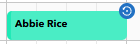
If the appointment is a repeating appointment there is an arrow in a circle
Missing Coordinates: 
If the customer profile does not have Coordinates saved for its address, you'll see an i
Multiple Workers assigned: 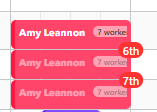
If the badge has a number 2nd, 3rd, etc.. , the worker is an additional assignee on an appointment
Low Priority: Gray ! 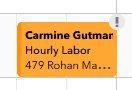
High Priority: Yellow ! 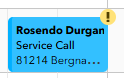
Special Priority: Red ! 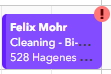
Once an appointment has been completed - the schedule will reflect the Service Status:
Job Complete: 
Job State: Need to Return 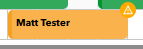
Job Status: Followup with Customer 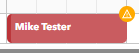
Video Guides
- Scheduler walkthrough — interact with the schedule daily, weekly, by technician, service type, map or calendar: watch. (Schedule > View Route shows a technician's route for the day.)
- Calendar view — Schedule > View Calendar for a monthly layout; click any date to see who's assigned, the work to be done, and the technician on each visit: watch.