Create Terms and Conditions
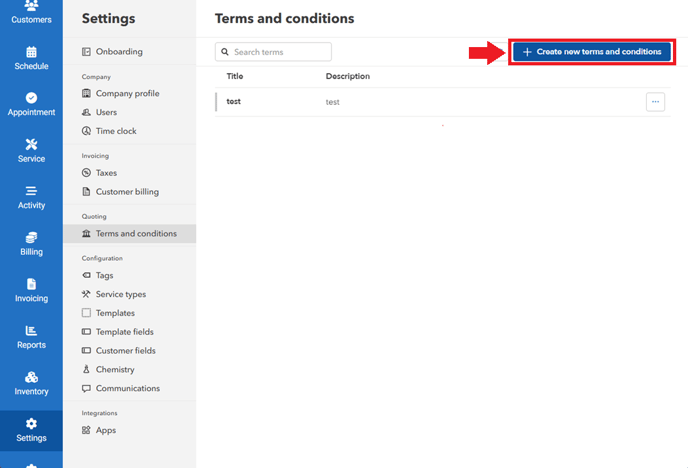
- Go to "Settings" > "Terms and Conditions" > Click "Create new terms and conditions"
- Input the title and description. Click "Create" to save your terms and conditions.
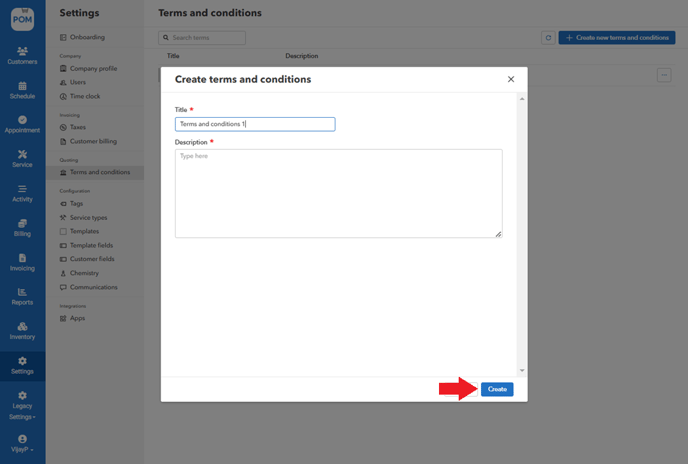
You can create as many terms and conditions as you like.
Edit/delete terms and conditions
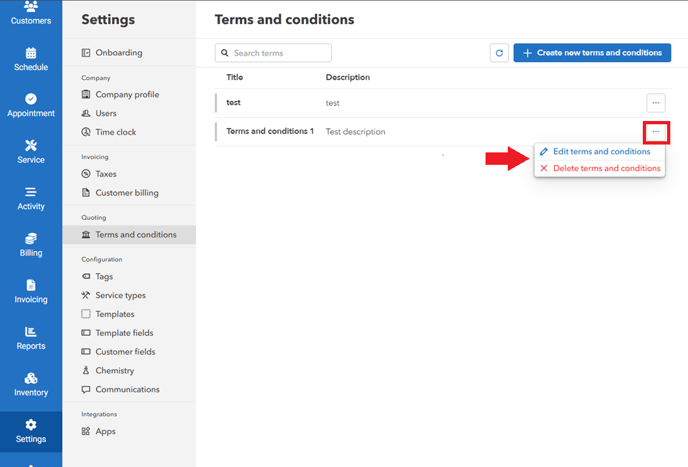
- In the list of terms and conditions, locate the specific set you want to edit or delete.
- Click on the "Edit terms and conditions"
- Make the necessary changes to the "Title" and "Description".
- Click on the "Save" button to apply the changes.
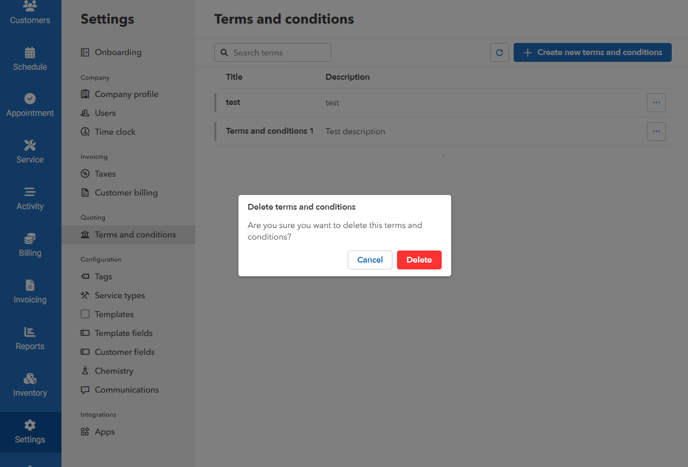
- To delete, click on the "Delete terms and conditions."
- A confirmation message will appear. Click "Delete" to proceed with the deletion.
View terms and conditions in quotes
- Go to Customer's profile > Locate and click on the specific quote you want to view.
- Click on "View Customer Quote" to see the quote from the customer's perspective.

- Look for the blue "Terms and Conditions" text (hyperlink) located at the bottom part of the quote.

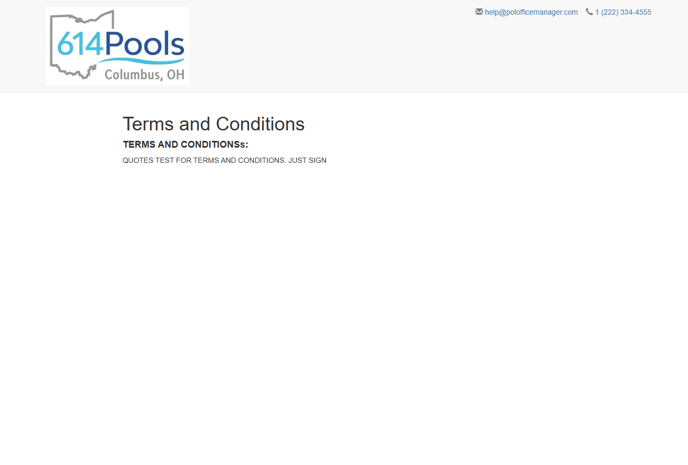
- This will redirect you to a new page displaying the complete set of terms and conditions you created.