▶ Watch: A day in the tech app (1 min 8 s)
▶ Watch: Invoice a single job (36 s)
This is the moment POM pays for itself: the work your tech does at the pool becomes a photo-backed service report and a ready-to-send invoice, without anyone retyping anything. Here is the whole path, tap by tap.
The checklist, with photos
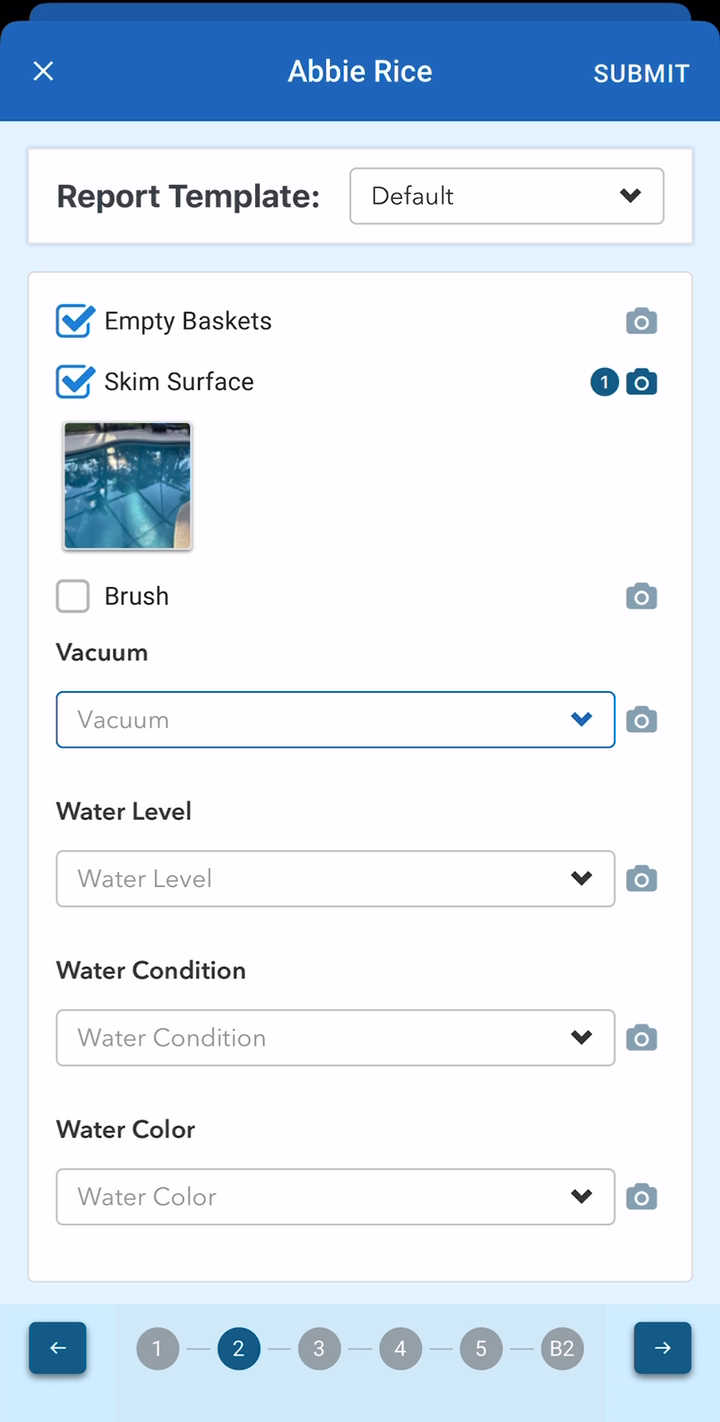
When your tech taps Start, the service ticket opens on the checklist for that service type: empty baskets, skim surface, brush, vacuum, water level, condition, color. The camera icon on any line attaches a photo right where the work happened.
Water tests, next to last visit’s numbers
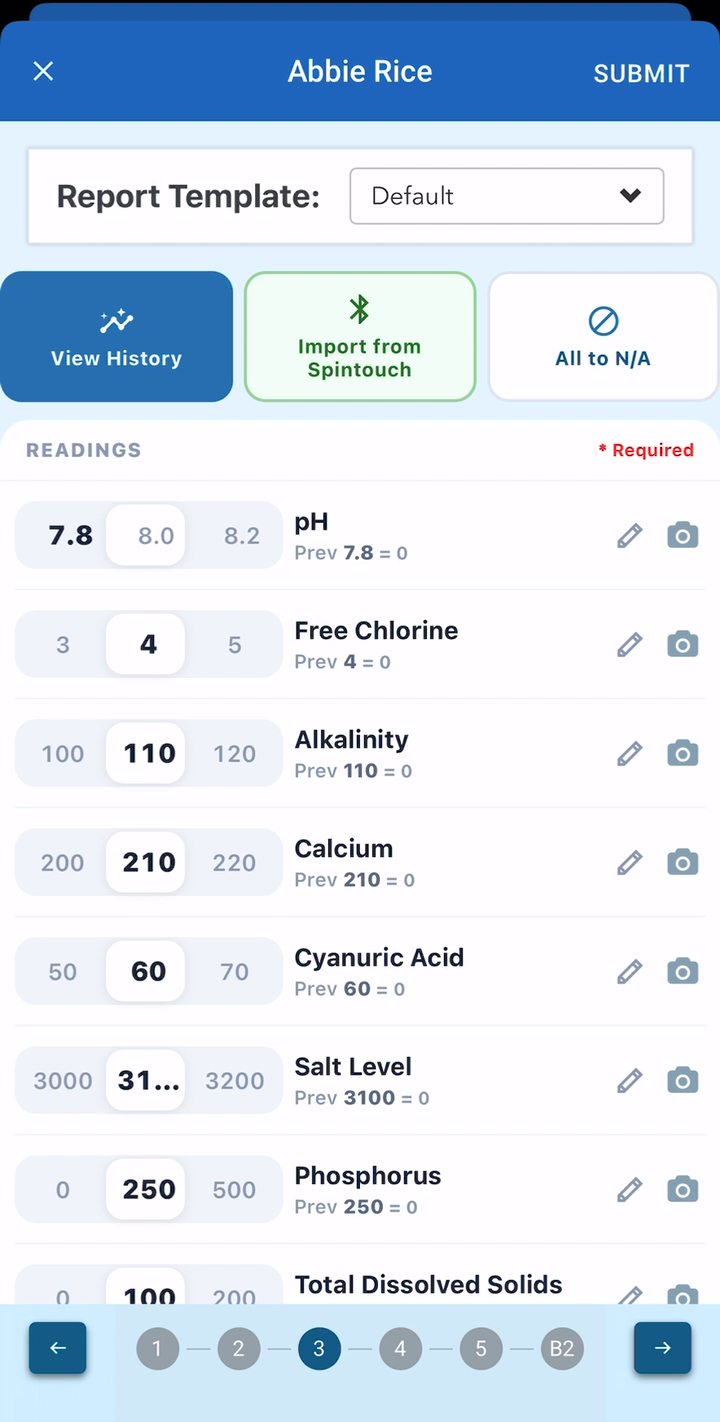
Every reading — pH, chlorine, alkalinity, calcium, cyanuric acid, salt, phosphorus — shows the previous visit’s value underneath, so drift jumps out while your tech is still standing at the pool. (Using a Spin Touch? Import from Spintouch pulls the readings in over Bluetooth.)
POM does the dosing math
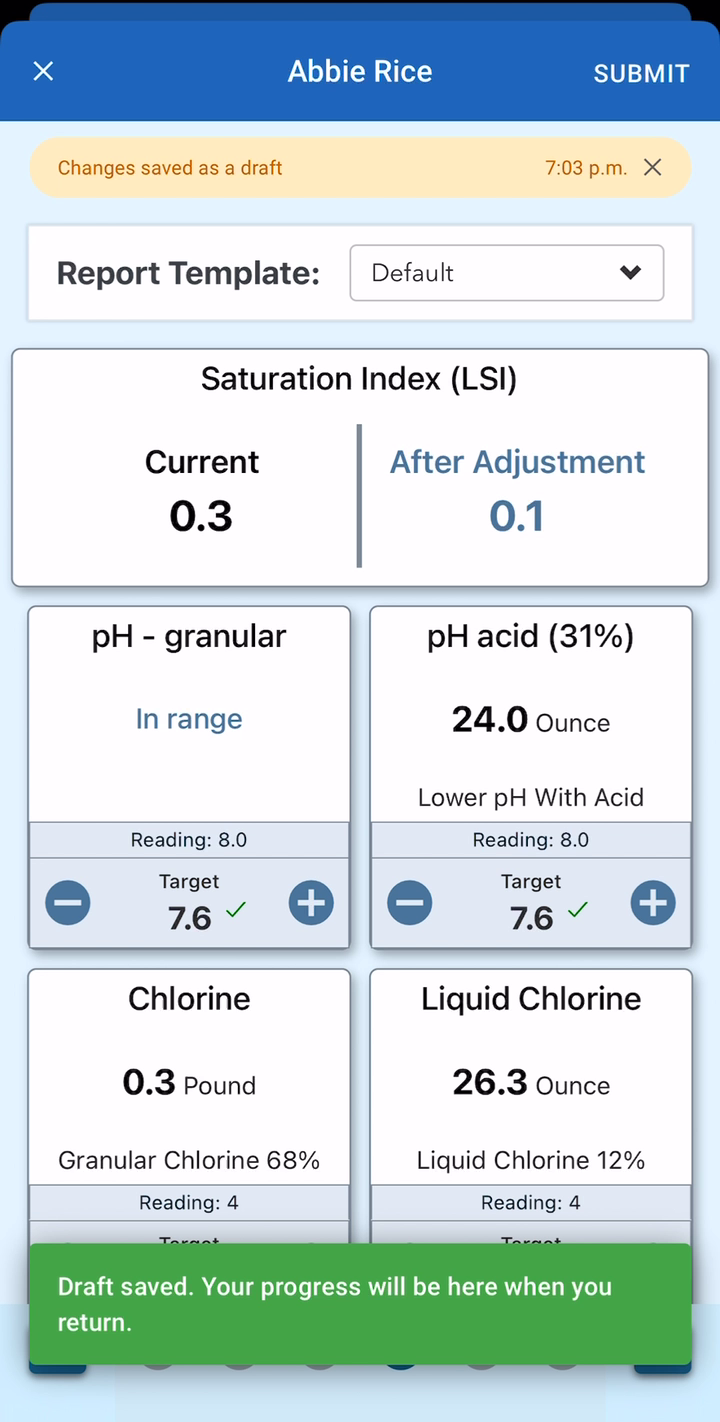
From the readings, POM computes the saturation index and the dose to hit target — by product, for the actual gallons of this body of water. That is why the gallons on the customer record matter.
Chemicals used, logged as you go
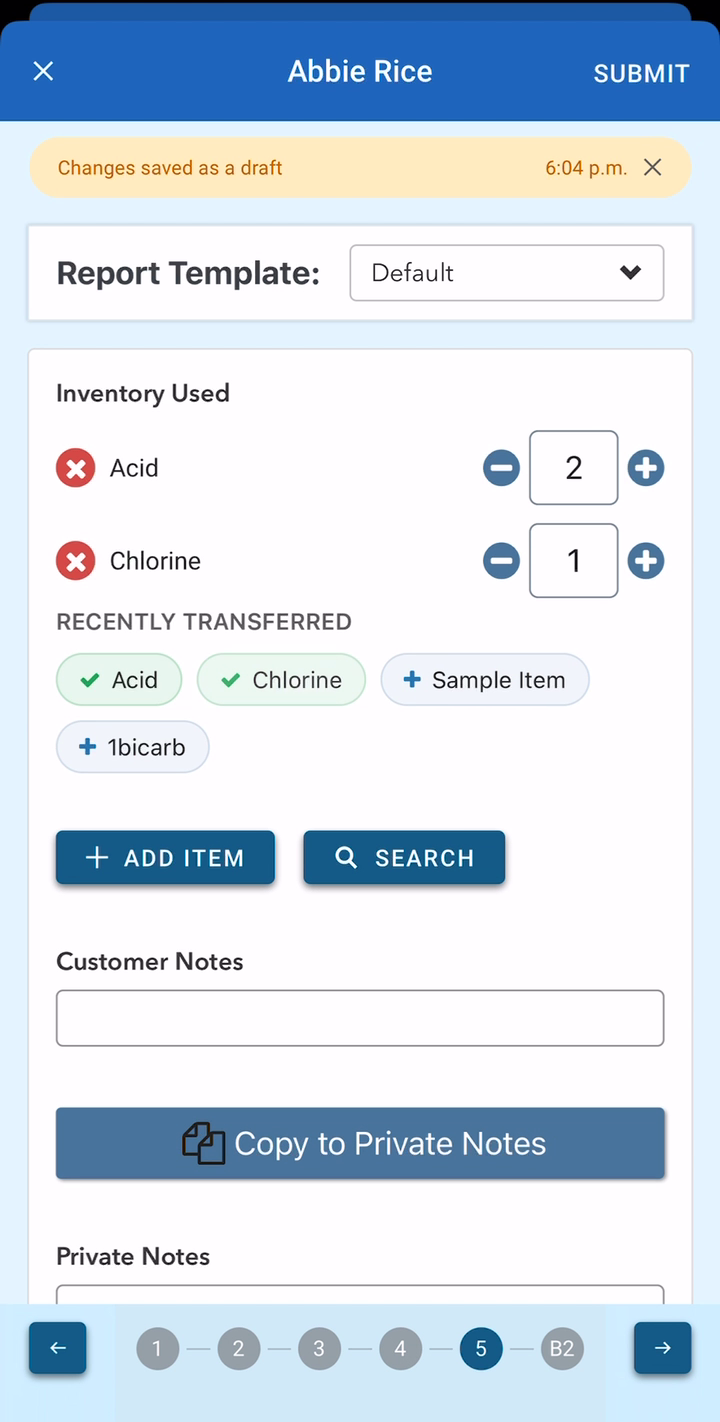
Under Inventory Used, your tech logs what went in the water. Quantities count against your inventory and — as you will see below — flow straight onto the invoice.
Notes, status, and the second body of water
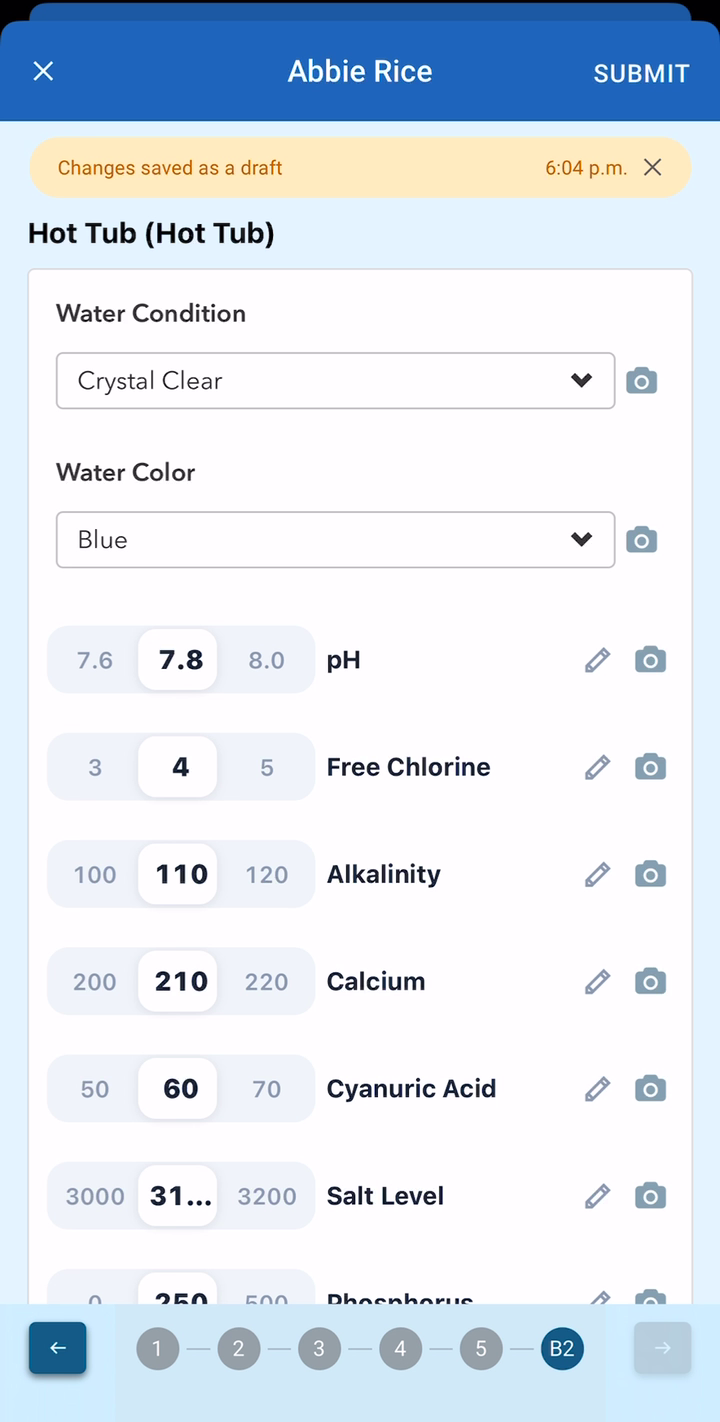
Add a customer note (and a private note the customer never sees), set the status — Complete, Follow Up, or Need to Return — and if the property has a spa, it gets its own condition, color, readings, and photos on the same ticket.
Submit
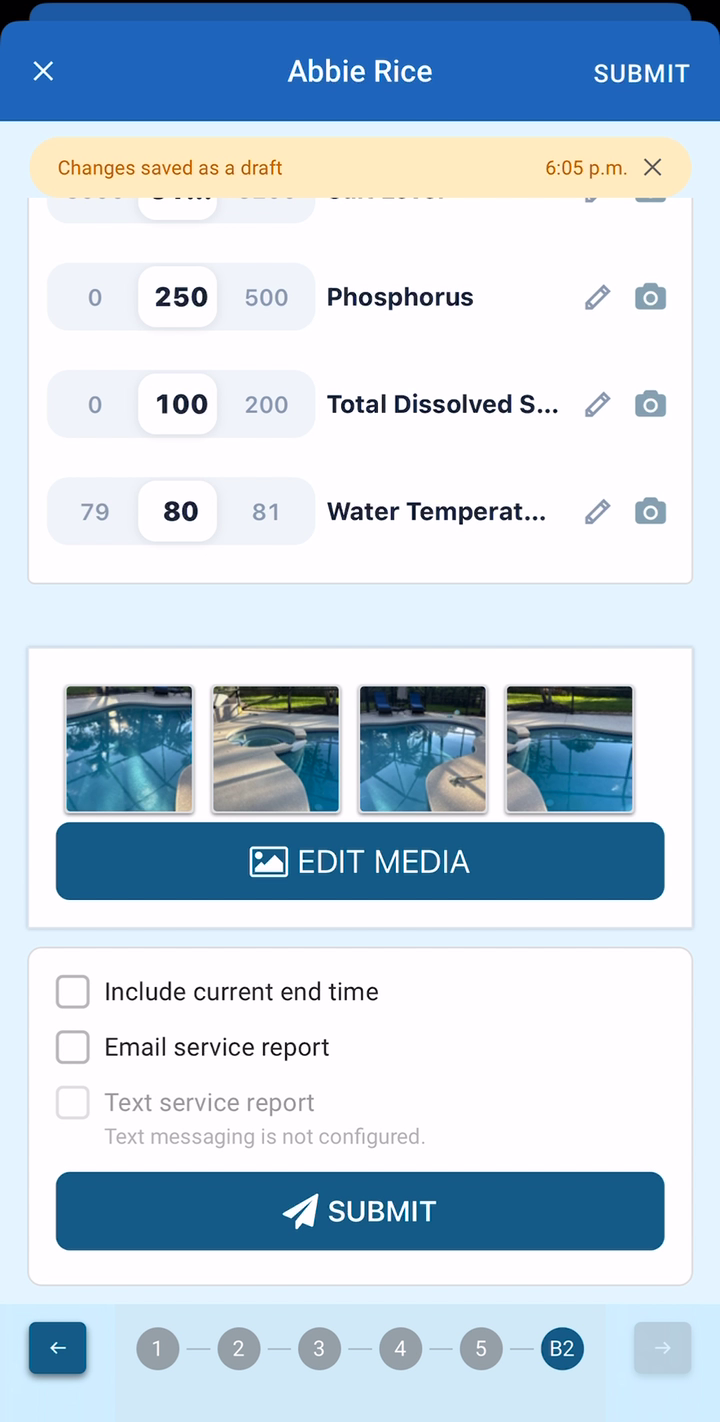
One tap on Submit and the visit syncs to the office — photos included. Tick Email service report and the customer gets it automatically.
What the office (and the customer) sees
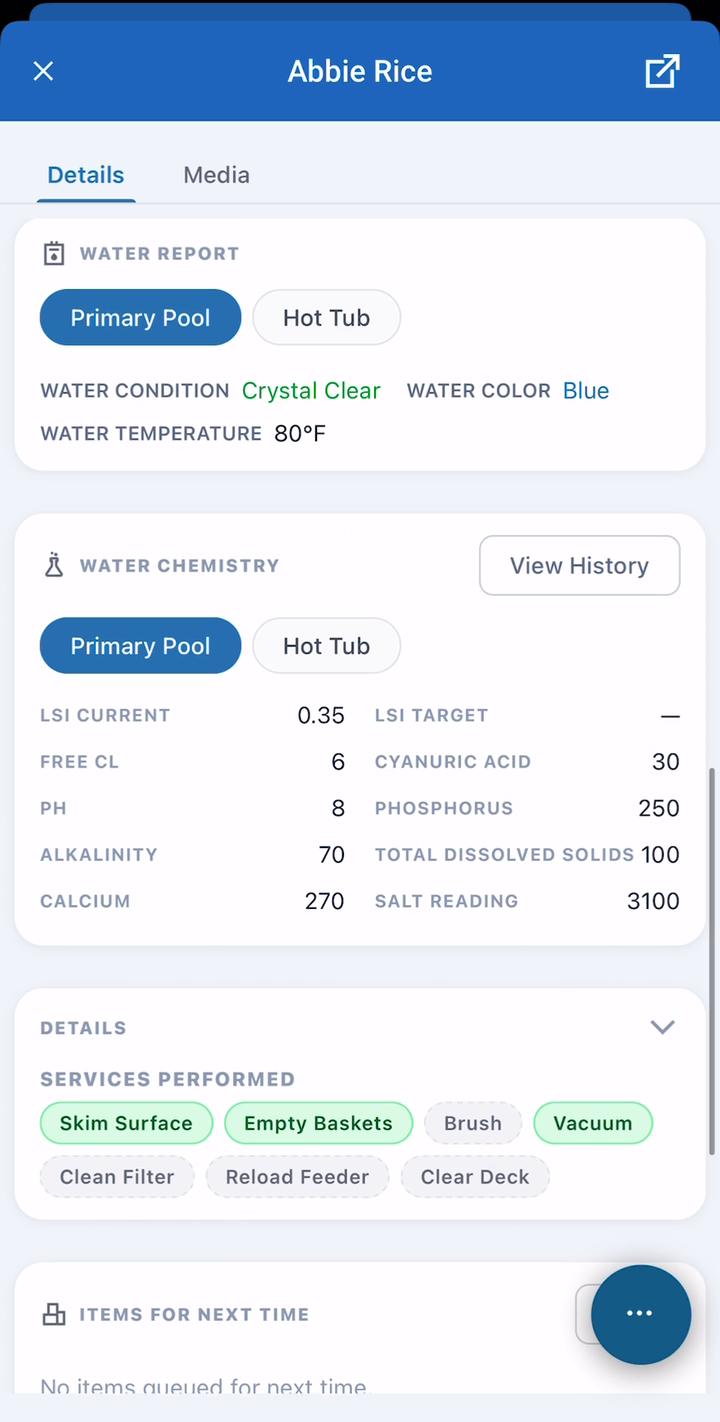
The completed visit shows the water report per body of water — condition, color, temperature, full chemistry with the saturation index — plus the services performed and every photo. This is the report your customer can receive by email or text.
The visit becomes the invoice
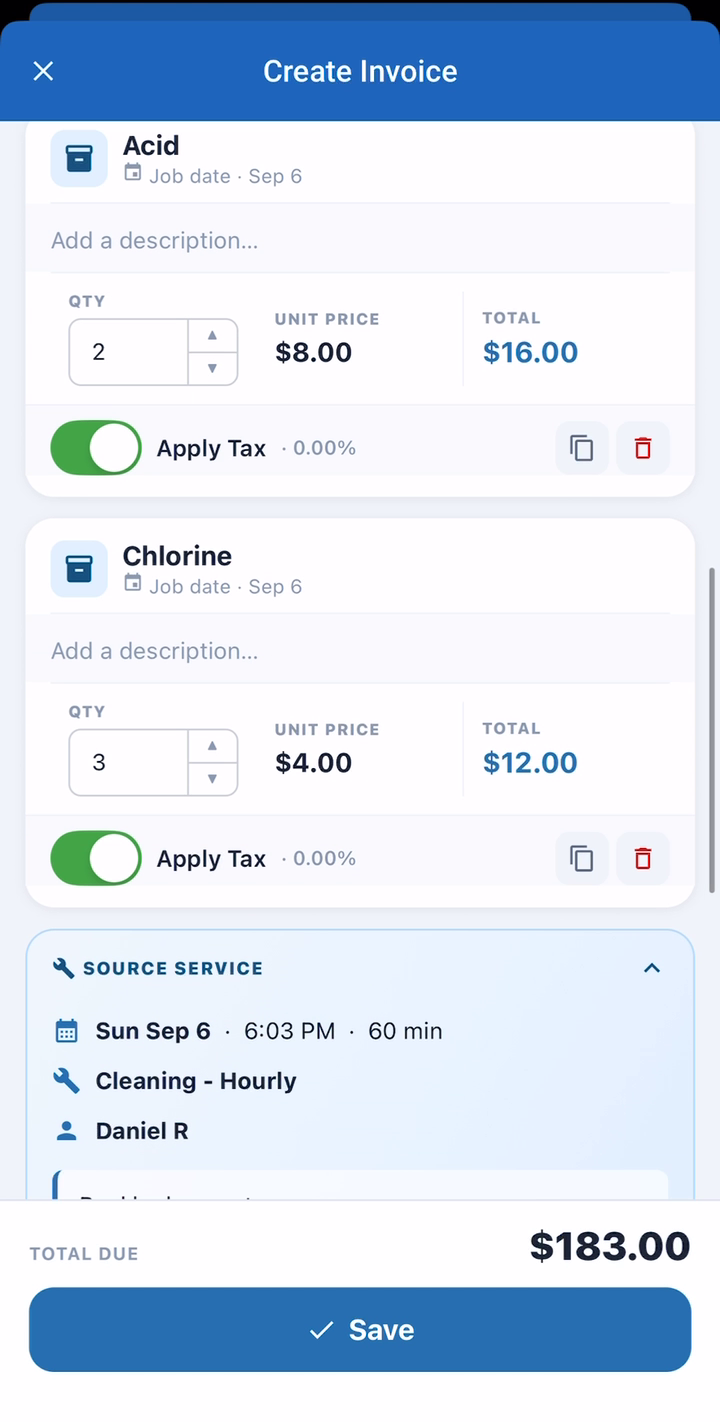
From the completed appointment, tap Create Invoice. The line items build themselves from the visit: the hourly service, the service call, and the chemicals your tech logged, each priced from your items. Adjust anything, then Save.
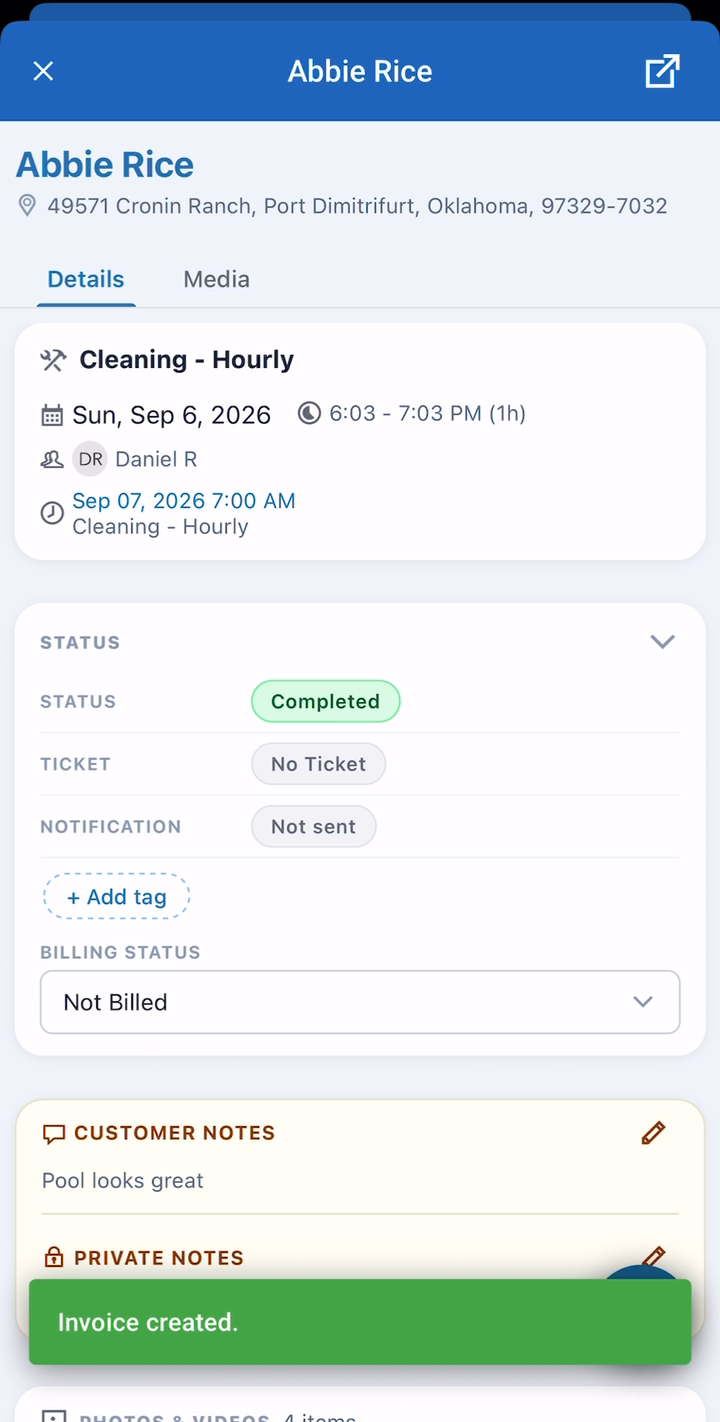
That’s the loop: work in the field in, professional report and invoice out. Connect QuickBooks Online (Settings → Apps) and invoices sync both ways with your books.
Next steps
- Put the tech app on a phone — if you landed here first.
- Appointments vs Services — the two ideas behind this flow.
Need a hand? Call 614-710-0074 or email help@poolofficemanager.com.