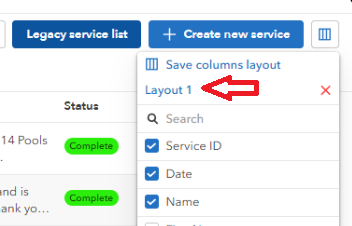
The new Service List page retains all the essential functionalities of the previous version while introducing new customization options: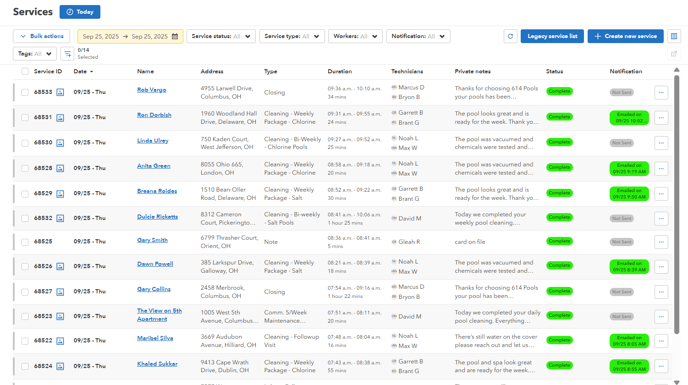
- Column Customization: You can now customize which columns are displayed on your service list. This allows you to tailor the view to show only the information most relevant to your current task.
- Saved Views and Filters: Beyond customizing columns, you can save different combinations of columns and filters as distinct views. This means you can quickly switch between pre-configured layouts without having to manually adjust settings each time.
How to Customize Columns or Filters and Save Views
-
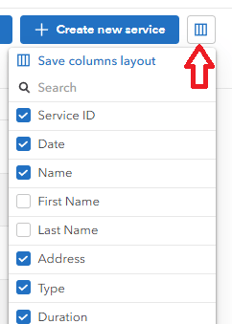
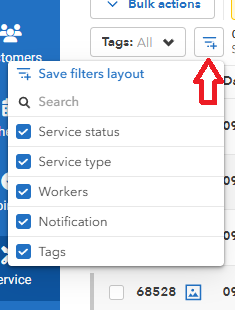
On the Service List page, locate the "Columns" or "Filters" icon
-
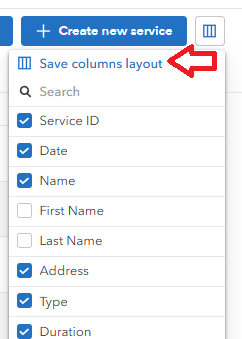
Clicking this icon will open a dropdown menu or a sidebar listing all available columns.
-
Check or uncheck the boxes next to the column names to show or hide them from your view.
-
After selecting your preferred columns, click the "Save columns layout" link at the very top of the columns menu.
- A pop-up window titled "Save columns layout" will appear.
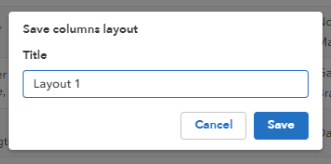
- Click Save. Your new layout is now saved and can be accessed from the dropdown menu.