POM's route optimization feature helps dispatchers efficiently assign jobs and optimize technician routes to minimize drive time. This two-step workflow ensures your team covers more pools with less time on the road.
Overview
The route optimization workflow consists of two main steps:
1. Assign jobs from the Unassigned Queue to technicians
2. Use the Route Optimizer to set the best order/sequence for each technician's stops
Step 1: Assign Jobs from the Unassigned Queue
The Unassigned Queue shows all jobs that haven't been assigned to a technician yet. To assign jobs:
1. Go to Schedule and look for the Unassigned Queue section. TIP: The Combined view works best for this
2. You'll see a list of jobs waiting to be assigned with customer names and addresses
3. Drag and drop jobs onto a technician's schedule, or click the job and select a technician
4. Jobs will appear on the technician's route for that day
Step 2: Optimize the Route
Once jobs are assigned, use the Route Optimizer to set the most efficient order:
1. Navigate to the Schedule view (SCHEDULE or COMBINED tab)
2. Click on the technician's name in the Gantt chart to open the Route Optimizer panel
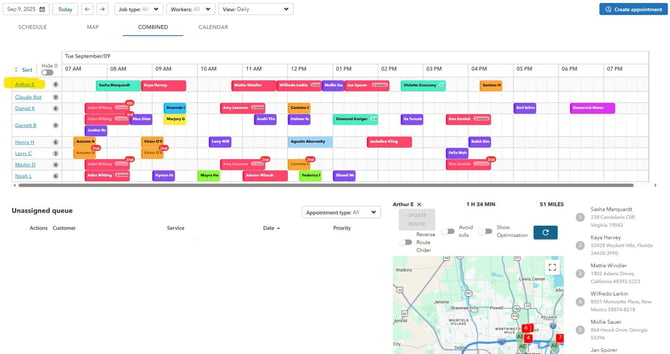
3. The Route Optimizer shows:
- Total drive time and miles for the current route
- A numbered list of all stops
- A map showing the route
5. Toggle "Show Optimization" to see the suggested optimized route
- This displays the potential time and mileage savings
- Compare the current route vs. the optimized route
6. Click "UPDATE ROUTE" to apply the optimized order
Additional Options
- Reverse Route Order: Flip the entire route if that works better for the technician
- Avoid tolls: Toggle this on to route around toll roads
Show Optimization vs. Update Route
These two buttons do very different things:
- Show Optimization is a preview. It displays the suggested stop order without changing anything. Nothing is saved.
- Update Route applies the optimization — it rewrites the stop order and times for that technician's day.
⚠️ Review the preview before clicking Update Route. Applying an optimization reorders the day and can unassign appointments that don't fit the route's working hours. After updating, always check the Unassigned queue for anything the optimizer dropped — and remember deleted appointments cannot be recovered.
Why appointments fall off an optimized route
- Time window too short: the route only schedules stops that fit inside the technician's working hours. If jobs are being cut off, extend the end-of-day time before optimizing.
- Return-to-start: routes are calculated as a loop that returns to the starting location. Travel time back to base counts against the day. (Set a custom start/end location per user in Settings > Users.)
If an appointment disappears after optimizing, check the Unassigned queue first — then contact support with the customer name and date if it's truly gone.
The Map View
Open Schedule and click the MAP tab for the geographic view that powers route planning:
- Appointments as pins — colors indicate service type/status; click a pin for details; clusters group nearby stops.
- Technician positions — live GPS (when enabled) plus each user's starting location and route progress through the day.
- Filters — narrow by job type, worker, or date.
- COMBINED tab shows the map and schedule side by side for dispatching.