When Invoicing through POM and QuickBooksOnline (QBO), you may encounter an error with a technical error message provided by QuickBooks. Use this article to quickly resolve those error codes and invoicing issues
Error Codes (Solutions match respective fixes listed below):
6240 - QuickBooks Name and/or ID missing in POM -
- Import Customers from QBO - (B3) or manually enter Billing Info in POM Customer Profile (C)
2500 - Something you are trying to use has been deleted from QuickBooks: Customers or items\
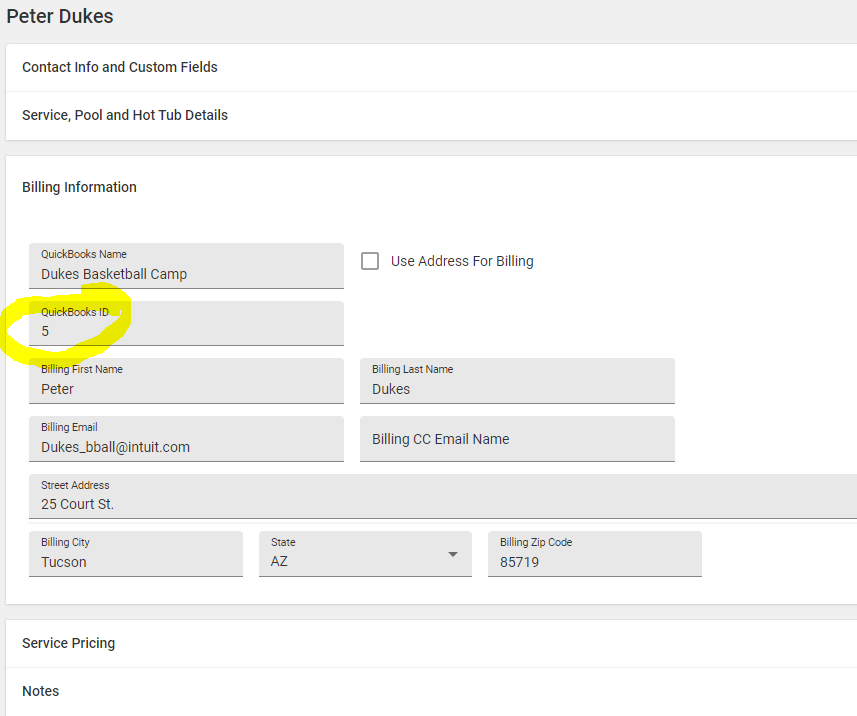
2090 - QuickBooks ID Missing
-Input a QuickBooks ID (C)
400 and 401 - Authentication Issue - Disconnect your QuickBooks Account from POM and reconnect - Settings > Edit Company > Billing Info > Disconnect QuickBooks
Missing Invoice Numbers - If you are missing an invoice number when creating invoices in QuickBooks online:
1. In QBO Settings > Company Settings > Sales
2. Custom Transaction Numbers should be set to off
Quick Fixes
A. Ensure POM Required Fields are correct for a successful sync with QuickBooks Online:
QuickBooks Customer Name
QuickBooks ID
Billing Last Name

B. Settings > Customer billing
- Confirm you are connected. If you see the icons below, you are NOT connected.

- Autosync should occur automatically but occasionally if facing an issue, manually syncing can resolve the problem by following the instructions below:
Select Import Customers and Import Inventory
or
Sync POM to QuickBooks to send your POM data to QBO, such as newly created POM customers or items.
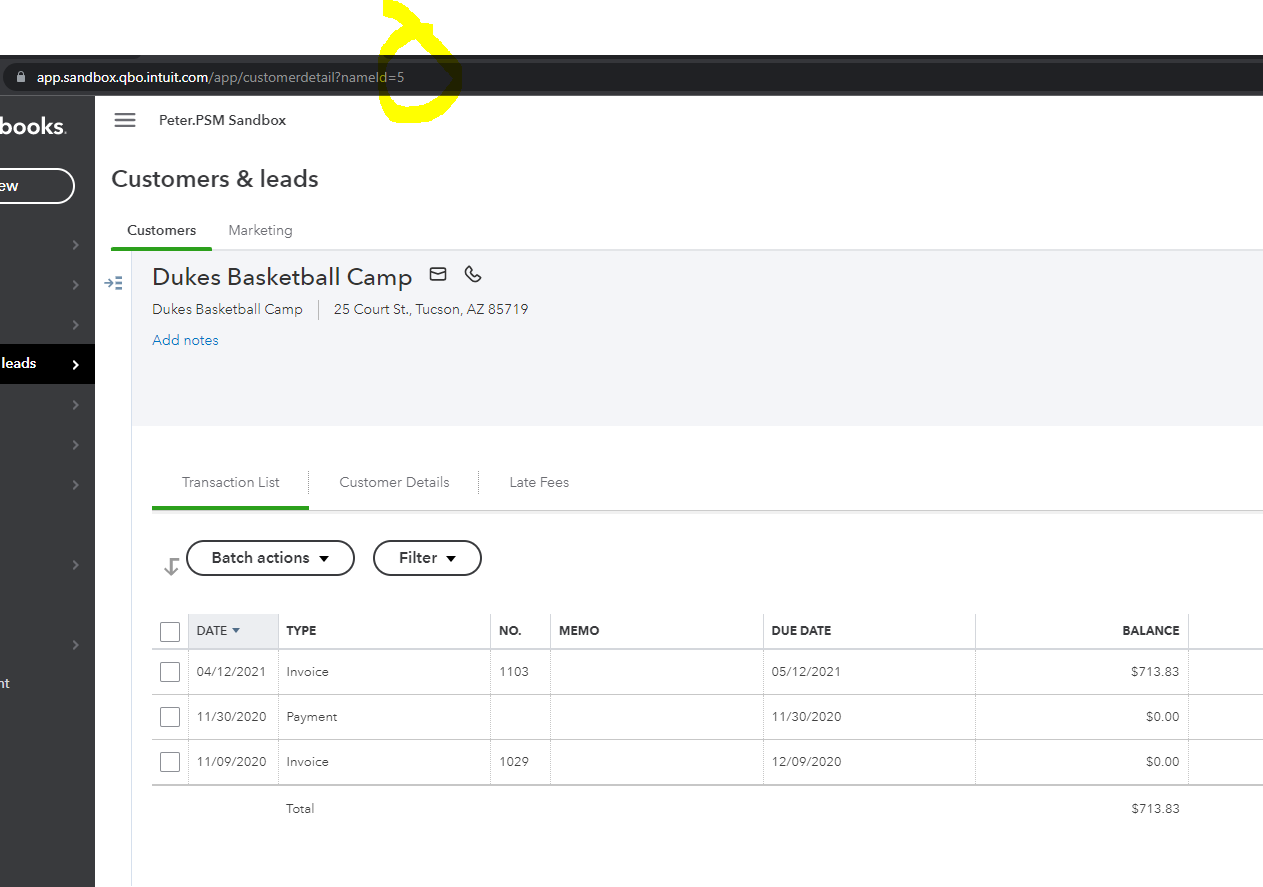
C. Checking/Adding a QuickBooks ID
The QuickBooks ID is simply the last part of the URL of that customer in QBO.
You can find that customer in QBO and open their profile, the url should be similair to:
EXAMPLE: https://app.qbo.intuit.com/app/customerdetail?nameId=5
In POM, you would Edit the Customer and input 5