When Invoicing through POM and QuickBooks Online (QBO), you may encounter an error with a technical error message provided by QuickBooks. Use this article to quickly resolve those error codes and invoicing issues
1. Error Codes (Solutions match respective fixes listed below):
6240 - QuickBooks Name and/or ID missing in POM -
- Import Customers from QBO - (B3) or manually enter Billing Info in POM Customer Profile (C)
2500 - Something you are trying to use has been deleted from QuickBooks: Customers or items\
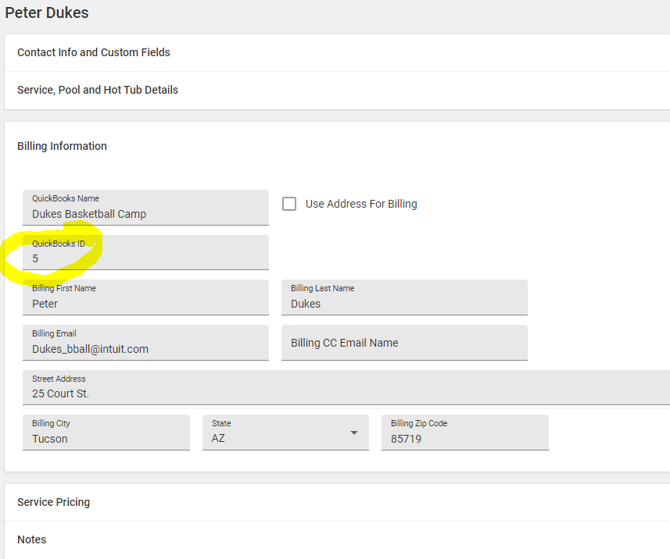
2090 - QuickBooks ID Missing
-Input a QuickBooks ID (C)
400 and 401 - Authentication Issue - Disconnect your QuickBooks Account from POM and reconnect - Settings > Edit Company > Billing Info > Disconnect QuickBooks
2. Missing Invoice Numbers - If you are missing an invoice number when creating invoices in QuickBooks online:
1. In POM go to Settings > Apps > Configure on QuickBooks, make sure custom transaction numbers is NOT CHECKED
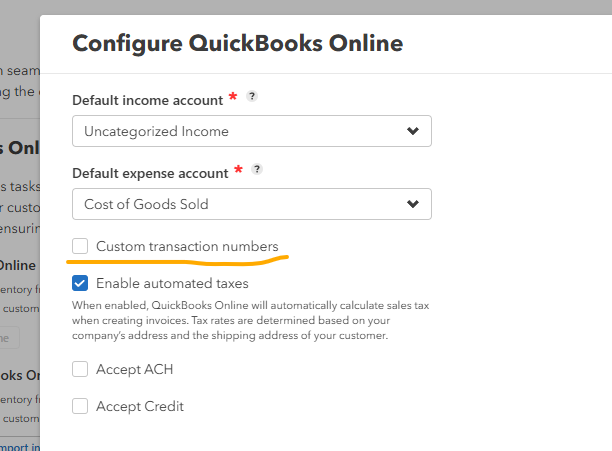
2. In QBO Settings > Company Settings > Sales
3. Custom Transaction Numbers should be set to off
3. Quick Fixes
A. Ensure POM Required Fields are correct for a successful sync with QuickBooks Online:
QuickBooks Customer Name
QuickBooks ID
Billing Last Name
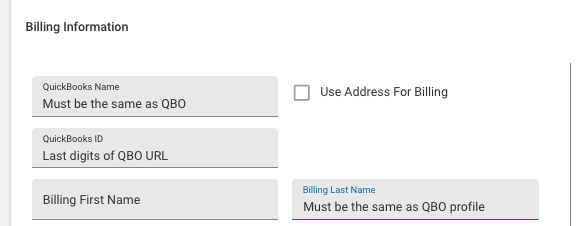
B. Settings > Edit Company > Billing Info
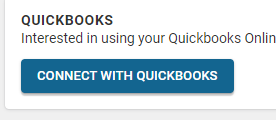
1. Confirm you are connected. If you see the button below, you are NOT connected
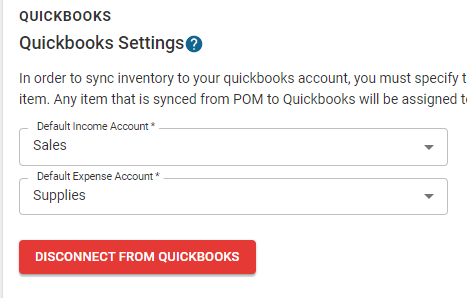
2. Select the appropriate Default Income Expense accounts
3. Auto sync should occur automatically but occasionally if facing an issue, manually syncing can resolve the problem by following the instructions below:
Select Import Customers and Import Inventory
or
Sync POM to QuickBooks to send your POM data to QBO, such as newly created POM customers or items.
C. Checking/Adding a QuickBooks ID
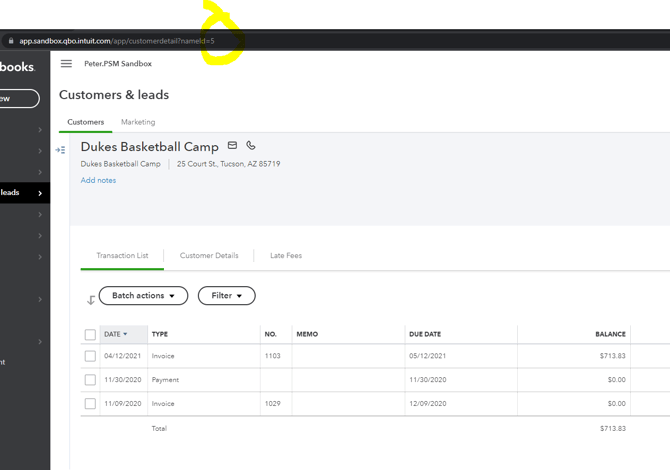
The QuickBooks ID is simply the last part of the URL of that customer in QBO.
You can find that customer in QBO and open their profile, the URL should be similar to:
EXAMPLE: https://app.qbo.intuit.com/app/customerdetail?nameId=5
In POM, you would Edit the Customer and input 5
If an invoice or customer failed to sync and is stuck, the fastest fix is to force it back into the sync queue:
- Open the service (or customer) in POM.
- Edit and change any one field (even a trivial edit), then save.
- Saving resubmits the record to the QuickBooks sync queue. Wait a few minutes and re-check QBO.
A 400 error from QuickBooks usually means a field on the record breaks QBO's rules — most often a description or name that's too long, or an invalid character. Shorten long descriptions/names on the POM side, save, and let it resync.
Stop QuickBooks from auto-emailing invoicesIf customers receive invoices the moment they sync, QuickBooks Online is doing the sending. In QBO go to Gear > Account and Settings > Sales and turn off the automatic send/"save and send" behavior so POM stays in control of when customers see invoices.
Sales tax: avoid double-taxingTax should be calculated in one system, not both. If POM adds tax to the line items and QBO applies its own automatic sales tax on sync, customers get double-taxed invoices. Pick one side to own tax and disable it on the other. If your customers' tax status changed after a QuickBooks update (e.g., flipped to non-taxable), re-check the customer tax settings in QBO first.