Creating Invoices with Quickbooks Desktop
Option 1. Create and Review Invoices to Send to QuickBooks Desktop
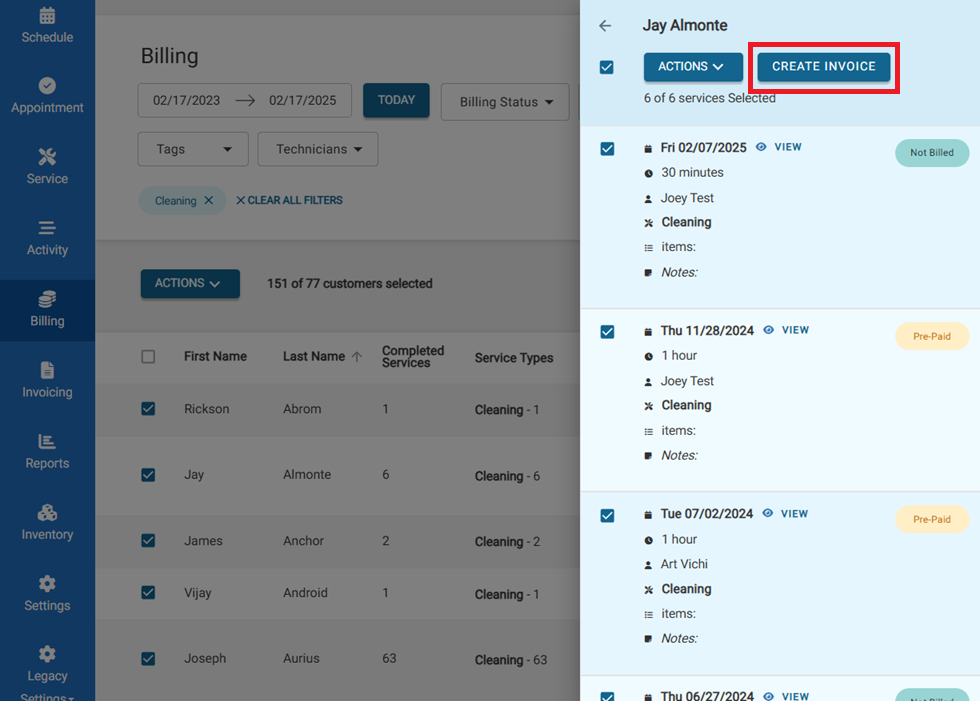
- On the Billing page, filter the services list and find a customer to select Create Invoice
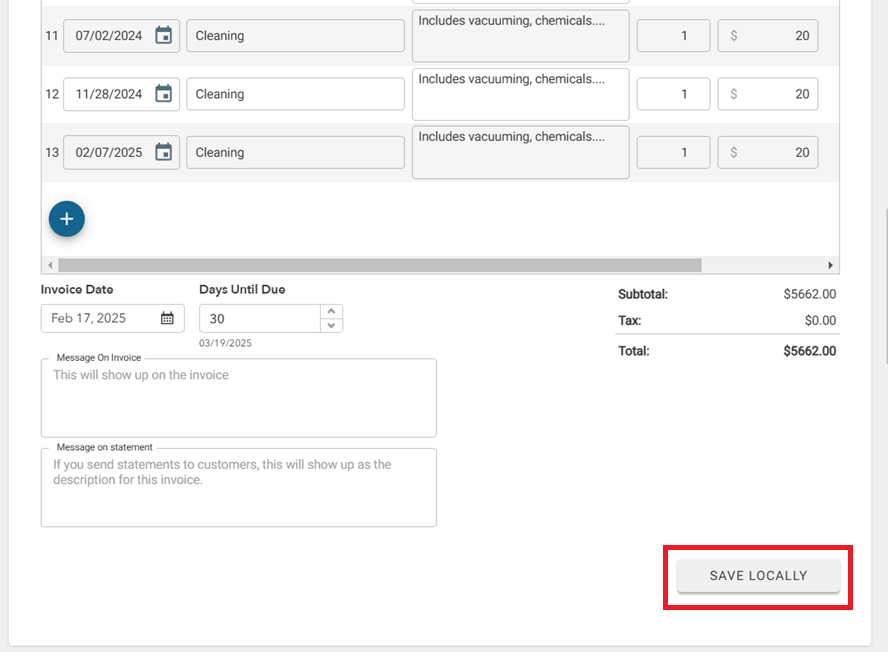
- Review and adjust the invoice as needed, under Local tab on the page, select Save Locally
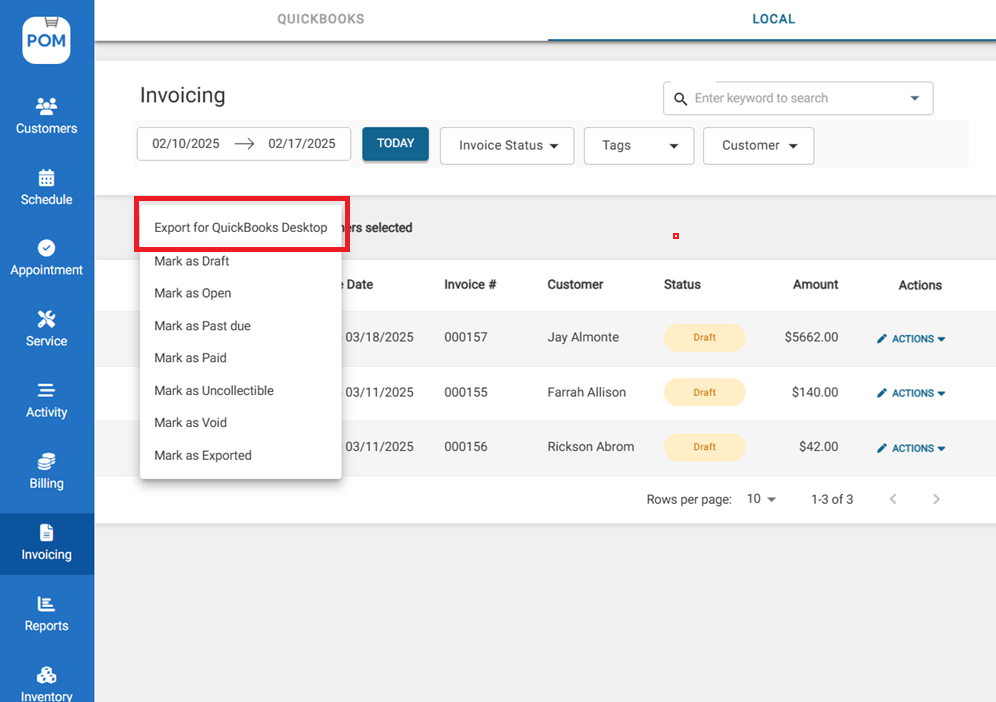
- Under the Invoicing page, select the drafted invoices and select Actions > Export to QuickBooks Desktop.
- Use the downloaded file to import into QuickBooks using ZedAxis
Option 2. Billing Tab
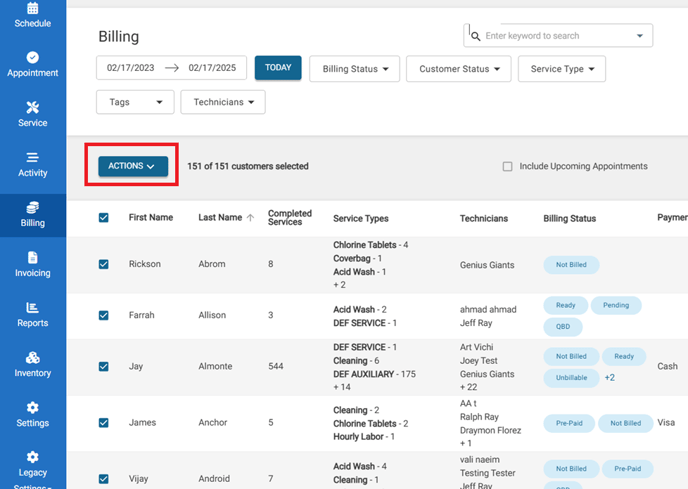
- From the Billing page, select all customers to transfer their services to QuickBooks, then select Actions > Export to QuickBooks Desktop.
- Use the downloaded file to import into QuickBooks using ZedAxis
Using ZedAxis to Connect to Quickbooks
-
Load the downloaded file into ZedAxis, after you've connected to your QuickBooks
-
Select your Mapping (QB Desktop)
-
Press Import