▶ Watch: A day in the tech app (1 min 8 s)
The schedule you built in the office is only half of POM. The other half rides in your tech’s pocket. This article gets the app onto a phone and walks the first day: clock in, see the route, and start a job.
Install and sign in
- On the tech’s phone, search Pool Office Manager in the App Store (iPhone) or Google Play (Android) and install it.
- Sign in with the user account you created under Settings → Users. Each tech gets their own login — that is how POM knows who did what.
Clock in
The home screen greets your tech with the day: a clock-in button, today’s job count, and the first stop.
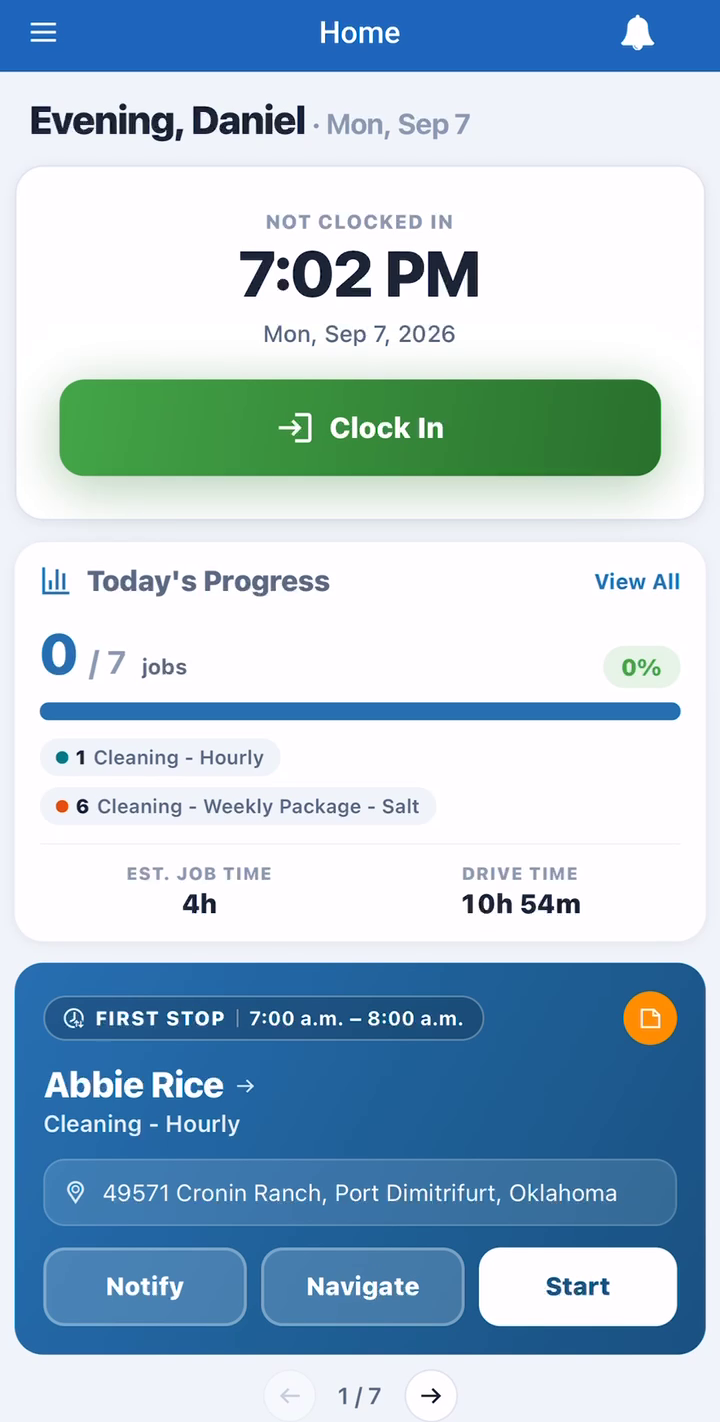
Tap Clock In (there is room for an optional shift note) and the timer starts. Hours feed the time clock you can check any time from the menu.
The day at a glance
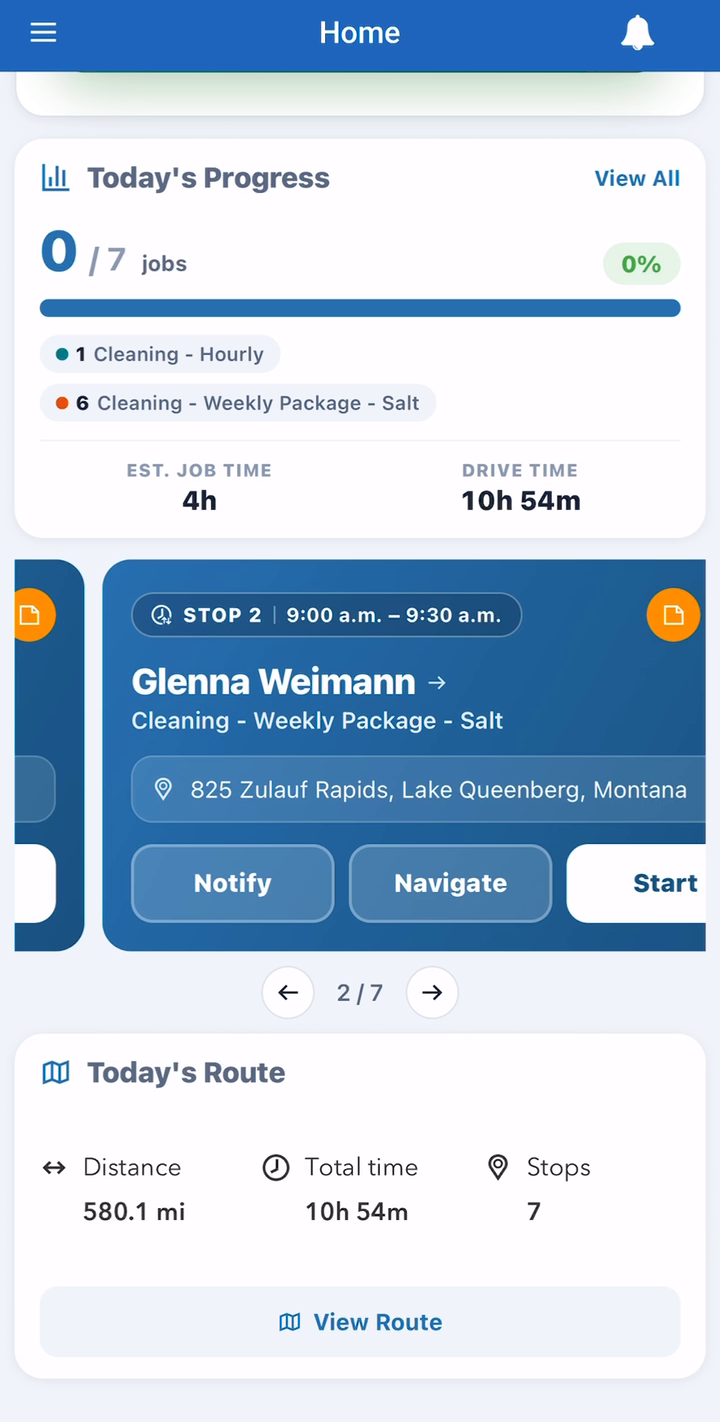
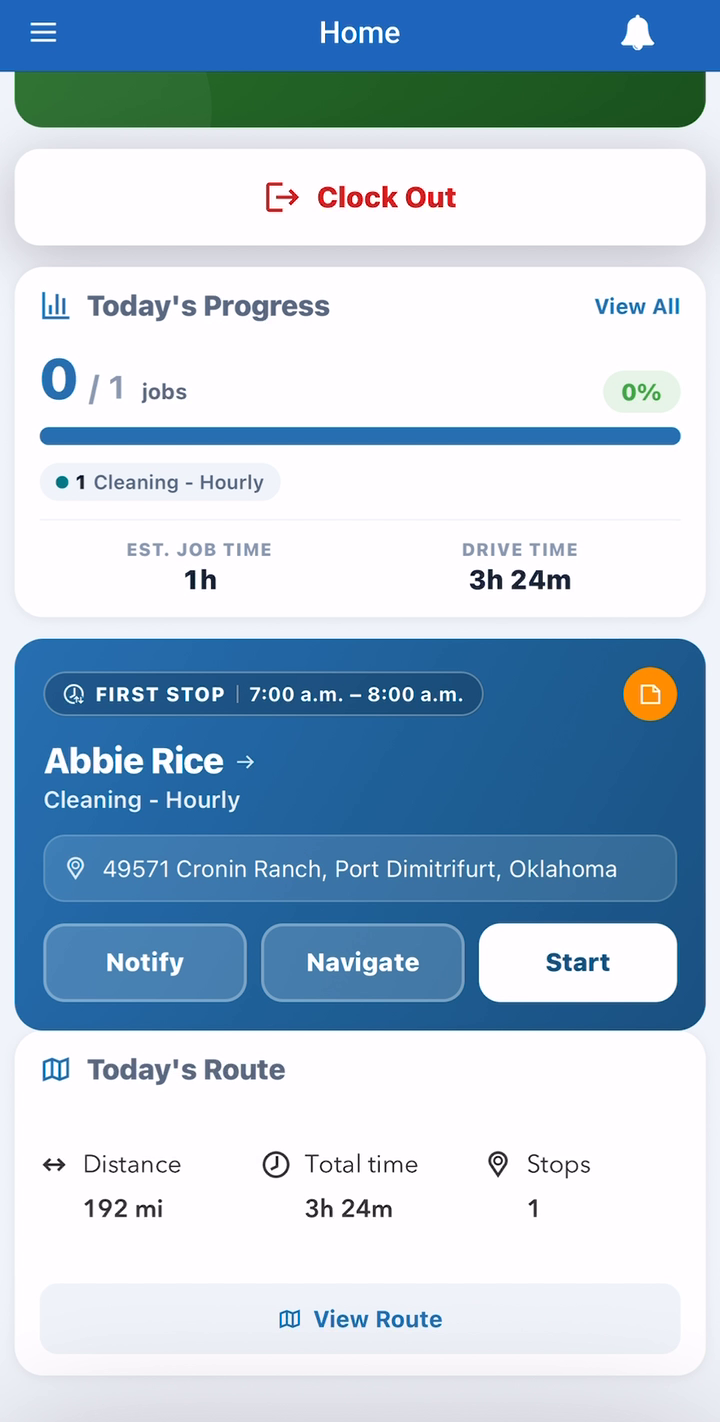
Under Today’s Progress your tech sees the job count, estimated job time, and drive time. Each stop is a card with the customer, service type, address, and three buttons: Notify, Navigate, and Start. Today’s Route totals the miles and hours.
Tell the customer you’re coming
Notify sends a text — scheduled, en route, or arrived — or an appointment email, without your tech typing a word. (Text messaging is an add-on that starts at $10/month; allow 24 to 48 hours to activate.)
Start the job
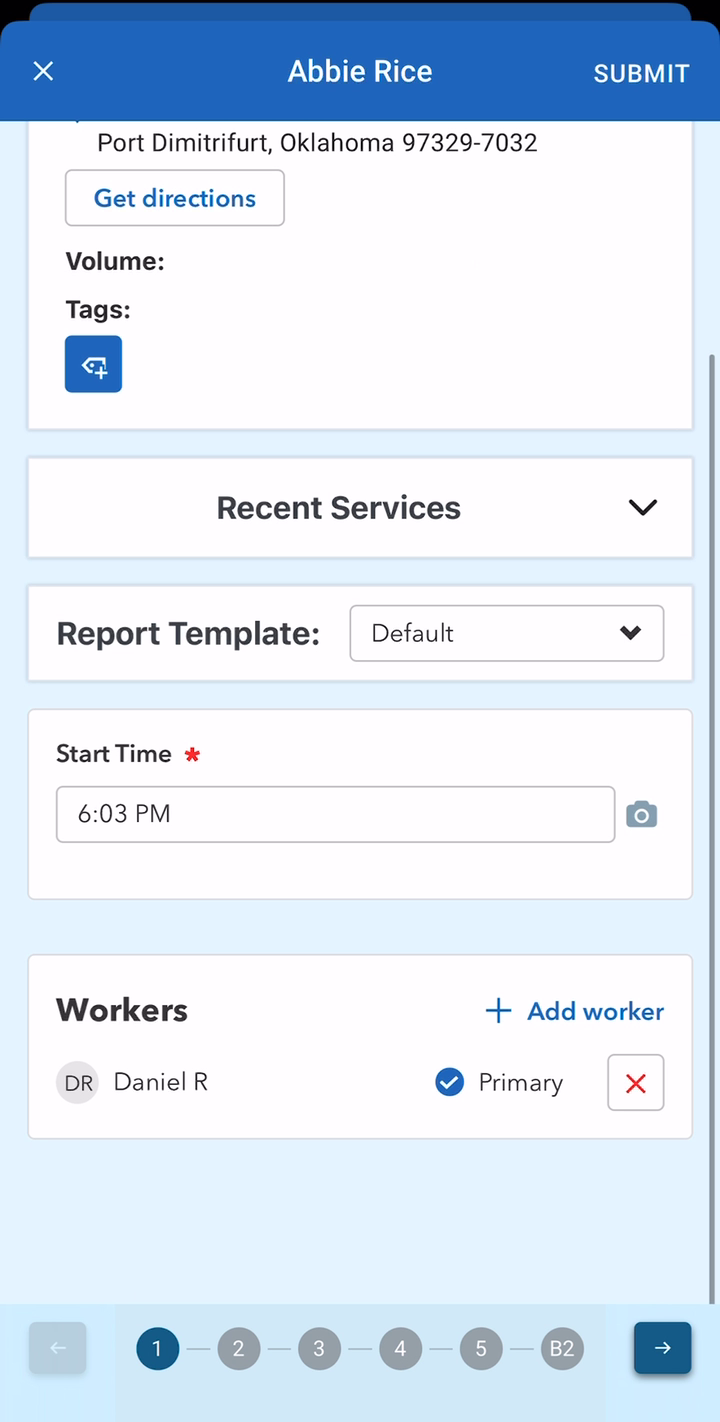
At the gate, tap Start. The appointment opens with the start time and the assigned workers, and the service ticket is created — that ticket is the next article, Service report to invoice.
The route and the hours
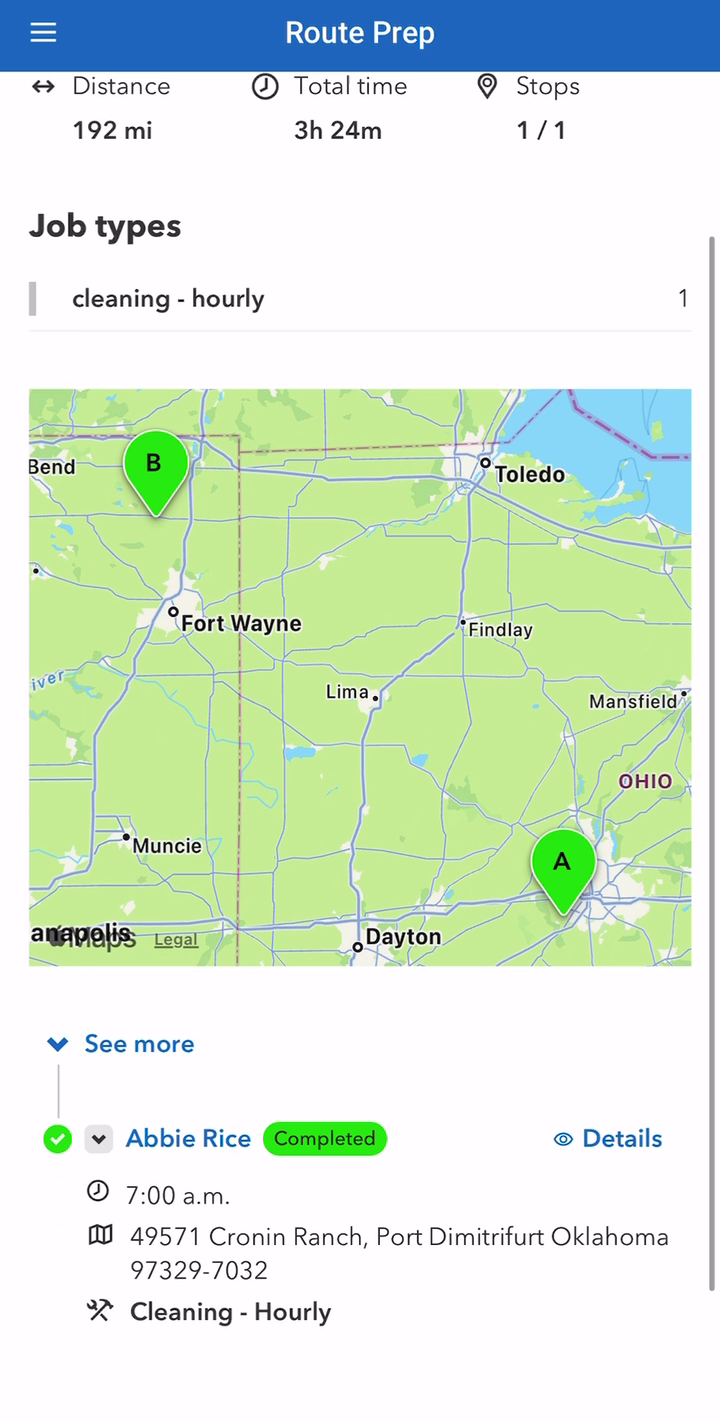
Route Prep in the menu shows the day on a map — total distance, drive time, and every stop in order, marked off as they complete.
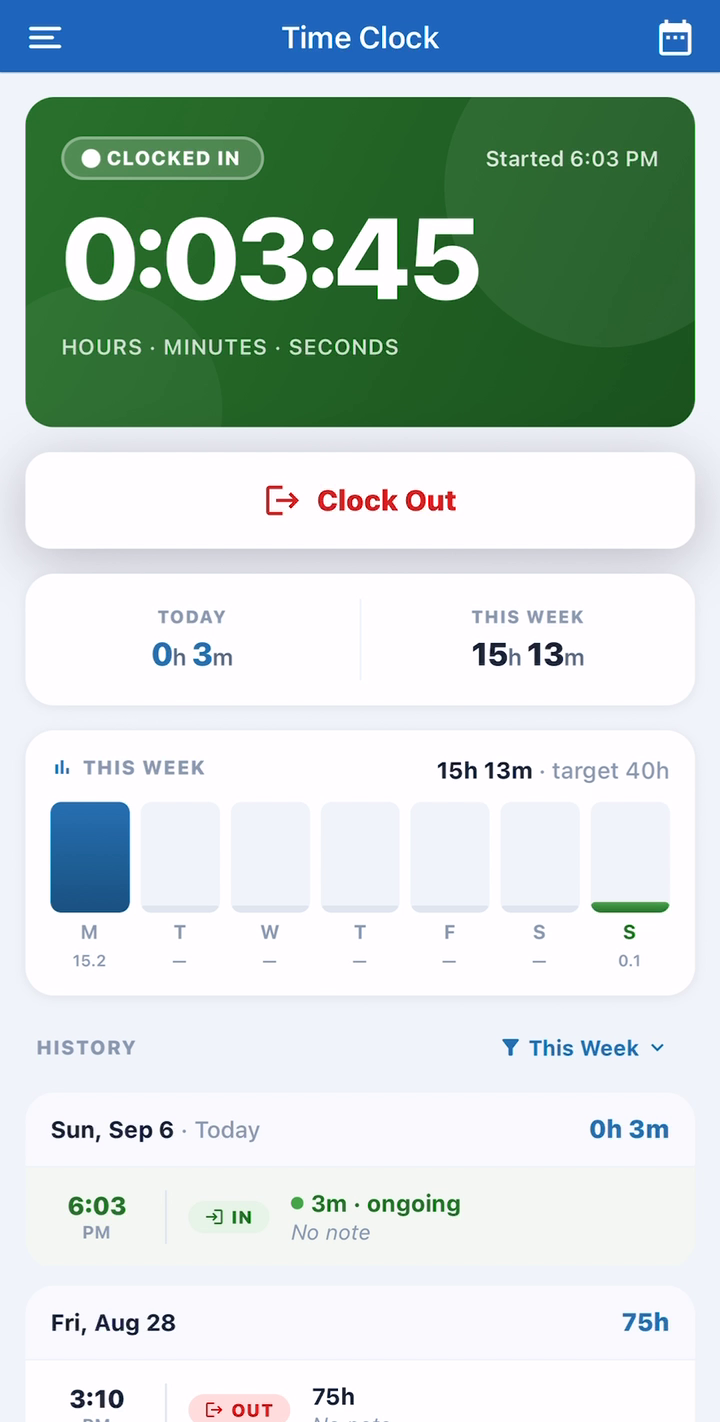
The Time Clock shows today’s hours, the week against target, and history. At the end of the day: Clock Out, with an optional note about the shift.
Next steps
- Service report to invoice — what happens between Start and getting paid.
- Build your first schedule — the office side of the same day.
Need a hand? Call 614-710-0074 or email help@poolofficemanager.com.