The new scheduler page allows you to see all scheduled appointments in a grid format, providing a clear visual representation of your technician's daily workload. You can navigate between the Schedule, Map, Combined, and Calendar views.
Here are some of the new features to help you manage your team and optimize routes:
- Sort Technicians: You can now sort the list of technicians on the left-hand side of the schedule. This allows you to organize your team list according to your preference.
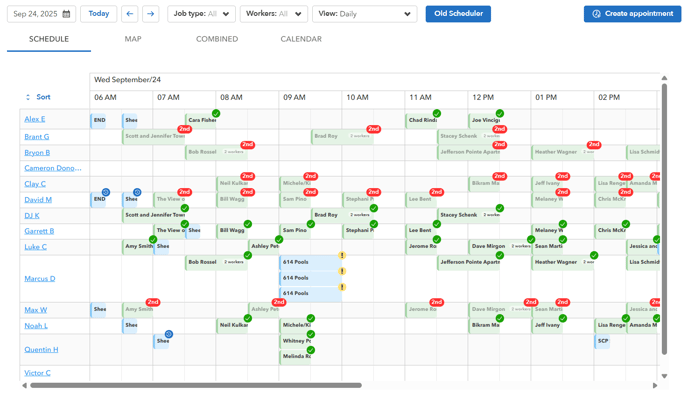
- Hide 0 - Hide all users on the schedule who have 0 jobs assigned to them
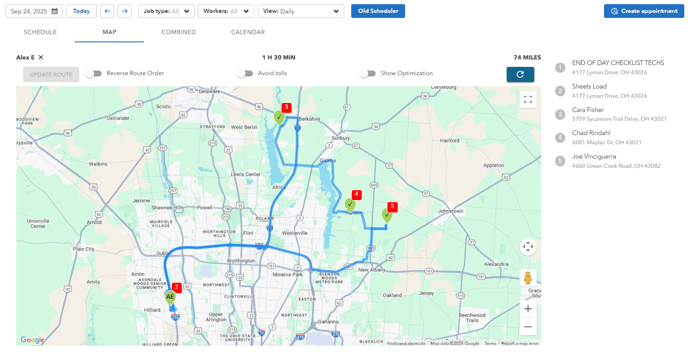
- Route Optimization: Optimize a technician's route for the day by clicking on their name on the schedule. The software will automatically re-sequence their appointments to create the most efficient route, saving time and fuel.
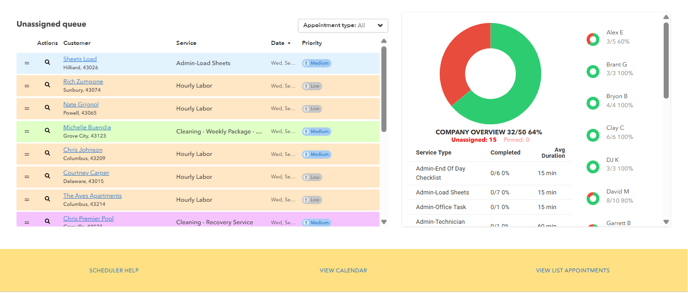
- Unassigned Queue: The Unassigned queue lists all new or pending appointments that have not yet been assigned to a technician. You can quickly see the service type, date, and priority of each unassigned job and easily assign it to an available team member.
How to Create and Manage Appointments
The
Create Appointment feature allows you to quickly add new jobs to the schedule.
To create a new appointment:

- Click the Create appointment button in the top right corner of the scheduler screen.
- Fill in the required appointment details, including the customer name, service type, date, and time.
- Assign a technician from the drop-down menu.
- Add any items or notes to the appointment.
- Click Save to add the appointment to the schedule.
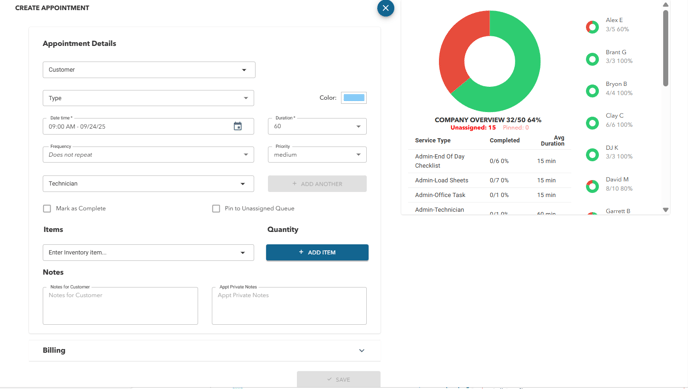
The Company Overview chart provides an at-a-glance view of your company's performance, including a breakdown of completed jobs and the average duration for each service type.