Pool Office Manager's Map and Routing features help you visualize technician locations, plan efficient routes, and manage service areas. This guide covers how to use the map view effectively.
## Accessing Map View
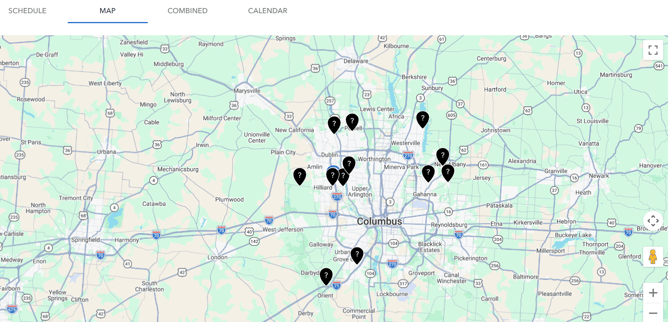
Navigate to **Schedule** from the left sidebar, then click the **MAP** tab to access the geographic view of your appointments.
## Schedule View Options
POM offers multiple scheduling views:
### SCHEDULE Tab
The default Gantt-style dispatch view showing:
- Technicians listed with appointment counts
- Timeline showing appointments by hour
- Color-coded by service type/priority
### MAP Tab
Geographic view featuring:
- Customer locations on map
- Technician positions
- Route visualization
- Appointment clusters
### COMBINED Tab
Both Schedule and Map views together for comprehensive dispatching.
### CALENDAR Tab
Traditional calendar view for date-based planning.
## Using the Map View
### Viewing Appointments
The map displays appointments as pins:
- Pin colors indicate service type or status
- Click pins to view appointment details
- Clusters show multiple nearby appointments
### Technician Locations
See where your technicians are:
- Real-time GPS tracking (when enabled)
- Starting locations for each user
- Route progress throughout the day
### Filtering Options
Refine the map display:
- **Job type** - Show specific service types
- **Workers** - Filter by technician
- **Date** - View specific day's appointments
## Route Planning
### Optimizing Routes
Plan efficient routes for technicians:
1. View all appointments for a technician
2. See geographic distribution
3. Adjust order based on location
4. Minimize drive time between stops
### Default Routing
Each location in Company Settings can have:
- Default routing enabled
- Specific start/end points
- Optimized sequences
### Starting Locations
Set custom start/end points for users:
1. Go to Settings → Users
2. Edit user profile
3. Set Starting Location
4. Routes calculate from this point
## Geographic Features
### Customer Addresses
Ensure accurate mapping:
- Full addresses with coordinates
- Verify address accuracy on customer profiles
- Update coordinates if pins appear wrong
### Service Areas
Visualize your coverage:
- See where customers cluster
- Identify underserved areas
- Plan expansion strategically
## Dispatch from Map
### Assigning Appointments
Use the map to dispatch:
1. Click on unassigned appointment
2. View nearby technicians
3. Assign based on proximity
4. Consider current workload
### Real-Time Updates
The map refreshes to show:
- Completed appointments
- In-progress services
- Remaining stops
## Best Practices
### Route Efficiency
- Group appointments by area
- Schedule nearby customers consecutively
- Account for traffic patterns
### Address Accuracy
- Verify new customer addresses
- Update incorrect pin locations
- Include gate codes and access notes
### Daily Planning
- Review map each morning
- Adjust routes as needed
- Balance workloads geographically
## Troubleshooting
**Customer not showing on map:**
- Verify address is complete
- Check for valid coordinates
- Update customer profile
**Routes not optimal:**
- Check starting location settings
- Verify all addresses are accurate
- Review time estimates
## Related Articles
- Scheduling Appointments
- Creating and Managing Customers
- Managing Users and Permissions