Pool Office Manager's Inventory module helps you track chemicals, equipment, parts, and supplies across multiple locations. This guide covers how to manage your inventory effectively.
## Accessing Inventory
Navigate to **Inventory** from the left sidebar to access the inventory management system.
## Inventory Tabs
The Inventory module has four main tabs:
### Inventory Tab
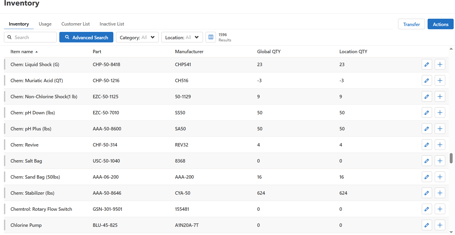
The main view showing all active inventory items with:
- Item name and part number
- Manufacturer information
- Global quantity (total across all locations)
- Location-specific quantities
### Usage Tab
Track how inventory is consumed:
- View usage history by date range
- See which technicians used items
- Monitor consumption patterns
### Customer List Tab
View inventory items associated with specific customers:
- Equipment installed at customer locations
- Parts used for specific accounts
### Inactive List Tab
Archived items that are no longer actively tracked.
## Viewing Inventory
### Search Options
- **Quick Search** - Type item name or part number
- **Advanced Search** - More detailed filtering options
### Filtering
Filter inventory by:
- **Category** - Group items by type
- **Location** - View items at specific warehouses/offices
### Columns Displayed
- Item name
- Part number
- Manufacturer
- Global QTY (total quantity)
- Location QTY (quantity at selected location)
## Managing Inventory Items
### Adding New Items
1. Click **Add Item** button
2. Enter item details:
- Item name (required)
- Part number
- Manufacturer
- Category
- Description
3. Set quantities for each location
4. Add pricing information if applicable
5. Click **Save**
### Editing Items
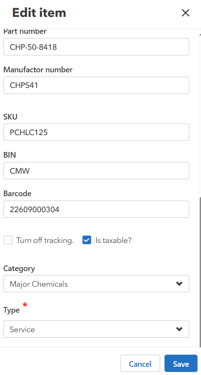
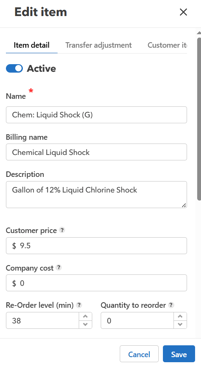
1. Click on an item to open its details
2. Modify any fields as needed
3. Save your changes
### Transferring Between Locations
Move inventory from one location to another:
1. Select the item to transfer
2. Click **Transfer**
3. Choose source and destination locations
4. Enter quantity to transfer
5. Confirm the transfer
## Location Management
### Multiple Locations
POM supports multiple inventory locations:
- Main warehouse
- Office locations
- Technician vehicles
### Default Inventory Location
Each user can have a default inventory location set in their profile for automatic tracking.
## Inventory in Service Workflow
### Using Inventory During Service
When completing a service visit:
1. Items used are recorded in the service template
2. Quantities automatically deduct from inventory
3. Usage is tracked by technician and customer
### Service Type Defaults
Service types can have default inventory items:
- Pre-set items for common services
- Default quantities
- Automatic pricing
## Best Practices
### Regular Audits
- Conduct periodic physical inventory counts
- Reconcile with system quantities
- Adjust as needed
### Reorder Points
- Monitor low-stock items
- Set up alerts for critical supplies
- Plan purchases in advance
### Organization
- Use consistent naming conventions
- Categorize items logically
- Keep part numbers updated
## Troubleshooting
**Quantities don't match:**
- Check for pending transfers
- Review recent service reports
- Verify no duplicate entries
**Item not showing:**
- Check if item is in Inactive list
- Verify location filter settings
- Search using different terms
## Related Articles
- Starting and Completing Jobs
- Setting Up Service Types
- Managing Users and Permissions