Video: https://youtu.be/rQoyYFEx-do
Realtime inventory tracking and management allow you to see instant inventory levels, item usage, details and more for each item in your inventory.
Edit Quantity by transferring from Suppliers to your locations. You can create and define or reconcile inventory amounts to accurately record what's in stock.
Inventory
The Inventory section provides a comprehensive overview of your current stock.
You can further refine the displayed items using dropdown filters for "All Locations" and "All Categories," allowing you to focus on specific segments of your inventory.
Inventory section also displays key information for each item, including the Item Name, Billing Name, a Description, Price, Part #, Manufacturer #, Global Qty (total quantity across all locations), and Location Quantity (quantity at a specific location).
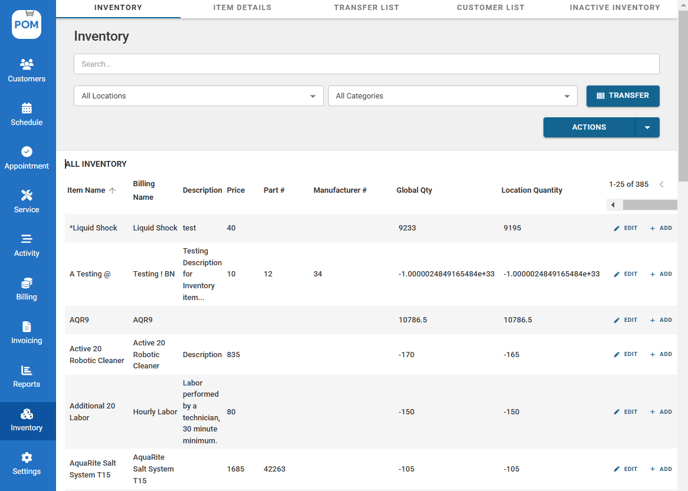
Click "Actions" if you'd like to create an inventory item, manage inventory locations and categories, or import/export inventory.
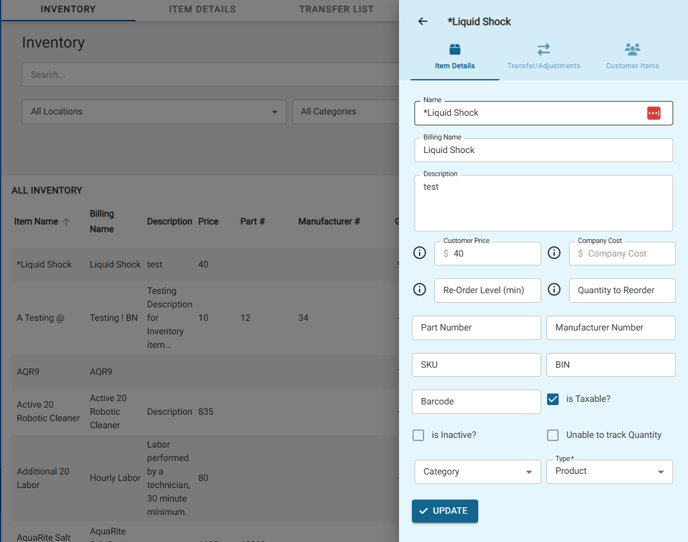
Click "Edit" to make changes to the item's details or to transfer a specific item between locations. Click "Update" to confirm changes.
Item Details
The Item Details section gives you a closer look at each inventory item. It shows the SKU (a specific item code), where it's stored (BIN), and how many are on hand. It also tells you when to reorder (Reorder Level) and how many to order (Suggested Order Amount and Qty to Order). 
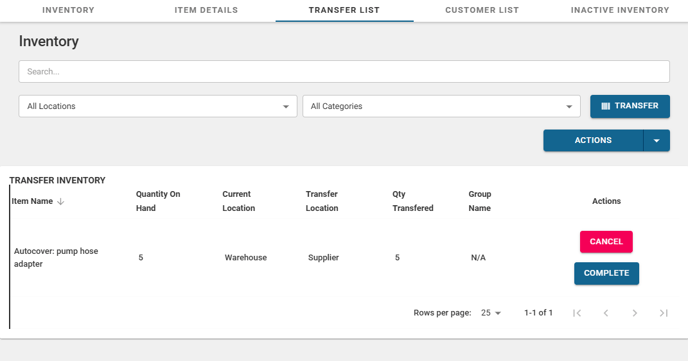
Transfer List
Provides control over each transfer, allowing you to CANCEL a pending transfer if needed or to COMPLETE a transfer once the physical movement of inventory has occurred
Customer List
Clear overview of inventory items allocated to or associated with specific customers.
Inactive Inventory
Provides a dedicated space to manage items that are no longer actively in use within your inventory system.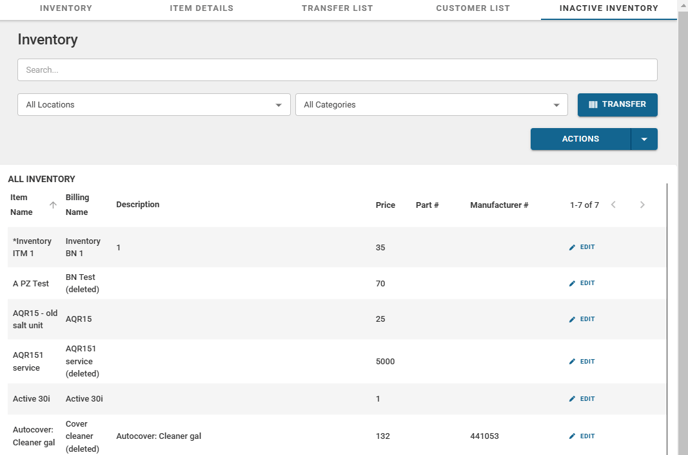
To make an inventory item active/inactive. Click "Edit" > Check/uncheck "Is inactive" 
Inventory & QuickBooks – FAQ
Do I track inventory in Pool Office Manager or QuickBooks?
Inventory should be tracked in one system only for accuracy. Most companies choose to manage inventory in QuickBooks and sync items into Pool Office Manager, or manage everything directly in Pool Office Manager — but not both.
Why can’t inventory be tracked in both systems?
QuickBooks and Pool Office Manager handle updates differently. Tracking inventory in both can cause mismatches in quantities, pricing, and billing.
How should I create inventory items so they sync correctly?
We recommend creating items in QuickBooks as non-inventory items, then syncing them into Pool Office Manager. This keeps pricing and reporting clean without causing quantity conflicts.
If I change an item’s price, will it update automatically everywhere?
No. If pricing changes, the item must be removed and re-added in drop-downs or future appointments to reflect the updated price. Existing appointments will keep the old price.
Why didn’t inventory pull from the technician’s truck?
Inventory is pulled from the logged-in technician’s user account. If a report is completed under a different login (office staff or another user), the system won’t know which truck to pull inventory from.
Can office staff complete a service report for a technician?
Yes, but inventory will not pull from the technician’s truck unless the technician logs in and completes the report themselves.
Why does inventory show as “used” in the report but not deducted from the truck?
This usually happens when the report is completed under a different user or during testing. The system records the item as used, but inventory deduction is tied to the technician’s login.
How do we test inventory correctly?
Log in as the technician, complete a test service report, add inventory, and submit the report. This ensures inventory deducts from the correct truck.
Why can’t I delete inventory items?
Inventory items cannot be deleted, but they can be marked Inactive. Inactive items won’t appear in reports, quotes, or drop-downs.
What should I do if I see duplicate invoices?
If duplicate invoices appear, save examples and send them to support before deleting so the team can investigate whether the issue is related to QuickBooks, billing integrations, or workflow timing.