Importing Customers and Customers Pricing
- Go to "Customers" > Click "Import" > Select either "Customers" or "Customers Pricing" depending on the data you want to import.
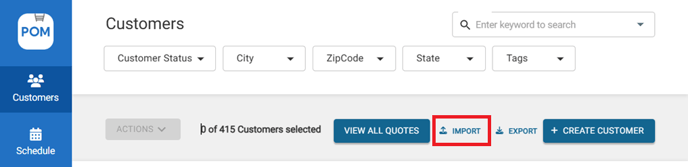
- Click on "Download Excel Template". This will download an Excel template file where you can add your Customer Data.

- Open the downloaded Excel template. Carefully enter all the required customer data into the template. Ensure all necessary fields are filled correctly.
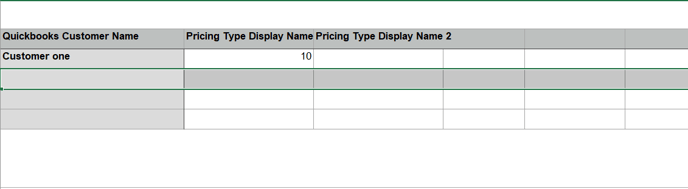
An Example of a completed Template can be Downloaded Here - Save the completed Excel template. Go back to the import screen and select "Import Customer/Pricing". The system will then import the customer data from the saved Excel template.
Exporting Customers and Customers Pricing
- Go to "Customers" > Click "Export" > Select either "Customers" or "Customers Pricing" depending on the data you want to Export.


This will download an Excel file that contains your customer's data/customer pricing in each column.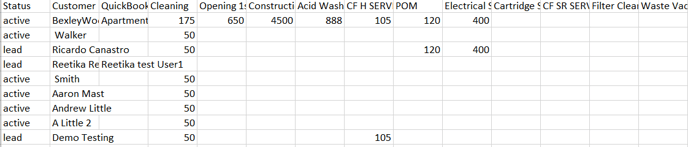
- Export Appointment Data
Go to "Appointments">Adjust filters at the top (date range, Service type, technicians, etc.) if you only want certain data>Click the Export Icon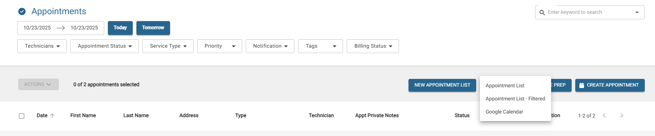
- Export Billing Data
Go to "Billing">Set the filters for Billing Range, Service type, Status, Tags, Workers, etc.>Click Export Icon (highlighted)>Data will download as a .CSV file.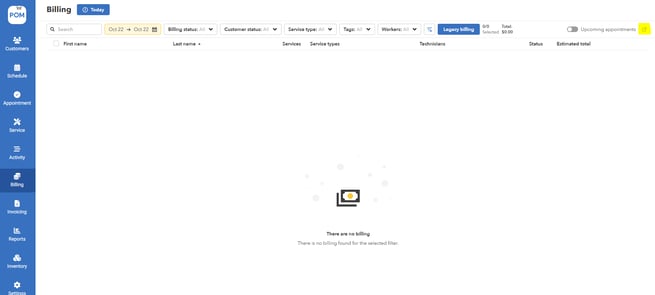
Import Button Greyed Out?
The QuickBooks import option is disabled until your QuickBooks connection is active. Connect first under Settings > Apps > Connect with QuickBooks Online, then return here — the import option will be available.
Migrating from Another Platform (Pool Brain, Skimmer, etc.)
Coming from another pool-service platform? Export your customer list (and inventory if available) from the other system as a spreadsheet/CSV and email the files to files@poolofficemanager.com — the POM team will import them for you. See also Importing Existing Data into Pool Office Manager.