Quote Templates in Pool Office Manager let you save pre-configured line items, descriptions, and notes so you can quickly build quotes for common jobs. Instead of adding the same services and products every time, create a template once and apply it with one click when building a new customer quote.
Where to Find Quote Templates
To manage your Quote Templates, go to Settings > Quote Templates from the left sidebar. This page shows all your saved templates and lets you create new ones, edit existing templates, or delete templates you no longer need.
Creating a New Quote Template
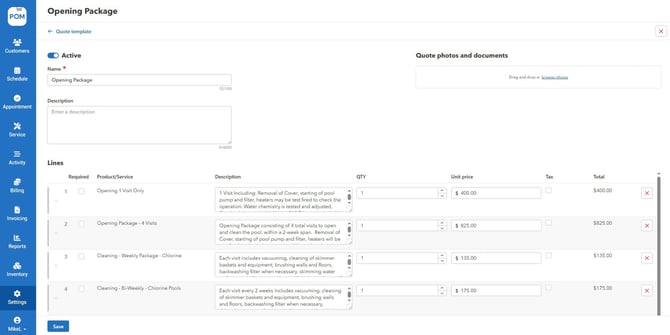
From the Quote Templates page, click the "Create Quote Template" button. Fill in the following fields:
Active - Toggle this on to make the template available when creating quotes. Toggle off to hide it without deleting it.
Name - Give the template a descriptive name so you can easily identify it later (e.g., "Weekly Pool Service," "Filter Replacement," "Spring Opening Package").
Description - Add an optional description to explain what the template is used for or any special notes for your team.
Photos/Documents - Upload any reference photos or documents that should be associated with this template, such as product images or specification sheets.
Adding Line Items to a Template
The Lines section works the same way as when creating a regular quote. Click "+ Add line" and choose either Service type or Inventory item. For each line item, you can set the Required checkbox, Product/Service name, Description, QTY (quantity), Unit Price, and Tax. These values will automatically populate when the template is applied to a new quote. You can reorder line items by dragging the handle on the left side of each row, and remove items by clicking the red X.
Adding Template Notes
The Notes section includes a rich text editor where you can add default notes that will appear on every quote created from this template. This is useful for standard terms, scope of work descriptions, or special instructions. The editor supports formatting options including font family, font size, text color, bold, italic, underline, strikethrough, and bulleted or numbered lists.
Saving Your Template
When you are finished setting up the template, click "Save" at the bottom of the page. The template will now appear in your Quote Templates list and will be available when creating new customer quotes.
Using a Quote Template When Creating a Quote
When creating a new quote from a customer's profile, you will see a "Quote template" button at the top of the quote creation page. Click it to open a dropdown list of your active templates. Select a template and the quote will automatically populate with the template's line items, descriptions, and notes. You can then make any changes needed for that specific customer before creating the quote.
Editing and Managing Templates
From the Settings > Quote Templates page, you can click on any template to open it for editing. Update the name, description, line items, or notes as needed and click "Save" to apply your changes. To temporarily hide a template without deleting it, toggle the Active switch off. To permanently remove a template, click the delete option. Editing a template does not affect quotes that have already been created from it.
Tips
Create separate templates for your most common job types, such as weekly service, one-time cleanings, equipment repairs, and seasonal openings or closings. Use the Description field to note when a template should be used so your team knows which one to pick. Include your standard terms and conditions in the Notes section so they are automatically added to every quote. Keep templates up to date by reviewing pricing and line items periodically, especially after changing your service type or inventory settings.