▶ Watch: Flat-rate monthly billing (47 s)
Some companies charge a flat monthly fee — say $400 a month, every month, service and chemicals included, regardless of visit count or usage. The cleanest way to run that model: let QuickBooks send the fixed invoice automatically, and use POM only to catch the exceptions — the repair, the part, the add-on that is not included. Set it up once and month-end billing nearly disappears.
How the model works
- The subscription itself lives in QuickBooks as a recurring invoice (a memorized transaction). It goes out on schedule with no action from you, and if you use autopay, the card runs automatically on the same schedule.
- POM records every visit as usual — service reports, chemicals, photos — but the service is priced at $0, so routine visits never generate a charge.
- Only exceptions get invoiced from POM: anything used or sold that the subscription does not include.
Step 1: Set the service to $0 in POM
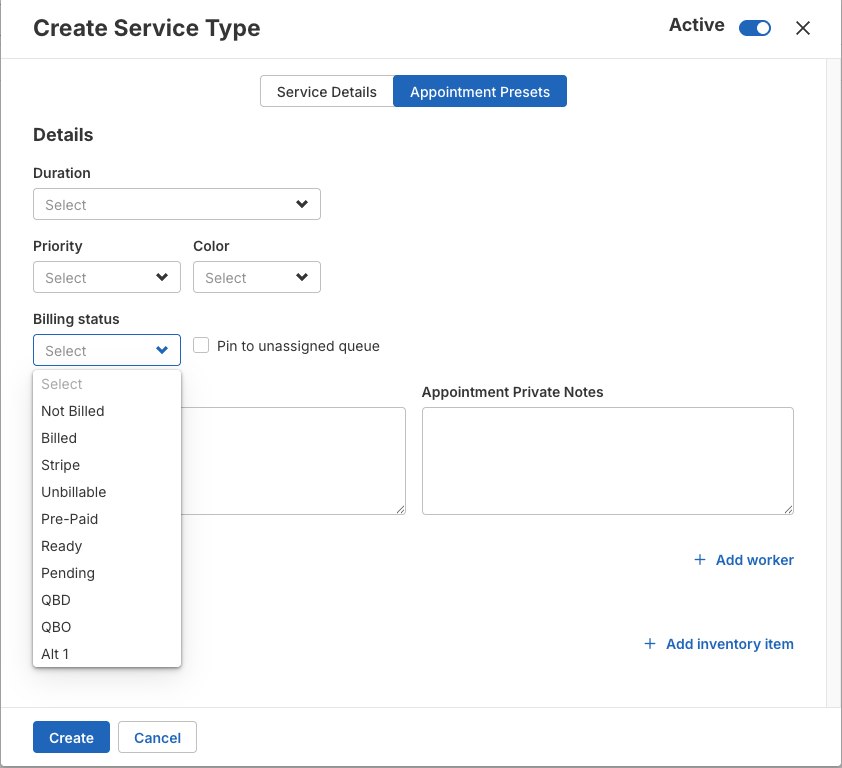
Go to Settings → Service Types, open (or create) the subscription cleaning service, and set the price to $0. Then on Appointment Presets, add the included chemicals at quantity 0 and price $0 — same technique as flat-rate billing (see the companion guide, Flat-rate billing: include chemicals at one price).
Tip: companies on annual contracts or subscriptions often preset these jobs to the Pre-Paid billing status instead, since no invoice is ever needed for the service itself. Either way works — $0 pricing keeps the visits visible in your billing review; Pre-Paid takes them out of it.
Step 2: Create the recurring invoice in QuickBooks Online
- In QuickBooks Online, open Recurring transactions and click New. Depending on your QuickBooks layout, it’s under the gear icon or under All apps → Accounting → Recurring transactions.
- Choose Invoice, and make it a template — for example Monthly Flat-Rate Cleaning.
- Set the type to Scheduled, the interval to monthly, and pick the start date.
- Add the customer, the line item (your monthly cleaning fee), and save.
- Repeat per subscription customer. The first pass is the time-consuming part; after that it runs itself.
If your customers are on autopay, the card runs automatically on the same schedule — the whole subscription side happens in one swoop every month unless you cancel it.
Step 3: Bill only the exceptions from POM
Open the Billing page for your date range. Because routine visits are $0, the page is easy to read: anyone showing a real balance has something worth invoicing — a skimmer basket, a repair, salt. Invoice just those.
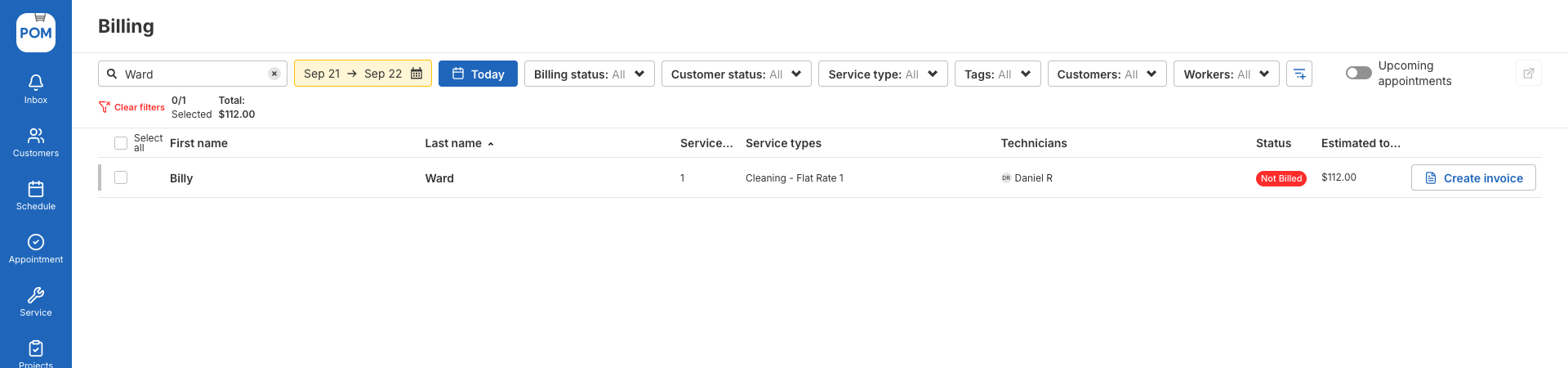
Many companies do this monthly. Plenty do it quarterly instead — cleaning customers rarely rack up extras, so a quarterly true-up cuts the invoicing workload even further.
Prefer one document per month?
You can also send statements: create each service as its own invoice in POM (Actions → Bulk Invoice, each service as a separate invoice), then send the customer a single statement from QuickBooks that rolls them up.
Good to know
- QBD, QBO and Stripe billing statuses update automatically when you invoice or export — you should rarely need to change them by hand.
- Some offices use the optional Ready status as a reviewed-and-ready-to-invoice flag between the office and billing.
- Deposits are posted in QuickBooks, not entered in POM.
Questions? Email help@poolofficemanager.com or call 614-710-0074.