▶ Watch: Include chemicals without billing them (36 s)
Flat-rate cleaning means the customer pays one price per visit — and the chemicals you agreed to include never show up as charges, no matter how much your techs use. POM handles this with one setting on the service type: the included items ride along at $0. Here is the whole setup, start to invoice.
Step 1: Create the flat-rate service type
Go to Settings → Service Types → Create service type. Give it a clear name (for example, Cleaning - Flat Rate), choose Fixed price and enter your per-visit price. Use the description to spell out what is included — that description also appears on invoices, so it does the explaining for you.
Step 2: Add the included items at $0
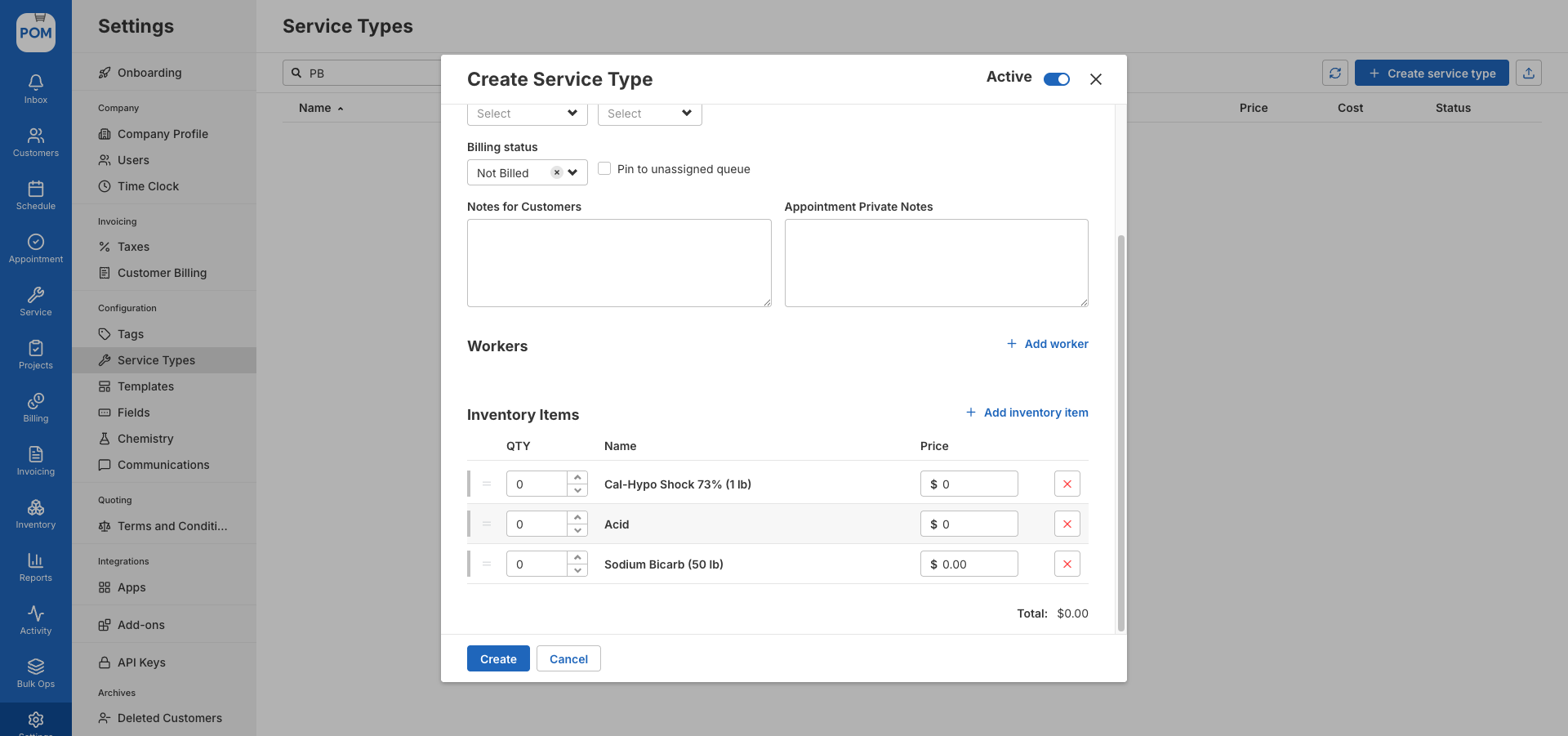
Switch to the Appointment Presets tab on the same service type:
- Set the Billing status to Not Billed — visits still flow through your normal billing review, which matters the day a tech replaces a cracked skimmer basket you do charge for.
- Under Inventory Items, add each chemical the flat rate covers, and set both the quantity to 0 and the price to $0.
Quantity 0 is deliberate: techs enter the real amounts they use on each visit, and you never get false positives from untouched preset quantities. Price $0 is the flat-rate switch — an item configured at $0 posts as $0 on every invoice, whatever quantity gets logged.
Step 3: Book it
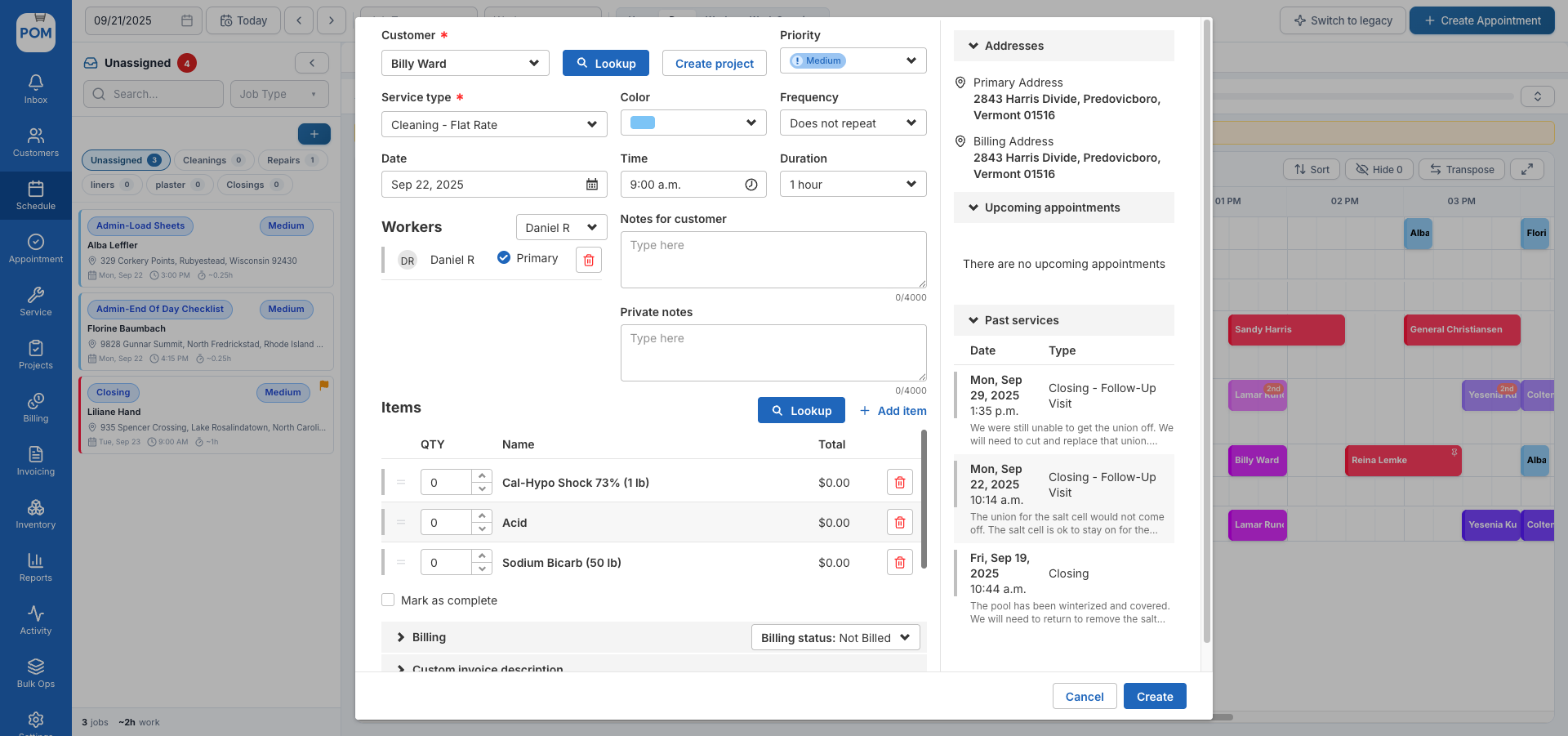
Create appointments with this service type as usual. The included items arrive on every job automatically, already set to $0 — you can see it in the totals before you even save.
Step 4: The visit does the bookkeeping
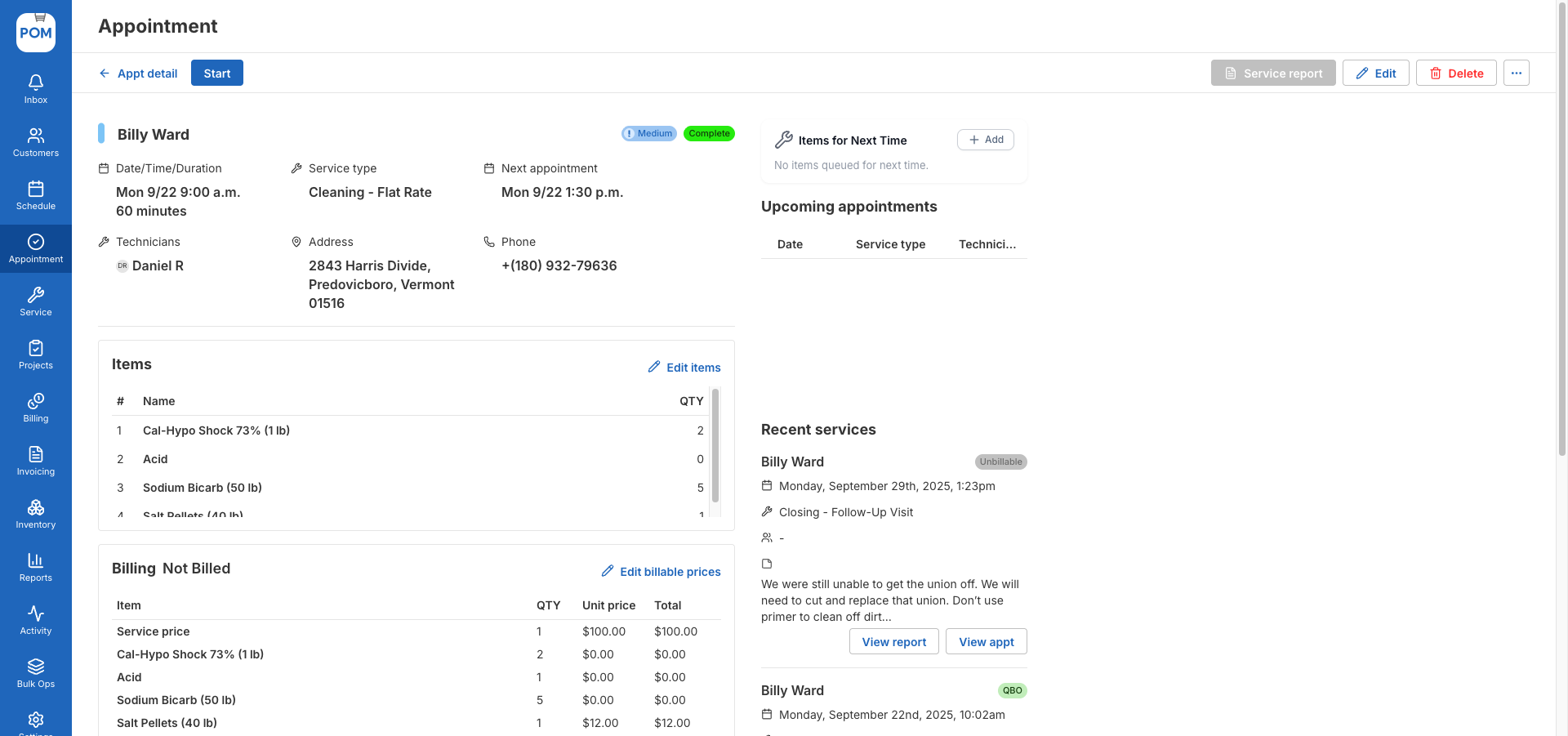
Your tech completes the service report and records what was actually used — say 2 lb of shock and 5 lb of bicarb (included), plus a bag of salt pellets (not included). The included items stay $0; anything not on the included list carries its normal price as an extra. Usage is still tracked for inventory and reporting either way — you know exactly what the flat rate is costing you.
Step 5: Invoice — and clean up the $0 lines if you like
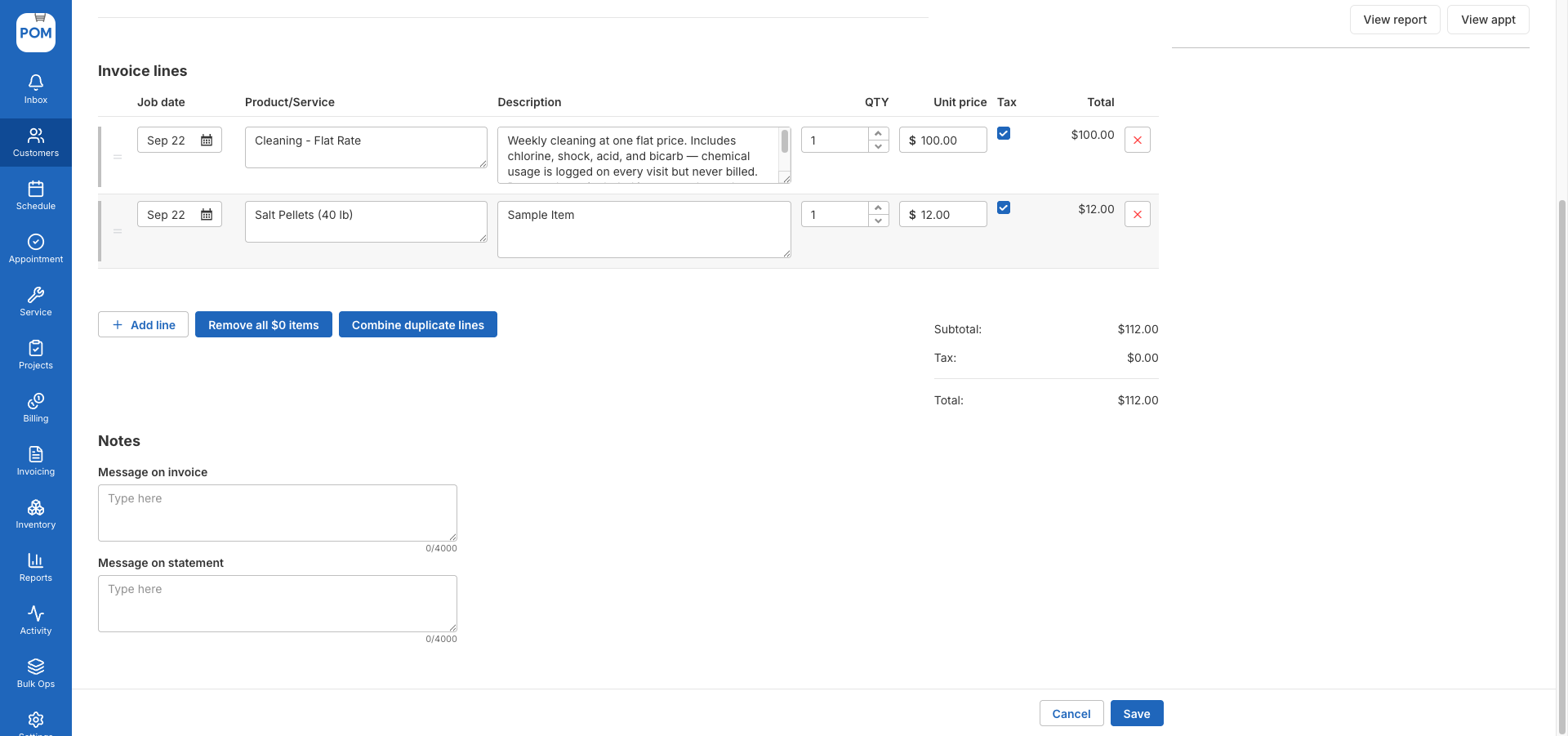
On the Billing page, the completed visit shows the service price plus any extras. Click Create invoice: the flat-rate service, the $0 included lines, and the extras all flow in.
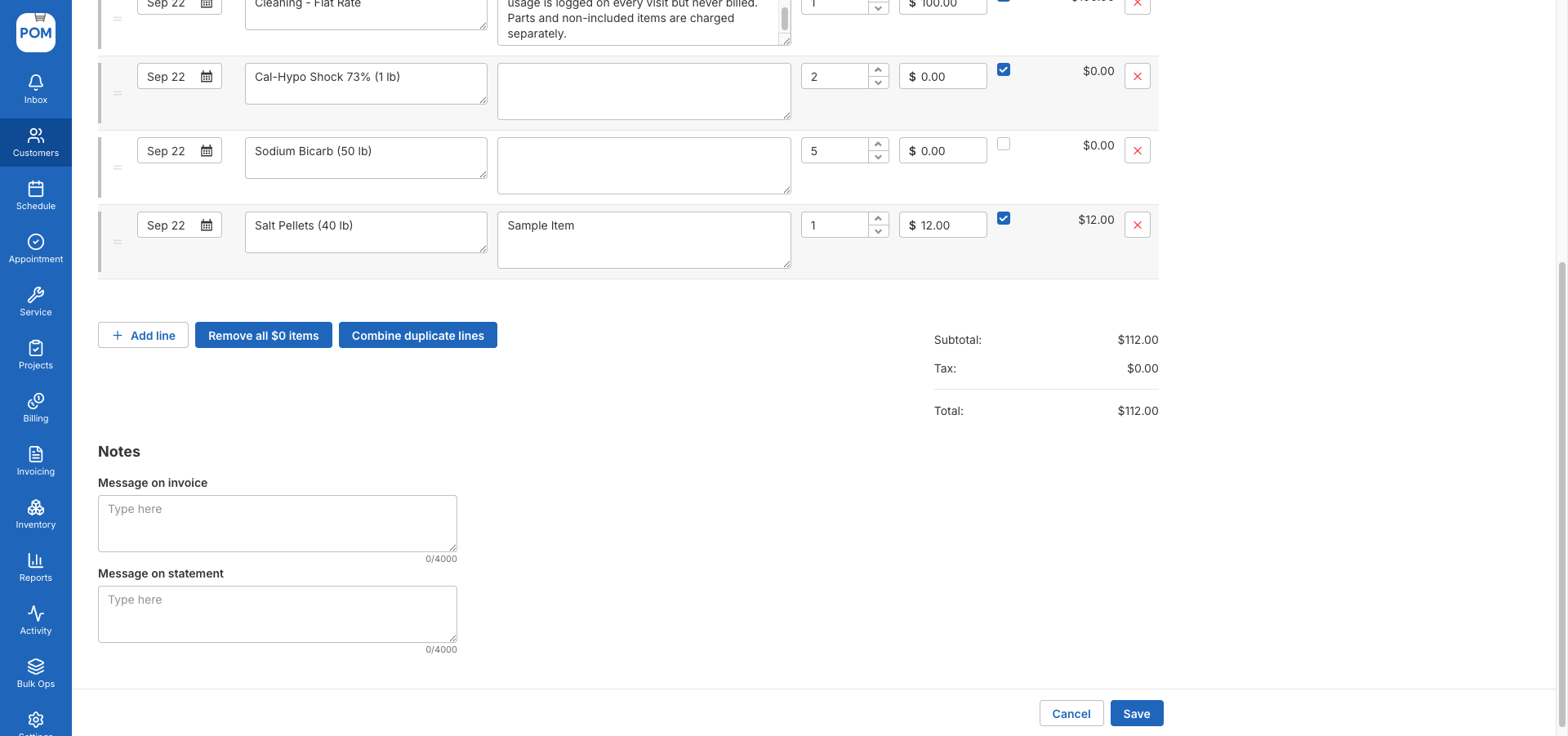
Want a tighter invoice? Click Remove all $0 items and every zero line disappears — the customer sees just the flat rate and the extras. Then save, or save and send to QuickBooks.
Good to know
- Price changes only touch future jobs. Changing the service type price (or an included-item list) never rewrites appointments that already exist.
- One requirement for billing: a visit reaches the Billing page when its service report is completed — marking the appointment complete on the schedule alone is not enough.
- Monthly flat fee instead of per-visit? See Subscription billing: recurring invoices in QuickBooks — the companion guide.
Questions? Email help@poolofficemanager.com or call 614-710-0074.