What it is
The Unassigned queue is your worklist of appointments that still need to be assigned to a technician. You can now organize that worklist into custom tabs so different job types live in separate views — for example, one tab for cleanings and another for repairs — making it faster to triage and assign the right work to the right tech.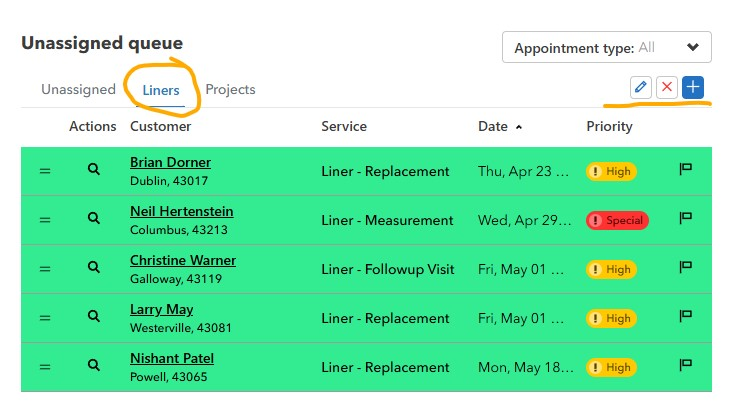
Default tab
Unassigned is always present and shows every unassigned appointment.
Creating a custom queue tab
- Click the blue + button to the right of the tab row
- Enter a queue name (e.g. Cleanings, Repairs, Acid Washes, Quotes)
- Click Create
- With your new tab active, open the Appointment type dropdown above the table and check the job types you want this tab to show (e.g. all cleaning-related types). The selection is saved per tab.
Renaming or deleting a tab
With a custom tab selected:
- Pencil icon → rename the queue
- X icon → delete the queue (the appointments aren't deleted, just the view)
The default Unassigned tab can't be renamed or deleted.
Working from a tab
Each row shows the customer, service, requested date, and priority. From the Actions column you can preview or assign the appointment. The company overview panel on the right always reflects total Unassigned and Pinned counts across all tabs.
Why this matters
Instead of scrolling one giant unassigned list, dispatchers can jump straight to the queue that matches the tech they're scheduling — cleanings dispatcher works the Cleanings tab, repair lead works the Repairs tab.