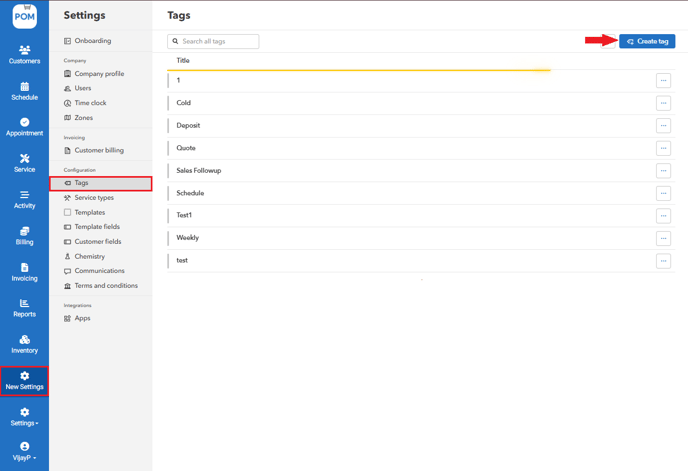
- Select New Settings > Tags. (Under "Configuration") > Click "Create tag"
- Enter tag name > Create

Editing/Deleting a tag
- Find the specific tag you want to edit/delete in the list of tags.
- Click the ellipsis icon next to the tag name.

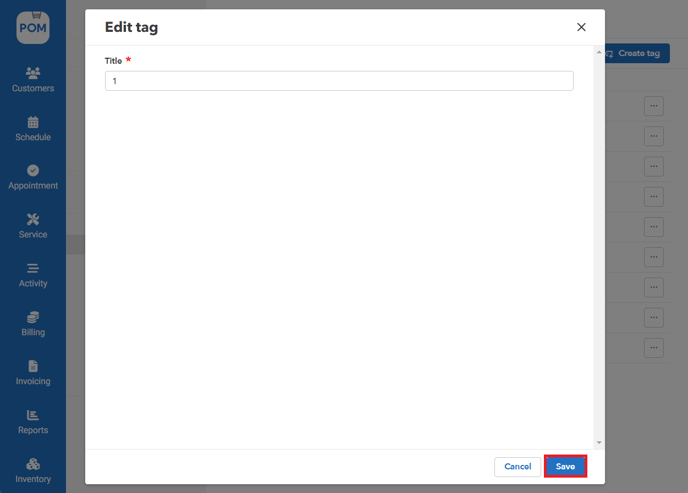
- To edit: Select "Edit tag" > Edit the tag name > Save
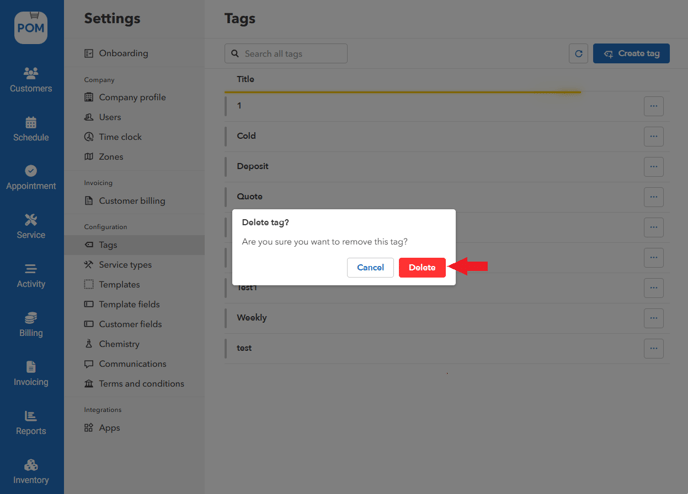
- To delete: Select "Delete tag" > Delete
Add/Edit a Tag from a Customer
- Select "Customers" > click on the customer's name to open their details page.
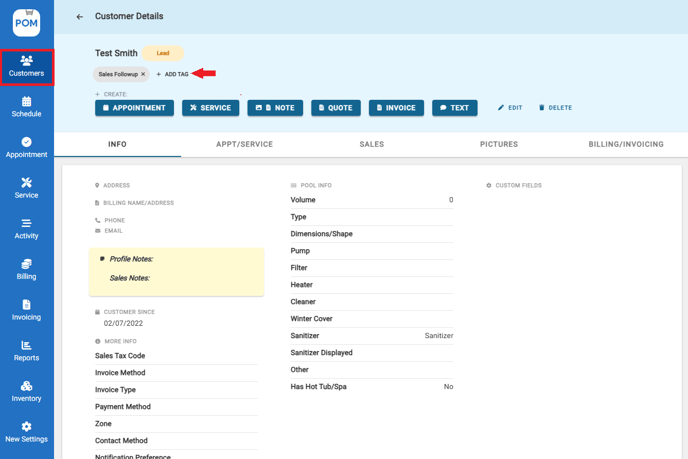
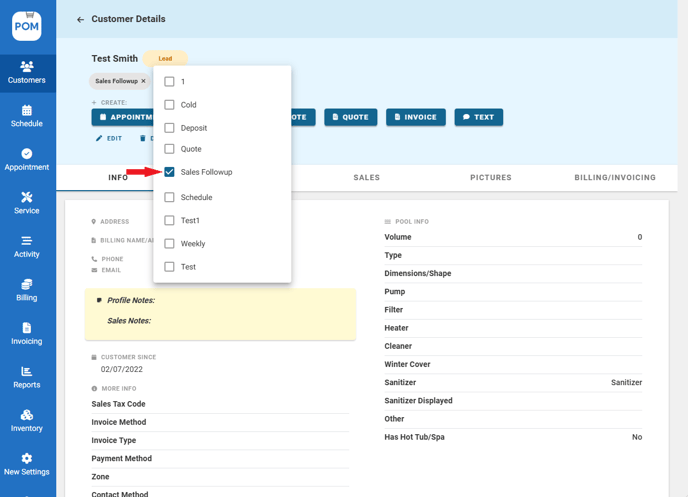
- Click "Add Tag" > Check the tag(s) you want to add and uncheck any tags you want to remove.
 Automation of Tags
1. Customer requests a quote and system will automate the "Quote" tag on customer profile
2. Following sending the quote to customer, the system automates "Sales Followup"
3. Once customer signs quote, system automates "Schedule"
4. Once scheduled from quote, the system automatically removes schedule tag from customer profile
Search the Customer list by Tags
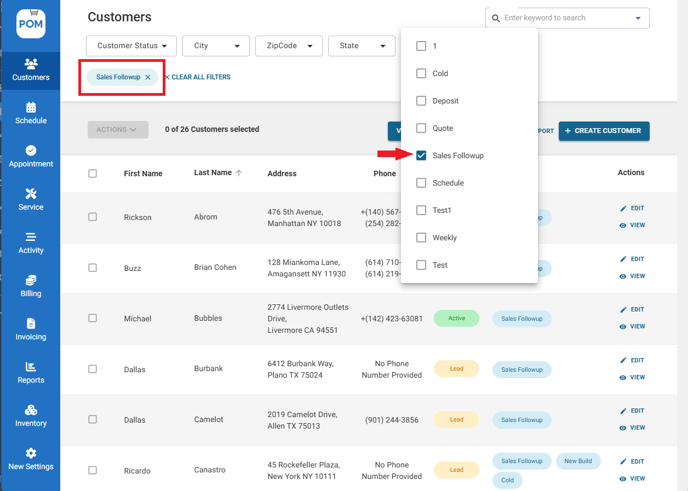
- Go to "Customers" > Click "Tags"
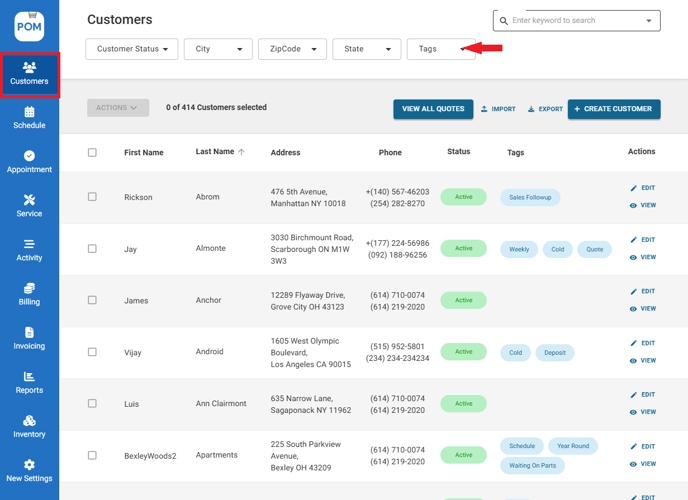
- Check the desired tag(s) from the list. This will filter the Customer list to display only those customers who have been assigned the selected tag(s).