Create a custom template field
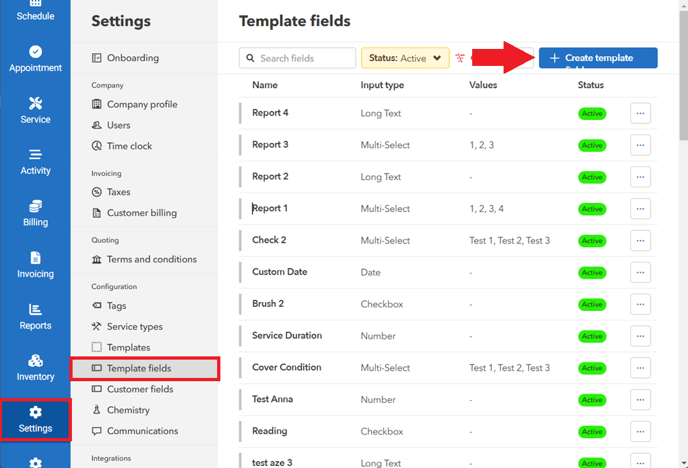
- Go to "Settings" > "Template fields" > click "Create template field"
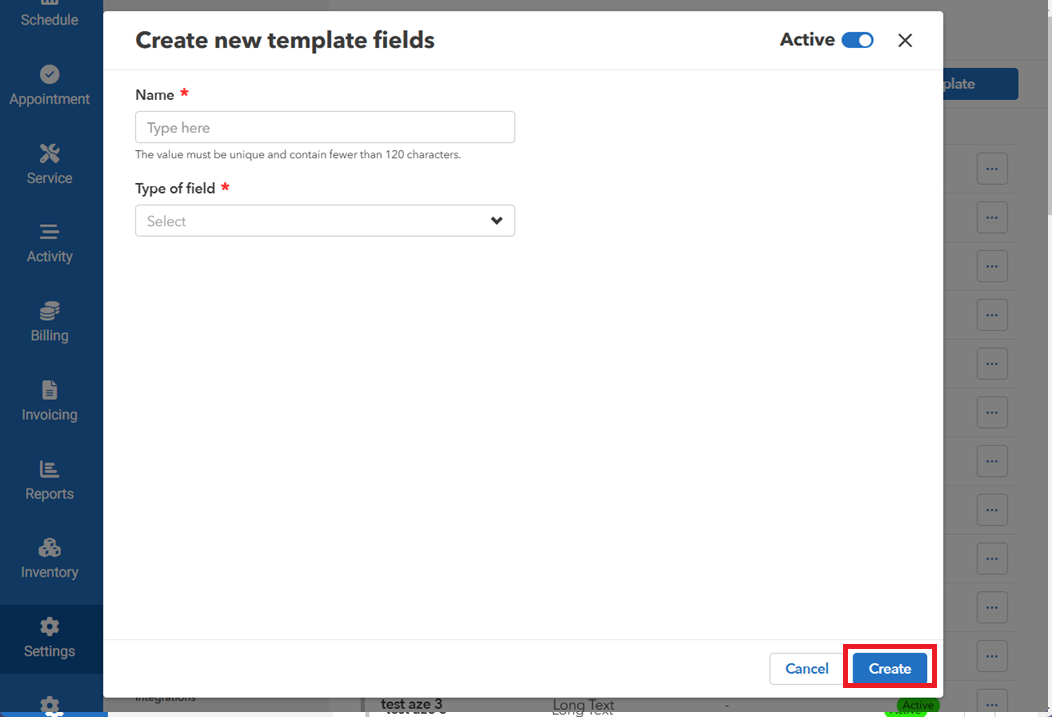
- Enter the name and select the type of field (This can be a checkbox, Date, Text, or Number). Click "Create" to save the new template field.
Activate/deactivate or delete existing template field
- In the list of template fields, find the specific field you want to modify. You can search the field or filter the list of template fields by pressing the "Status" dropdown menu.
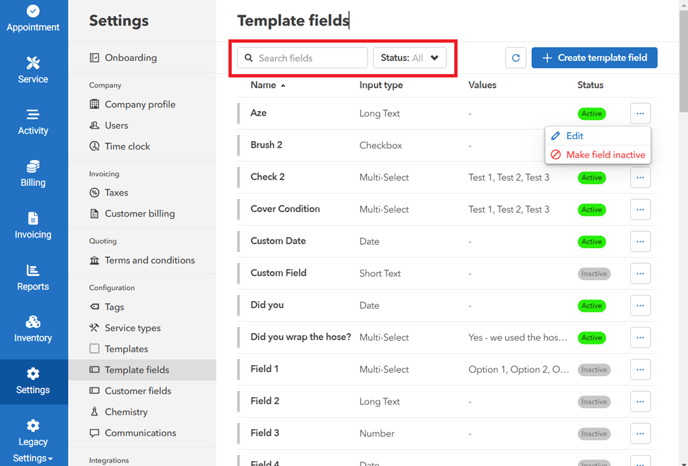
- Locate the "Status" column, If the template field is currently active. Click the "Make field inactive". Do the same for inactive template fields.
- A confirmation message will appear. Click "Make active/inactive" to proceed with the changes.
- To make edits, click on the "Edit" icon. After making your changes, be sure to click "Save" to apply them.