If you are converting from QuickBooks Desktop to QuickBooks Online, there are important steps to follow to ensure your customer data stays in sync with Pool Office Manager (POM). This guide walks you through the entire process, including how our team analyzes your data and what you need to do before connecting the two systems.
Important: Once you connect POM to QuickBooks Online, customer records that do not match will be created as new entries in the other system. This step cannot be reversed. Please follow the process below carefully before connecting.
Step 1 — Export Your Customer List and Item List and Send It to POM
Once you have converted to QuickBooks Online, export your customer list from QuickBooks Online as a .csv or .xlsx file.
Email your export file to help@poolofficemanager.com.
Our team will run your file through our matching tool to compare every customer name in QuickBooks Online against every client name in Pool Office Manager.
Step 2 — POM Runs the Match Analysis
Our team uses an internal matching tool that compares customer names between your QuickBooks Online export and your POM client data. The tool uses exact string matching — names must match character-for-character, including spelling, spacing, and capitalization.
We will send you back an analysis workbook (.xlsx file) that contains the following tabs:
- QBO Original — All of your QuickBooks Online customers with a Match Status column showing "Matched" or "Not Matched"
- POM Original — All of your POM clients with a Match Status column showing "Matched" or "Not Matched"
- Analysis-QBO — Only the QuickBooks Online customers that have no match in POM
- Analysis-POM — Only the POM clients that have no match in QuickBooks Online
- Summary — Overall statistics including total records, exact matches found, unmatched counts, and match rate percentage
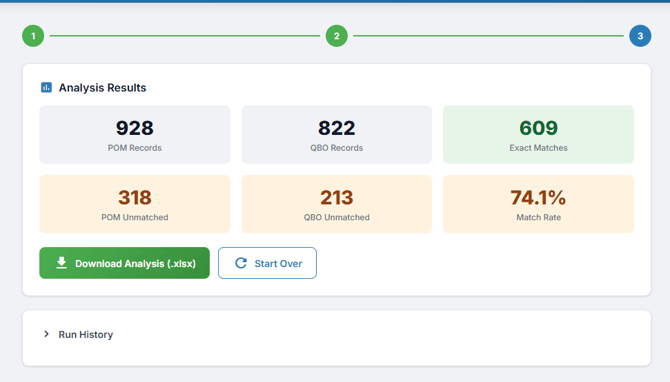
You will also see a summary of the results such as:
- Total POM Records
- Total QBO Records
- Exact Matches Found
- POM Records with no QBO match (unmatched)
- QBO Records with no POM match (unmatched)
- Overall Match Rate
Step 3 — Review Unmatched Records and Make Corrections
This is the most important step. Open the analysis workbook and review the Analysis-QBO and Analysis-POM tabs. These tabs show every record that did not find an exact match in the other system.
For each unmatched record, determine if a matching customer exists in the other system under a slightly different name. Common reasons names do not match:
- Different spelling — "Smith Pools" vs. "Smith Pool"
- Extra spaces — "Smith Pools " (trailing space) vs. "Smith Pools"
- Different name format — "George and Jane Smith" in QBO vs. "Jane Smith" in POM
- Capitalization differences — "smith pools" vs. "Smith Pools"
Where to make the correction:
- In POM: Edit the customer, go to the Billing section, and update the QuickBooks Customer Name field so it matches exactly what appears in QuickBooks Online.
- In QuickBooks Online: Edit the customer name directly so it matches exactly what appears in POM.
You can make the correction in either system — just make sure the names end up matching character-for-character.
We recommend starting with a small batch. Make about a dozen corrections, then export a new file from QuickBooks Online and send it back to us at help@poolofficemanager.com. We will run the analysis again so you can confirm your changes are working as intended before continuing with the rest.
Step 4 — Repeat Until You Are Satisfied with the Match Rate
Continue reviewing unmatched records, making corrections, and sending updated files for re-analysis. Each time, you should see the number of exact matches increase and the number of unmatched records decrease.
There is no required match rate to proceed, but the higher your match rate, the cleaner your data will be when the systems connect. Any records that remain unmatched at the time of connection will be created as new entries in the other system.
Step 5 — Connect POM to QuickBooks Online
When you are satisfied with the match results and have approved the data, connect POM to QuickBooks Online:
- In POM, navigate to Settings > Apps > QuickBooks
- Click Install
- You will be redirected to QuickBooks to authorize the connection
- Log in to your QuickBooks account
- Grant POM permission to access your QuickBooks data
- Return to POM to complete setup
Once connected, matched customer records will sync automatically. Any unmatched records will be created as new entries in the respective system.
This step cannot be reversed. Once you connect, there is no way to undo the sync. Make sure you are confident in your match results before proceeding.
After Connecting — Managing Duplicate or Inactive Records (Optional)
After the systems are connected and synced, you may notice duplicate records if some customers were unmatched and created as new entries. You can manage these by:
- Inactivating duplicate clients in POM
- Inactivating duplicate customers in QuickBooks Online
This cleanup step is optional but recommended to keep both systems organized.
Starting Fresh with QuickBooks Online
If you are not converting from QuickBooks Desktop and are starting with a brand new QuickBooks Online file, you can skip directly to Step 5 above. Simply connect POM to QuickBooks Online and your existing POM clients will sync over as new QuickBooks customers.
Pricing
Using QuickBooks Online with POM is currently $25 per month per company. Full details on POM pricing can be found on the Pricing Page.