- Go to "Settings" > Communications
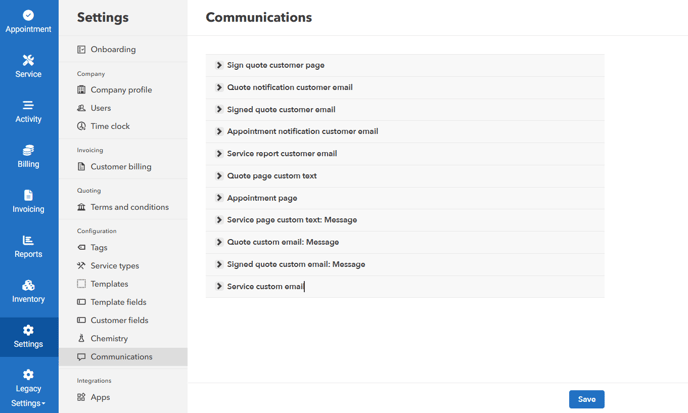
- Sign quote customer page - Customize the note on the quote sent to customers
- Uncheck the "Post signature quote form" checkbox.- This will disable the custom form after the customer signs the quote and redirect them to a thank you page instead.
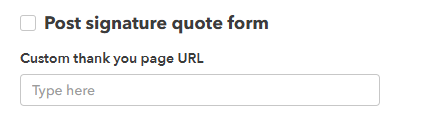
- Edit the text displayed on the thank you page to include a personalized message, instructions, or any relevant information.

- Change the text on the button that appears on the thank you page. For example, instead of "Continue," you could use "Visit Our Website," "Contact Us," or a similar call to action.

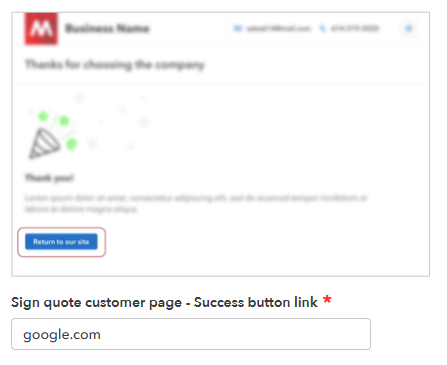
- Change the URL linked to the success button to direct customers to the desired location after they click it. (This could be your company website, a specific landing page, etc.)
- Quote notification customer email - Edit the message displayed on the email sent to customer for quote
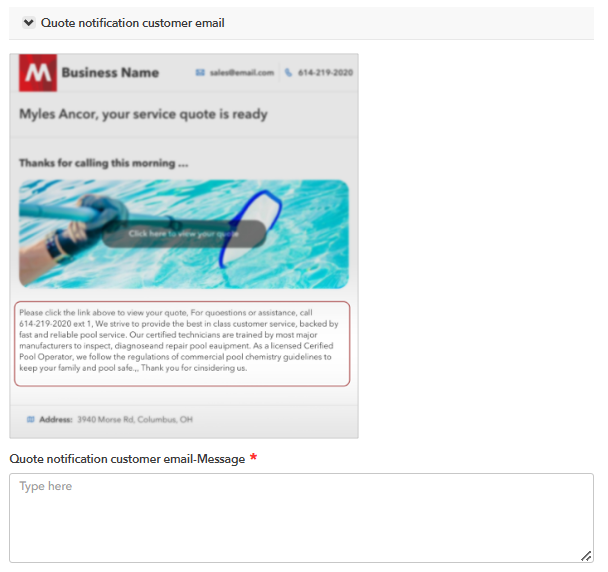
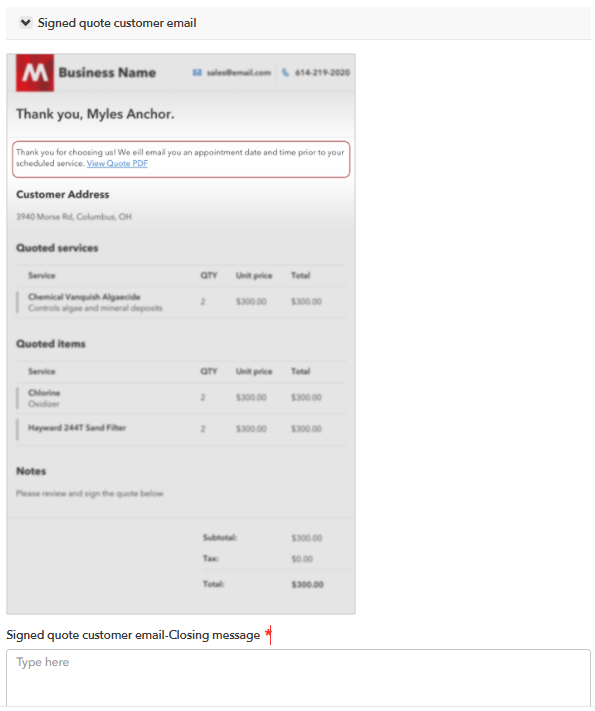
- Signed Quote Customer Email - Edit the closing message in the signed quote email
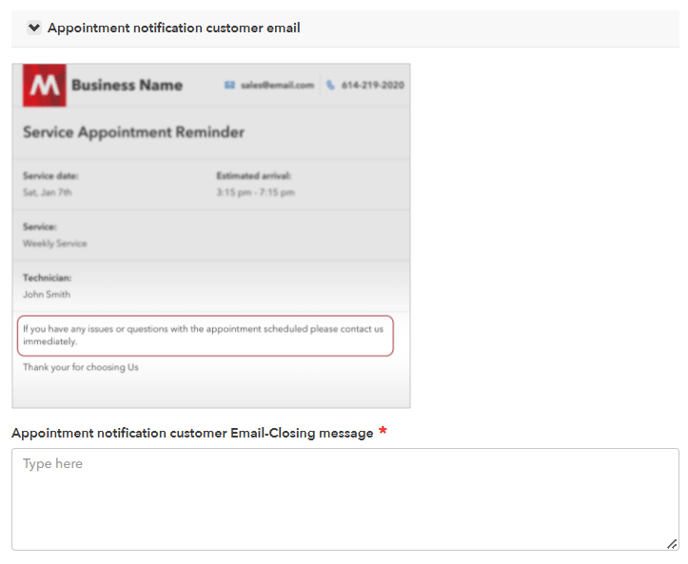
- Appointment Notification Customer Email - Edit the message in the Appointment notification sent to customers
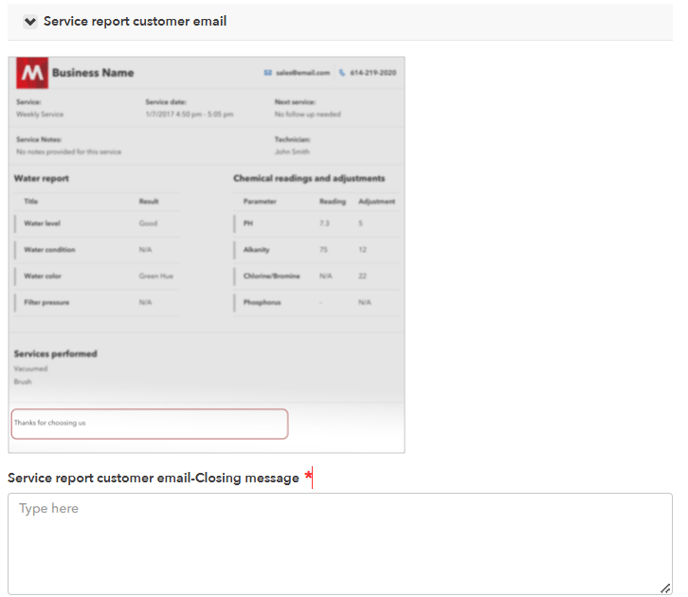
- Service Report Customer Email - Modify the closing message in the service report emailed to customers
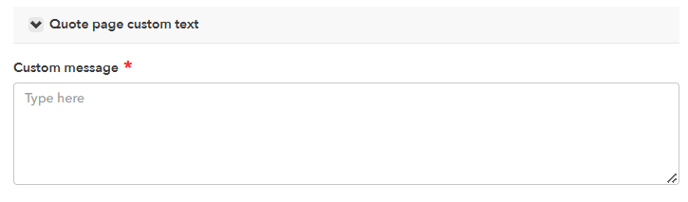
- Quote page custom text - Customize the message shown on the quote page.
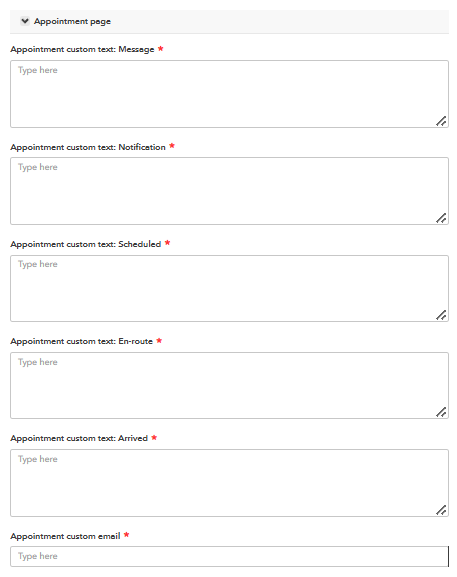
- Appointment page - Customize the text used when sending "Message," "Notification," "Scheduled," "En-route," or "Arrived" emails. Add your custom appointment email.
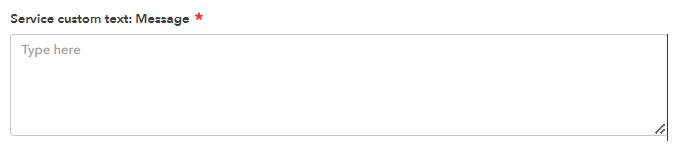
- Service Custom Text: Message - Customize your service text message
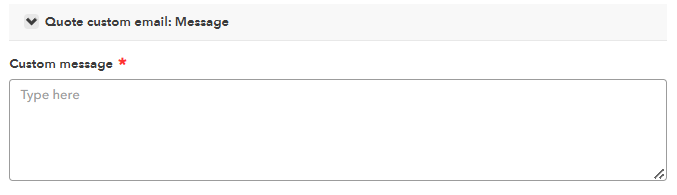
- Quote Custom Email: Message - Customize the content of the quote email message.
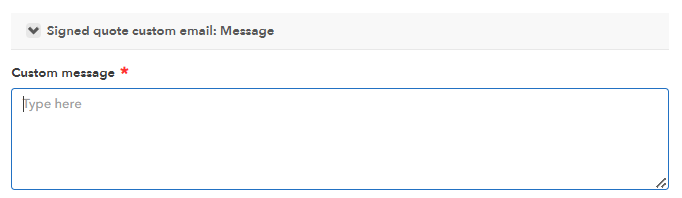
- Signed Quote Custom Email: Message - Customize the content of the signed quote email message.
- Service custom email - Add your own custom email for service emails.

- After making any changes, click "Save"