▶ Watch: Scheduling in POM (53 s)
The Schedule is your command center: every tech is a row, every stop is a colored block, and anything nobody owns yet waits in the queue on the left. This article puts your first appointments on the board and shows you the four moves you will use every day.
The board
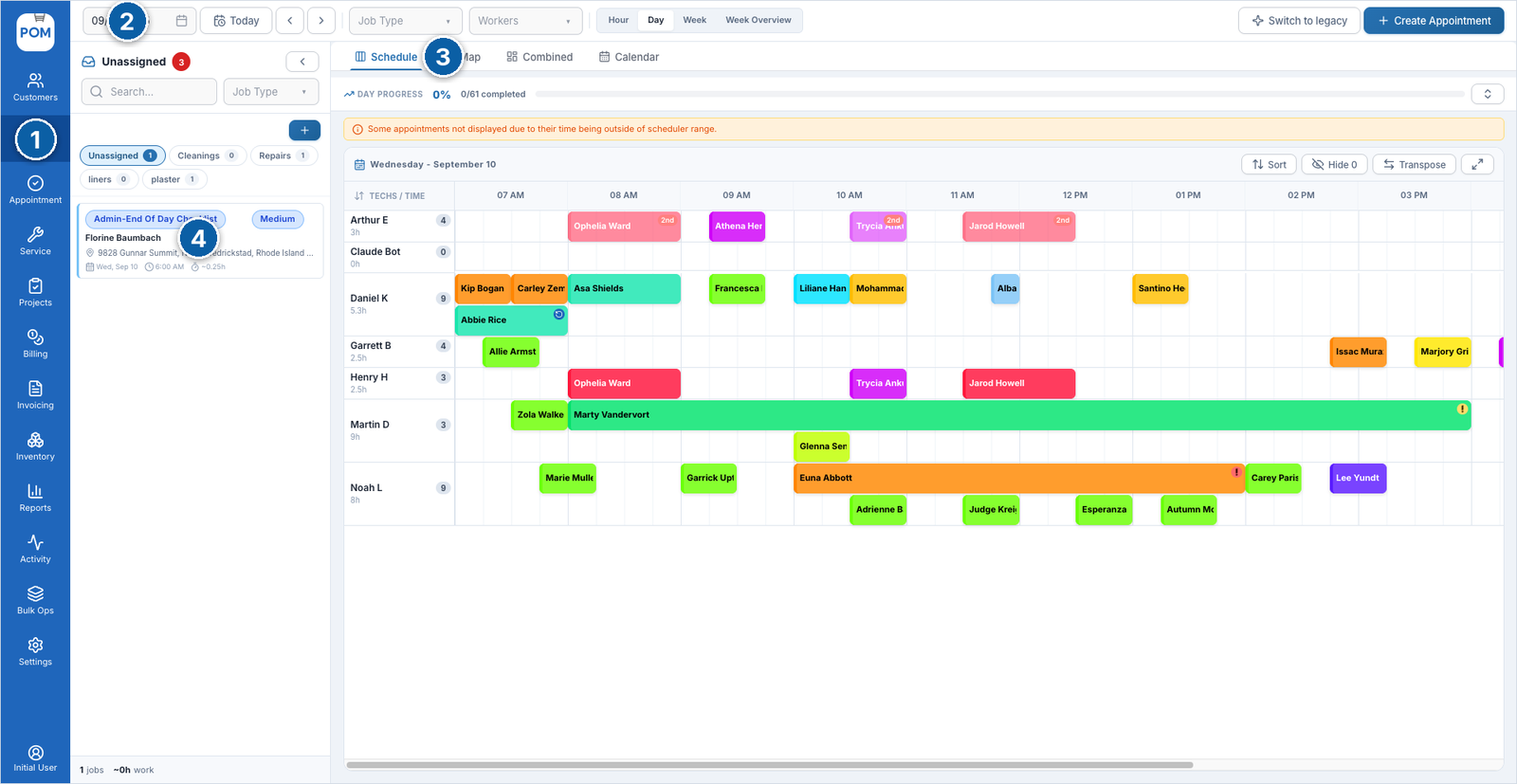
Click Schedule (1) in the left menu.
- Schedule in the left menu.
- The date you are looking at, with Today and arrows to move a day at a time.
- Views: Schedule (the board), Map, Combined, Calendar.
- The Unassigned queue: jobs with no tech yet. Filters above it (Cleanings, Repairs, and your tags) keep a long queue manageable.
Each row is a tech; the number chip shows how many stops they have and the hours below their name total their day. Blocks are color coded by service type, so you can read a day at a glance.
Across the top you can switch the range: Hour, Day, Week, Week Overview. The Sort, Hide and Transpose buttons above the board tune the layout; Transpose flips the axes, so techs run across the top and time runs down the side.
Put a job on a truck (drag from the queue)
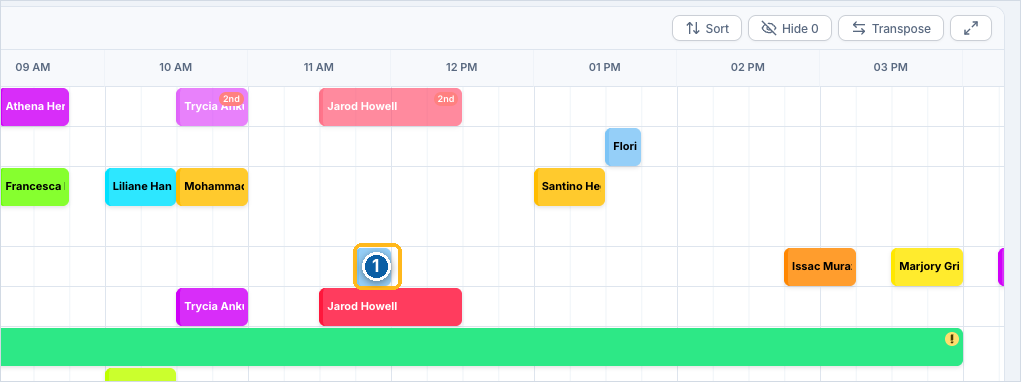
Anything in the Unassigned queue is work that needs an owner. Drag the card (1) from the queue onto a tech’s row at the time you want (2). That is the whole move.

When it lands, the queue count goes down, the job appears as a block on the tech’s row, and the day’s total count goes up. Nothing falls through the cracks, because anything without an owner stays visibly parked in the queue.

Move a stop between techs
Plans change. Drag any block up or down to another tech’s row, or left and right to another time. The stop counts and hours for both techs update instantly.
See the day on the map, and optimize the route
Click Map at the top of the board. Same day, same stops, pinned geographically per tech, so you can see who is driving where before you commit the plan. (This is why the address pin on the customer profile matters.)
Click a technician’s name on the schedule to open their route optimizer:
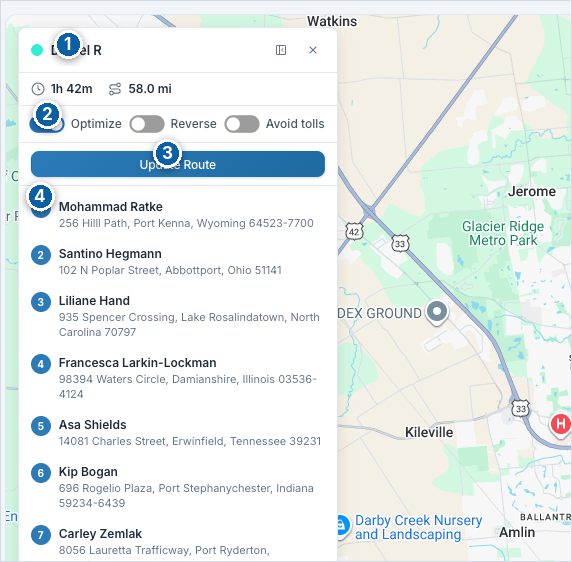
- The route’s total drive time and miles for the day.
- Toggle Optimize to let POM reorder the stops for the shortest drive (Reverse and Avoid tolls are there too).
- Click Update Route to apply it.
- The numbered stop list matches the numbered pins on the map, in driving order.
Zoom out to the week
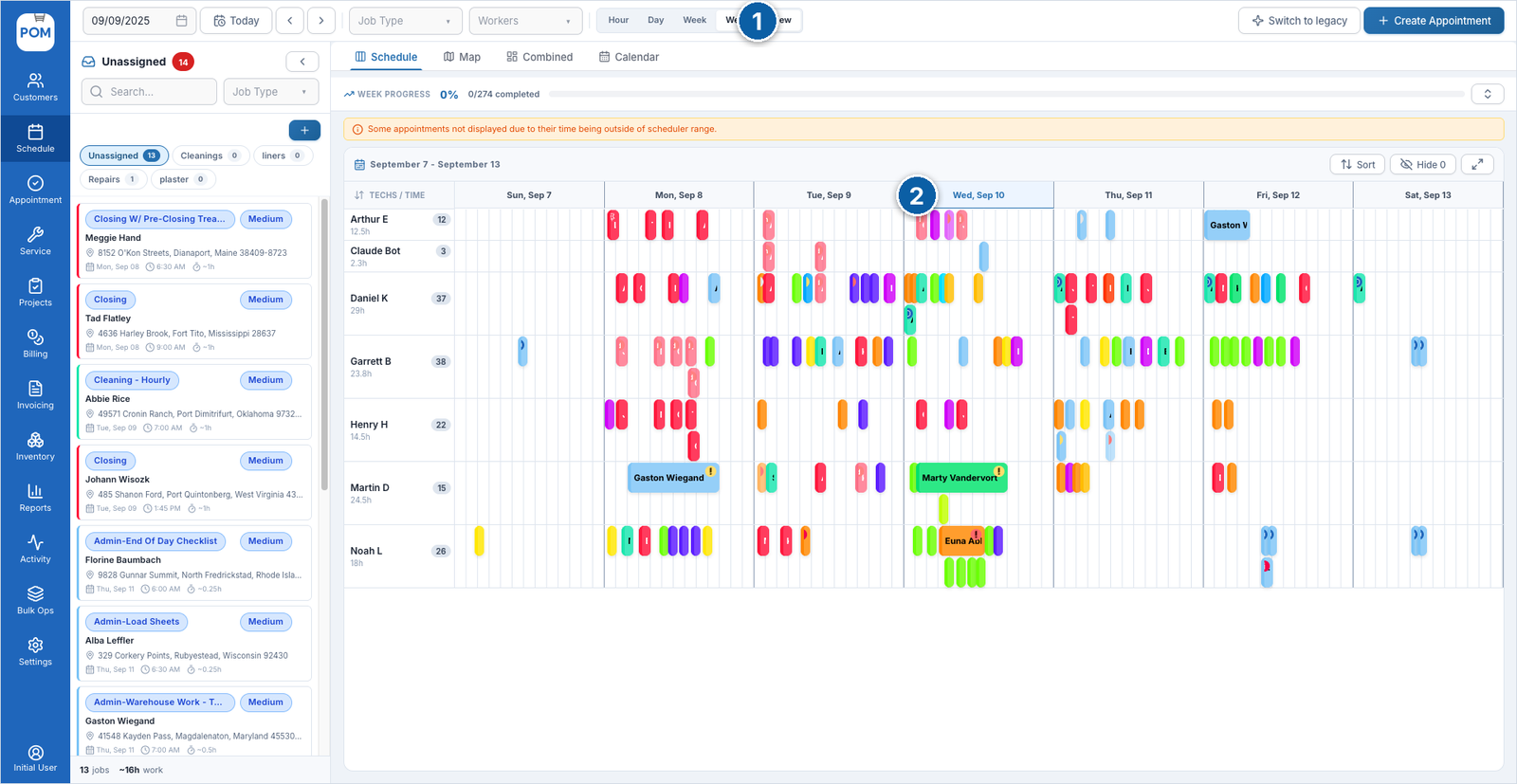
Switch the range to Week Overview (1) to see all techs across all seven days (2). This is where you spot the overloaded Wednesday and the empty Friday before they happen.
Create an appointment (including recurring)
Click + Create Appointment at the top right of the schedule, or + Appointment on any customer’s profile.
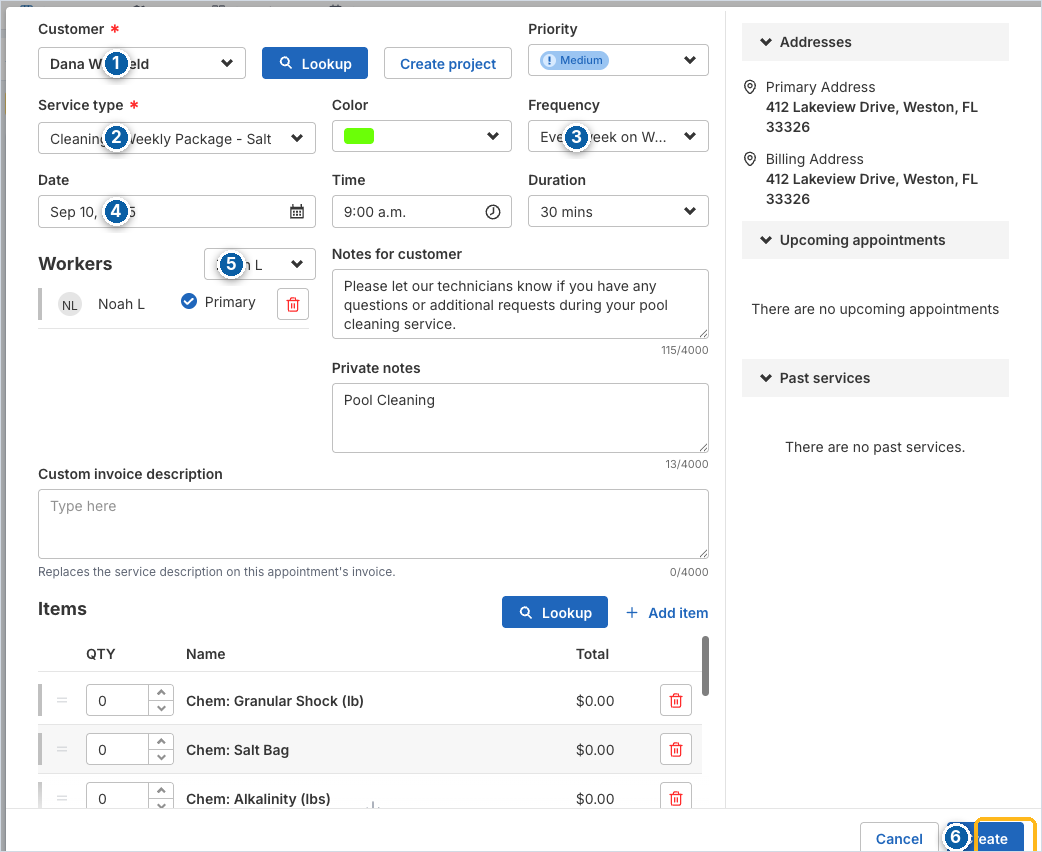
- Customer: pick from the list, or use Lookup. Their addresses, upcoming appointments and past services show on the right as you work.
- Service type: picking one fills in the color, the customer notes and the default chemical items for that service.
- Frequency: Does not repeat, or every day / week / 2 weeks / month / 3 months / 6 months, or Custom. “Every week on Wednesday at 9 a.m.” is how one entry becomes a standing route stop.
- Date, Time, Duration.
- Workers: add one or more techs; the first is Primary.
- Create.
A recurring appointment schedules itself from then on; you will see it on every future week without touching it again.
Next steps
- Put the tech app on a phone: the schedule you just built is what your tech sees in the field.
- Appointments vs Services: what happens to these blocks once a tech hits Start.
Need a hand? Call 614-710-0074 or email help@poolofficemanager.com.