Pool Office Manager uses two key concepts to manage your daily operations: Appointments and Services. While they work closely together, they serve different purposes in the software. Understanding how they connect is essential to getting the most out of POM.
Quick Summary
| Feature | Appointment | Service |
|---|---|---|
| What it is | A scheduled visit on your calendar | The actual work record completed at the job site |
| When it's created | Before the visit — during scheduling | When the technician starts the job |
| Who creates it | Office staff, dispatcher, or recurring schedule | Technician (by clicking "Start" on the appointment) |
| Purpose | Plan and organize the day's work | Record what was actually done at the property |
| Contains | Date, time, customer, worker, service type, priority | Checklist, chemistry readings, photos, notes, inventory used |
| Billing | Not directly billable | Generates billable line items after completion |
What Is an Appointment?
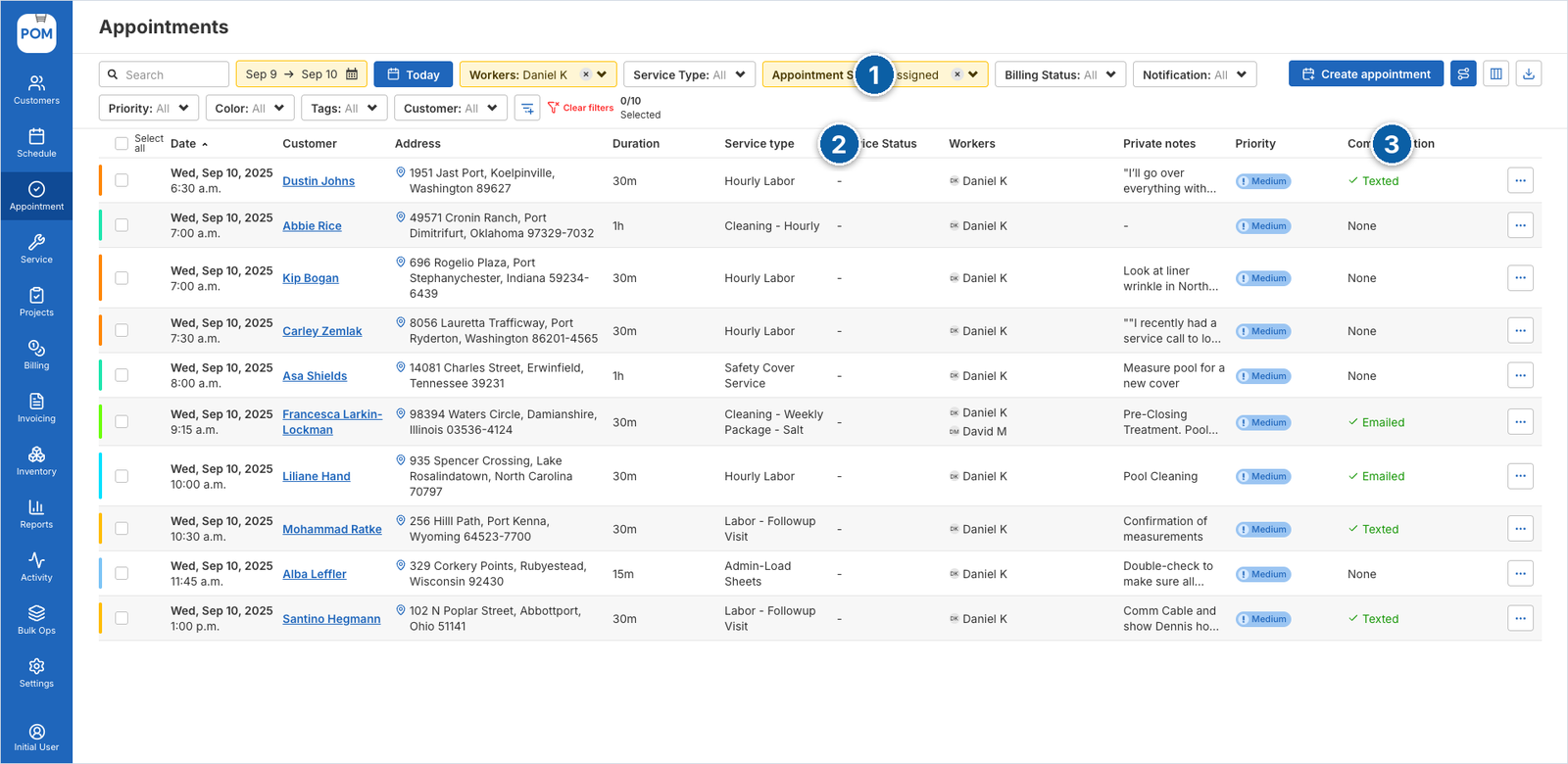
An Appointment is a scheduled visit on your calendar. Think of it as the "plan" — it tells your team where to go, when to be there, and what type of service to perform.
Appointments are created by office staff or dispatchers and appear on the Schedule Board, in the Appointment List, and on the Map View. They include:
- Customer and property — who and where
- Date and time window — when the visit should happen
- Assigned worker — which technician is responsible
- Service type — Maintenance, Repair, Opening, Closing, etc.
- Priority level — Normal, High, or Urgent
- Notes — any special instructions for the technician
Appointments can also be set up as recurring (weekly, bi-weekly, monthly) so your regular customers are automatically scheduled without manual entry each week.
What Is a Service?
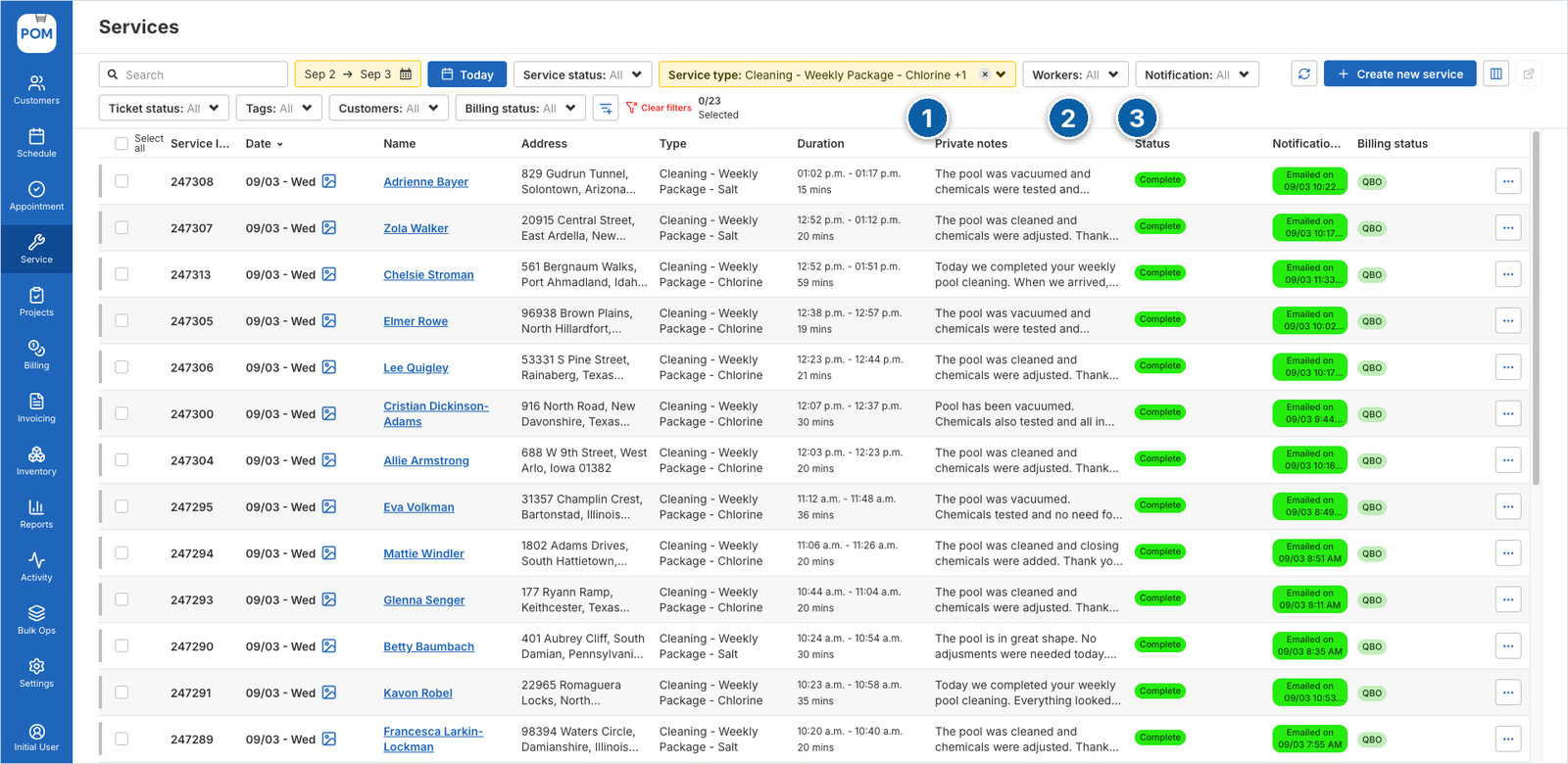
A Service (also called a Service Ticket) is the detailed work record created when a technician actually performs the job. Think of it as the "report" — it captures everything that happened at the property.
A Service Ticket includes:
- Service checklist — tasks completed (skim surface, empty baskets, brush walls, vacuum, etc.)
- Water chemistry readings — pH, chlorine, alkalinity, calcium, and more
- Chemical dosing — what chemicals were added and how much
- Inventory used — products pulled from inventory (automatically deducted)
- Photos — before/after images and documentation
- Service notes — customer-facing and private notes
- Time tracking — start time, end time, and duration
- GPS location — proof of on-site presence (if enabled)
How Appointments and Services Connect
The relationship between Appointments and Services is straightforward: an Appointment becomes a Service when the technician starts the job.
Here's the step-by-step flow:
- Appointment is created — Office staff schedules the visit (or it's auto-created from a recurring schedule).
- Appointment appears on the Schedule Board — The technician sees it on their daily route in the app or on the dispatch board.
- Technician clicks "Start" — This opens the Service Ticket modal, which pulls in customer info, pool details, and previous service history from the appointment.
- Technician completes the work — They fill out the checklist, record chemistry readings, add notes and photos, and log chemicals used.
- Technician clicks "Submit" — The Service Ticket is completed. The appointment status automatically updates to "Completed."
- Service is ready for billing — Completed services flow into the Billing section, where they can be converted into invoices.
Visual Workflow
Schedule → Appointment → Start Job → Service Ticket → Submit → Billing → Invoice
Where Each Lives in POM
| Section | What You'll Find |
|---|---|
| Schedule (left sidebar) | Visual dispatch board showing appointments by worker and time |
| Appointment (left sidebar) | List view of all appointments with filters for date, worker, status, and more |
| Service (left sidebar) | List of all completed service records with reports |
| Customer Profile → Appt/Service tab | A customer's upcoming appointments and past service history in one place |
Common Questions
Can I create a Service without an Appointment?
Yes. From a customer's profile, you can click "Service" under the Create menu to start a service directly. However, the standard workflow is to create an Appointment first and then start the Service from it — this keeps your schedule organized and ensures proper tracking.
What happens if I cancel an Appointment?
Cancelling an appointment removes it from the schedule. No Service Ticket is created. If the appointment was part of a recurring series, you can cancel just that one occurrence or the entire series.
Can I edit a Service after submitting?
Completed services may have limited editing depending on your permissions. Contact your account administrator if you need to update a submitted service record.
How does billing know what to charge?
When a Service Ticket is submitted, the service type, items used, and any billable products are recorded. These flow into the Billing section, where office staff can review and convert them into invoices — either locally in POM or synced to QuickBooks.
Do customers see the Service Ticket?
Not automatically. When submitting a service, technicians can choose "Submit and Email Service Report" to send a professional summary to the customer. Only customer-facing notes and selected details are included — private notes stay internal.
Best Practices
For Office Staff / Dispatchers
- Always create Appointments before the service day so technicians see a clear schedule
- Use recurring appointments for regular maintenance customers to save time
- Review the Appointment list each morning to catch unassigned or high-priority visits
- Check the Service section to confirm techs are submitting their work
For Technicians
- Always click "Start" on the Appointment to open the Service Ticket — don't skip this step
- Complete the full checklist and record accurate chemistry readings
- Take photos to document your work, especially for repairs or issues found
- Submit the Service Ticket before leaving the property so data syncs immediately
Shortcut for remembering it: Appointments are the plan, Services are the proof.