Creating Users - Adding a new user allows someone else to log in into the software, have appointments scheduled for them, and/or access the system's information.
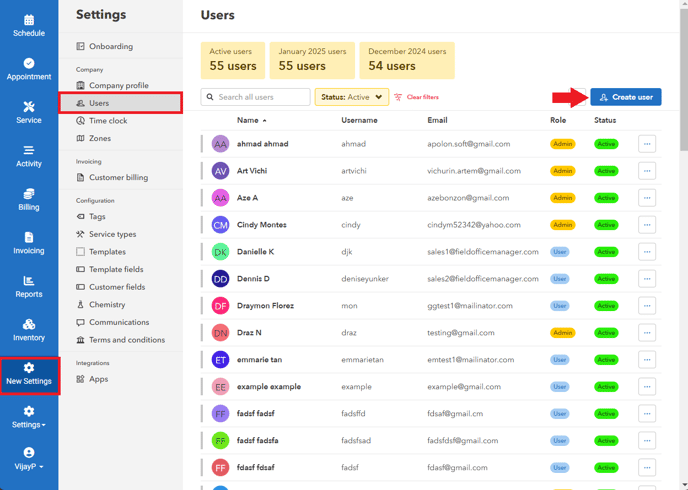
- Go to "Settings" > "Users" > Click "Create user"
- Input user information > First name, Last name, Username, Email, and Default Inventory Location.
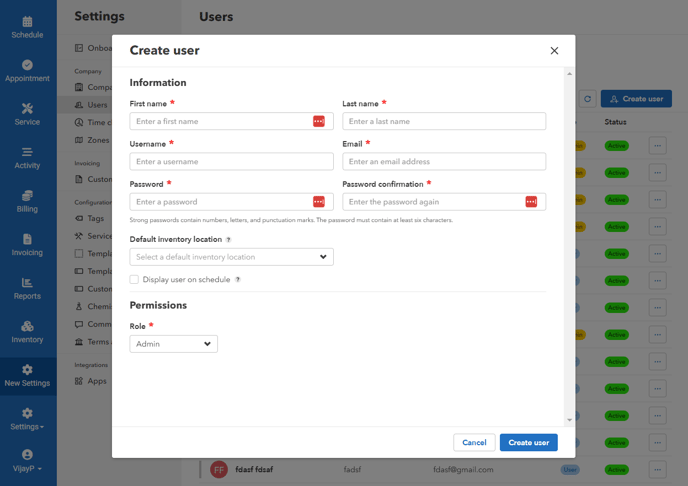
The technician must have a unique email address (cannot have the same email as another technician in the software) - Assign a role to the user
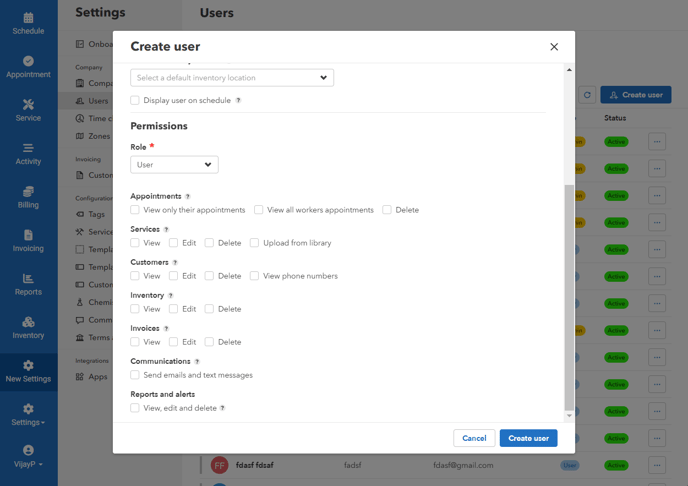
Admin - full access to anything and everything
User - Provides limited access. You can customize the user's permissions by checking or unchecking the boxes next to each feature. - Once you have selected the role and customized permissions, click the "Create User" button.
Edit Users
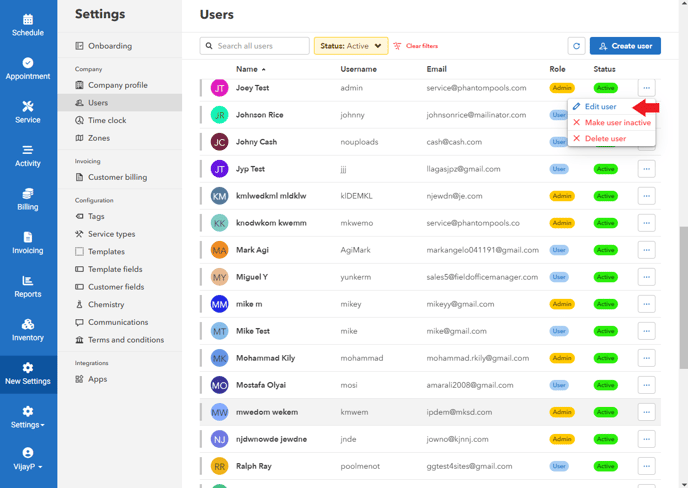
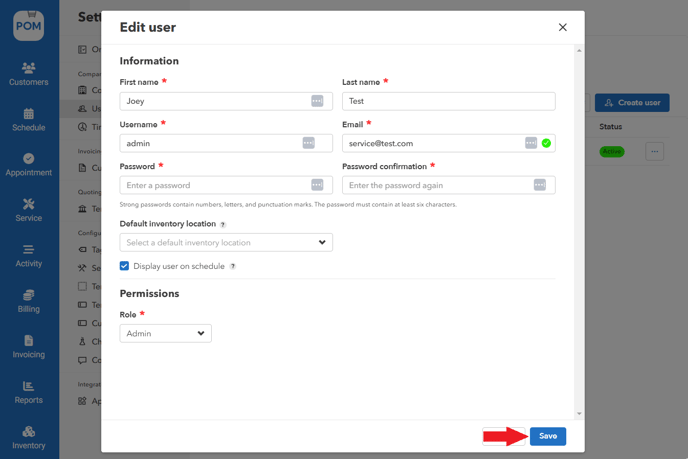
- In the list of users, find the user you want to edit > To the right of the user's name, click on the three vertical dots > click on "Edit User".
- Once you have made all the desired changes, click on the "Save" button to update the user's profile.
Activate/Deactivate Users
- Find the user you want to activate/deactivate> To the right of the user's name, click on the three vertical dots > click on "Make user active/inactive".

Types of Users
An Active User is a user who can log in into the software, have appointments scheduled for them, and/or access the system information. Will increase your current Active Users and could potentially increase your Max Active Users, resulting in an increased cost when billed.
An Inactive User is a user who is saved in the software, but temporarily cannot log in, view schedules or have appointments assigned to them. All appointments assigned to them, would be unassigned.